|
You are here: Automotive Templates and Tutorials > Automotive Tutorials > Water Wading Tutorial > Animations
|
Animations
Animations are created from saved .sres files, The Result Saving Frequency option in the Simulation Panel is set to a small value (say 10 or 20) before running the simulation to obtain better animations. The steps for an animation are shown below:
- Click Load Results in the Simulation Panel.
- Select the required result file in the ensuing Load Results dialog box, click Open.
Create an Isosurface
An isosurface is created with the following steps.
- Click Create an Isosurface
 icon in the Geometric Entities Panel. An Isosurface 01 is created under Derived Surfaces.
 - Select Volume Fraction [Component water] under Variables for the Isosurface Variable drop-down list in the Geometry Tab of Properties Panel.
- Select Above Value for the Option drop-down list.
- Enter 0.5 for the Value.
- Select the desire color from the Color list in the View Tab of Properties Panel.
- Select File > Save Animation, to save animation.
- Select the result files for animation data in the Select Result Files dialog box.
- Under File name, give a suitable name for the .gif animation in the Select GIF File for Movie, PNG File for Frames dialog box.
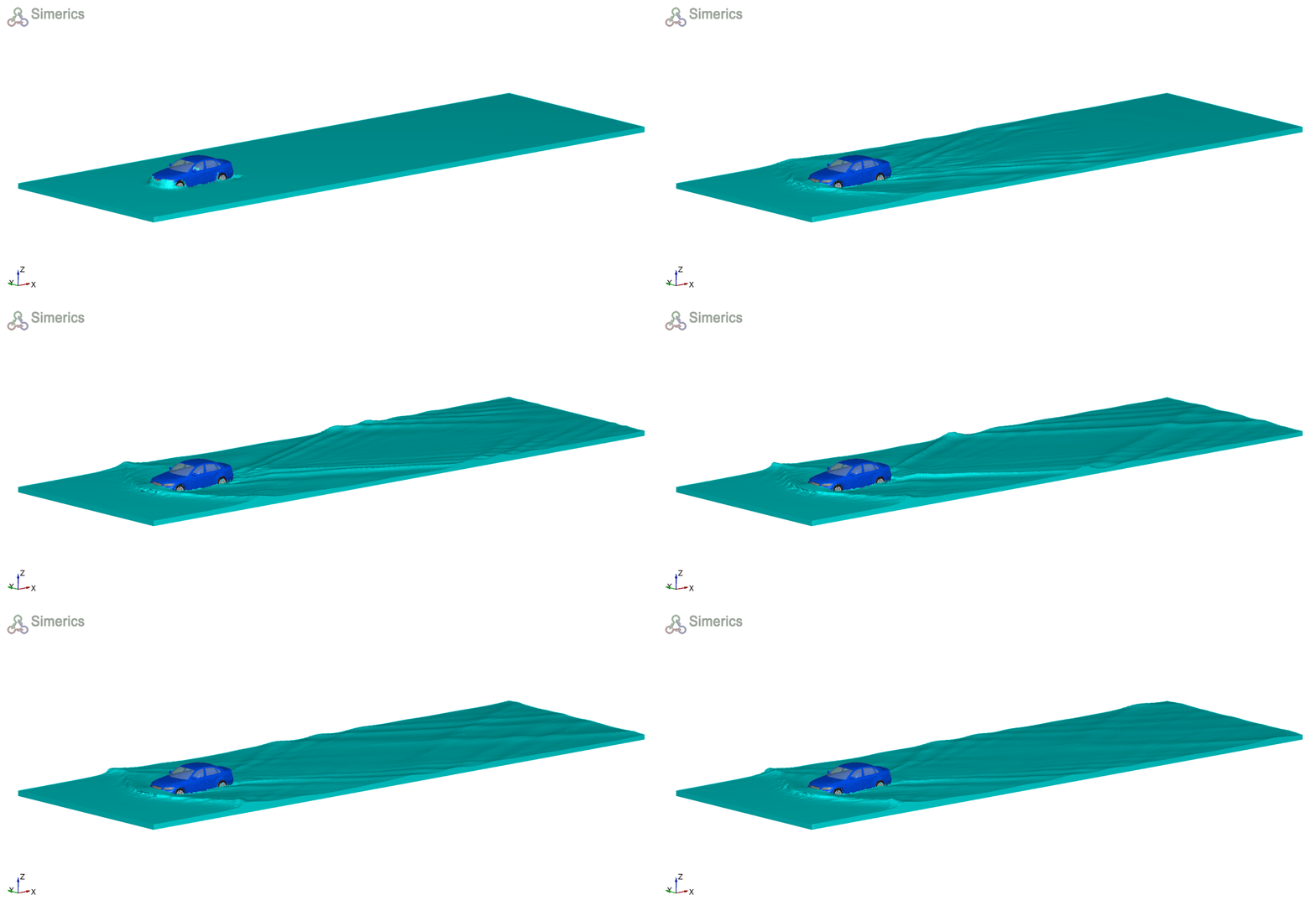
Figure 7.343 - Isosurfaces of water volume fraction > 0.5