中文 English
You are here: Automotive Templates and Tutorials > Automotive Tutorials > Windshield Defrost Tutorial > Defining Physics and Conditions

Defining Physics and Conditions

The physics and conditions are specified as follows:

Adding Modules
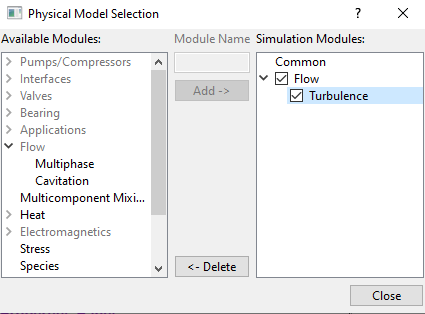
  1. Click Select Modules in the Model Panel. The Physical Model Selection dialog box opens.
  2. Select Turbulence under Available Modules and click Add.
  3. Click Close to close the Physical Model Selection dialog box.


Figure 7.276 - Adding modules

Flow Parameters
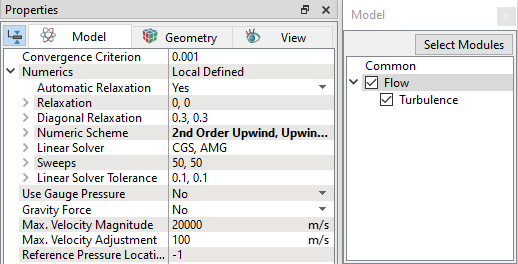
  1. Select Flow in the Model Panel.
  2. Set Velocity to 2nd Order Upwind under Numeric Sheme in the Model Tab of Properties Panel.


Figure 7.277 - Flow parameters

Boundary Conditions

The boundary conditions are specified as follows:

Inlet
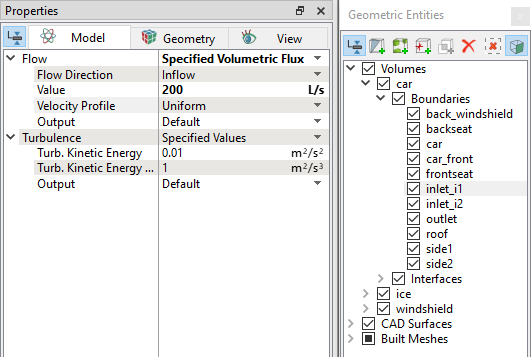
  1. Select inlet_i1 from the Boundaries list under Volumes in the Geometric Entities Panel.
  2. Select Specified Volumetric Flux from the Flow drop-down list and enter 200 L/s for Value in the Model Tab of Properties Panel.


Figure 7.278 - Inlet conditions

´ Note:  Ensure to identify inlet_i1 or inlet_i2 boundary directs the flow towards the windshield surfaces by switching on the velocity vectors. Accordingly, set the inlet boundary condition.


Outlet
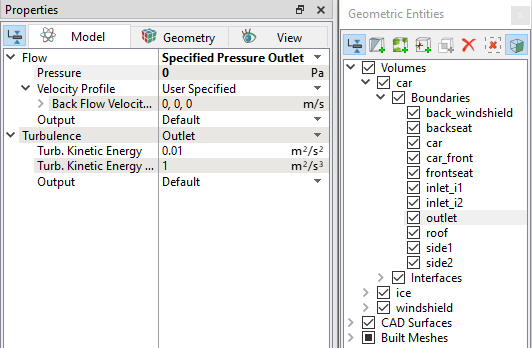
  1. Select outlet from the Boundaries list in the Geometric Entities Panel.

  2. Select Specified Pressure Outlet from the Flow drop-down list and enter 0 Pa for Pressure in the Model Tab of Properties Panel.
 

Figure 7.279 - Outlet conditions

Fluid Properties
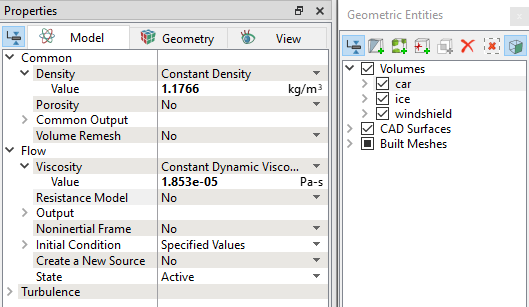
  1. Select car Volume in the Geometric Entities Panel.
  2. Select Model Tab in the Properties Panel.
  3. Enter the parameters for Property list as follows.

    • Density: 1.1766 kg/m3 under Common drop-down list
    • Viscosity: 1.853e-05 Pa-s under Flow drop-down list


Figure 7.280 - Car Fluid properties

Ice Properties
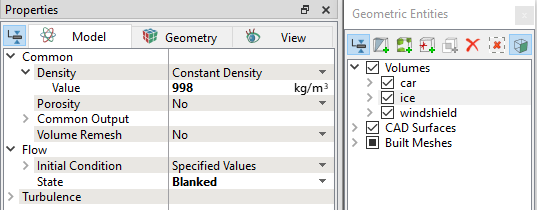
  1. Select ice Volume in the Geometric Entities Panel.
  2. Select Model Tab in the Properties Panel.
  3. Enter 998 kg/m3 for Density value under Common drop-down list.

  4. Select Blanked under Flow > State drop-down list.


Figure 7.281 - Ice properties

Windshield Properties
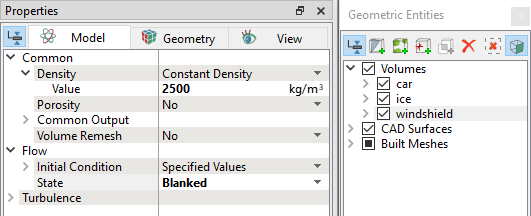
  1. Select windshield Volume in the Geometric Entities Panel.
  2. Select Model Tab in the Properties Panel.
  3. Enter 2500 kg/m3 for Density value under Common drop-down list.

  4. Select Blanked under Flow > State drop-down list.


Figure 7.282 - Windshield properties


Copyright © 2023 Simerics Inc.,