|
You are here: Automotive Templates and Tutorials > Automotive Tutorials > Windshield Defrost Tutorial > Simulation
|
Simulation
This section explains the settings to run the windshield defrost simulation. Initially, flow field simulation is performed to develop flow field. Then, transient heat transfer simulation is performed for defrost analysis.
Flow field simulation
- Click Simulation Panel.
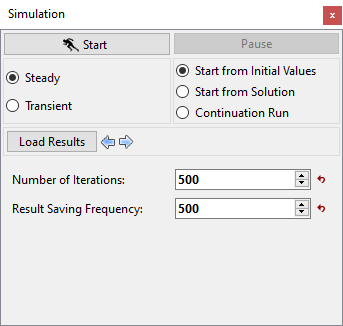
- Define Number of Iterations as 500 and Result Saving Frequency as 500 respectively.
- After you save the project, click Start to run the simulation (see, Figure 7.283).
- The result files are saved as filename.sres in the working folder (Example: "windshield_defrost_flow_model.sres").
The residuals for the steady state simulation are displayed under the Residual Tab in the Plot Panel as shown in Figure 7.284.
|
|
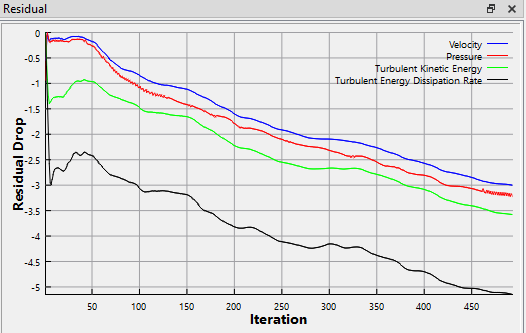
| ´ | Note: The default Converge Criterion is 0.001 for steady state simulations. A steady state simulation runs until the residual for each variable drops by 3 orders or until the maximum Number of Iterations is reached, at which time a results file will be saved as: “filename.sres. |
Heat transfer Simulation settings
Once steady state simulation is completed, setup for defrost (solidification and melting) conjugate heat transfer simulation and use the flow field developed by the steady state simulation and restart transient simulation.
|
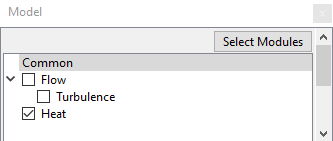
Figure 7.285 - Adding Heat modules |
Inlet
|
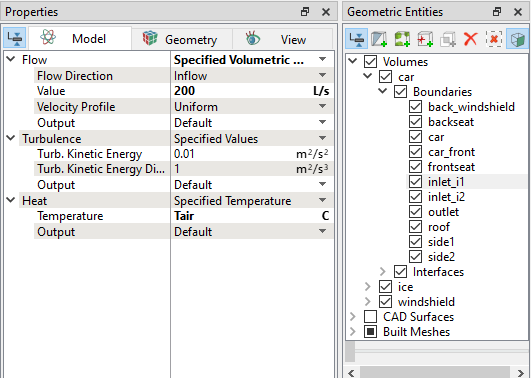
Figure 7.286 - Inlet Condition |
Initial Condition
|
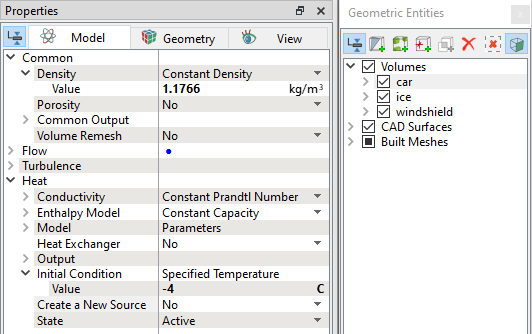
Figure 7.287 - Initial Condition |
Ice Heat Transfer Properties
|
 icon in the
  Description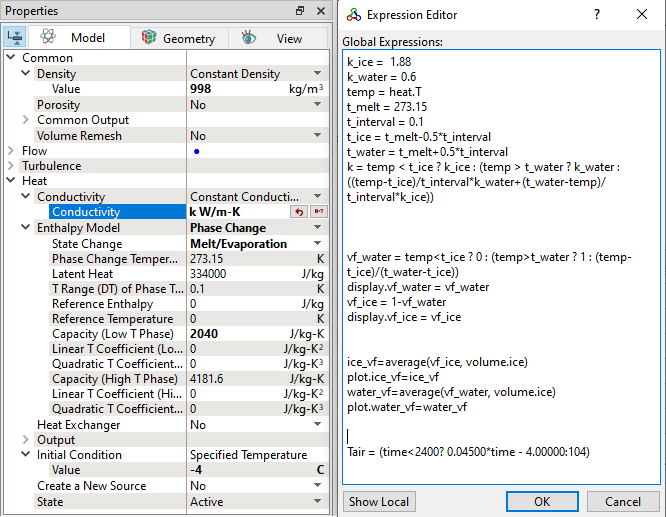
Windshield Properties
|
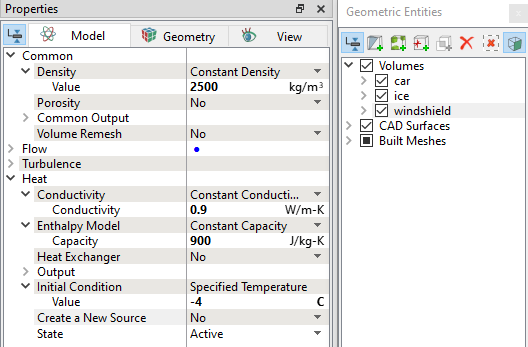
Figure 7.289 - Windshield properties |
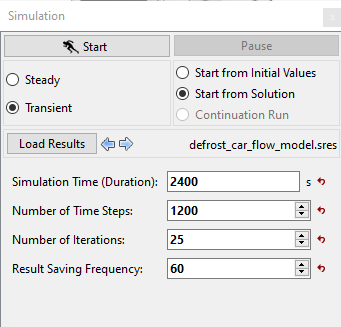
Transient Simulation Settings
- Click Simulation Panel.
- Select Transient.
- Select Load Results and load the steady state results defrost_car_flow_model.sres.
- Enter Simulation Time (Duration) and Number of Time Steps to 2400 s and 1200 respectively.
- Define Number of Iterations and Result Saving Frequency as 25 and 60 respectively (see, Figure 7.290).
- After you save the project, click Start to run the simulation. Make sure you are restarting the transient simulation with steady state results.
- The result files are saved as filename_060.sres in the working folder.
| Note: The Result Saving Frequency option in the Simulation Panel is set to a small value (say 5 or 10) before running the simulation to obtain better animations. |
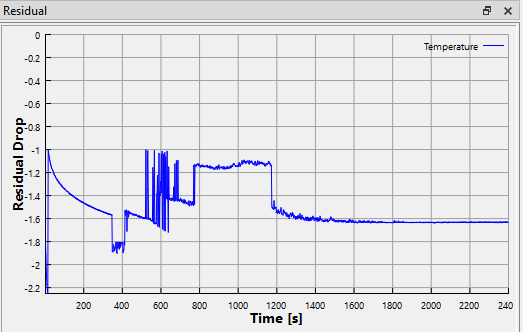
The residuals are displayed under the Residual Tab in the Plot Panel (see, Figure 7.291).
|
| Note: The default Converge Criterion is 0.1 for Transient simulations. When the residuals for all the variables drop by one order or the maximum Number of Iterations is reached, the calculation proceeds to the next time-step. |