Building the Mesh
This section describes the step-by-step procedure for preparing the mesh for the rotating machinery. The mesh is created using the General Mesher.
 icon for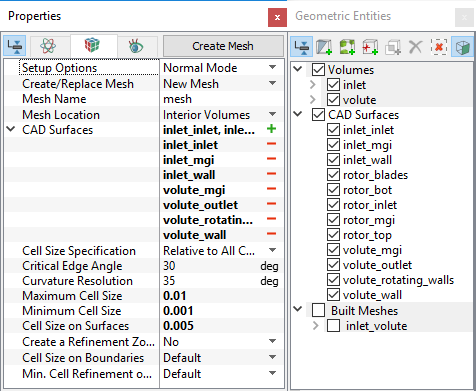
Rotor Chamber Mesh
|
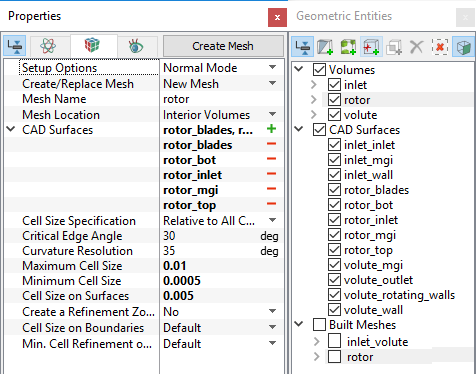
Figure 11.337 - Rotor mesh settings |
| ´ | Note: The mesh can be edited/ replaced by selecting it under Built Meshes, and modify the mesh parameters in the Properties Panel. Click Create Mesh to reflect the changes. |
The mesh created for the fluid domain is shown below.
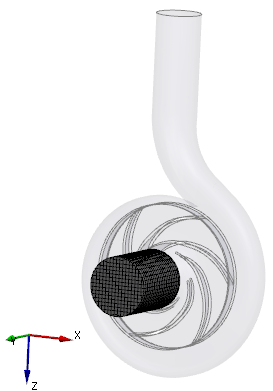
Figure 11.338 - Inlet mesh |
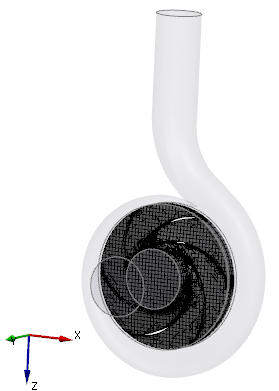
Figure 11.339 - Rotor mesh |
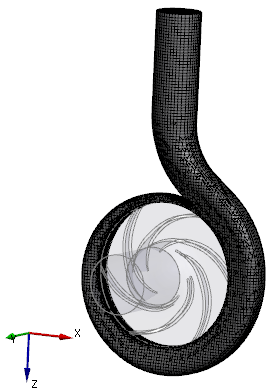
Figure 11.340 - Volute mesh |
Create interfaces
In this section, the Mismatched Grid Interfaces (MGIs) are generated between the following boundaries.
To connect the inlet and rotor chamber:
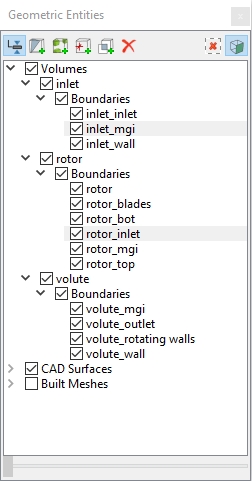
- Select Boundaries entities inlet_mgi and rotor_inlet (see, Figure 11.341) from the Boundaries list under Volumes in the Geometric Entities Panel .
- Click Connect Selected Boundaries via MGI
 icon to create the interface between the inlet and the rotor chamber.
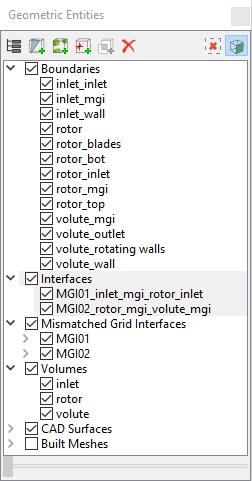
A new entity MGI01 is created under Mismatched Grid Interfaces in Volumes (see, Figure 11.342).
To connect the rotor chamber and volute:
- Select Boundaries entities rotor_mgi and volute_mgi from the Boundaries list under Volumes in the Geometric Entities Panel.
- Click Connect Selected Boundaries via MGI icon to create the interface between the rotor chamber and the volute.
A new entity MGI02 is created under Mismatched Grid Interfaces in Volumes (see, Figure 11.342).

|
Note : If MGIs are created by connecting the wrong Boundaries, delete the created MGIs by clicking on Delete Selected Geometric Entity |
 icon and then recreate the MGIs.