中文 English

Computational domain

This section explains the preparation of surfaces to create the domain. This is done with the operations splitting, combining and renaming of the surfaces.

Scale the Geometry

The dimensions of the imported geometry should be converted from existing units millimeters (mm) to meters (m). It is done with the following steps:

  1. Select CAD Surfaces gear_pump in the Geometric Entities Panel.
  2. Select Grid and Geometry Information in the Mesh Panel.
  3. Verify the dimensions for the Surface Info in the Geometric Entities Panel.
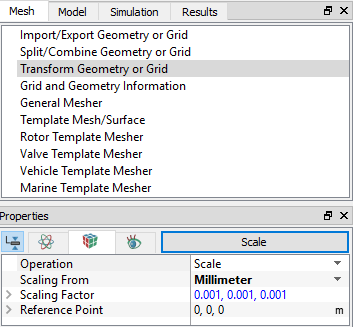
  4. Select Transform Geometry or Grid in the Mesh Panel.
  5. Verify Scaling Factor as 0.001, 0.001, 0.001 respectively, click Scale to scale the model.


Figure 6.164 - Scaling geometry


´ Note:  Simerics-MP+ assumes all dimensions are in m. Scaling is applied every time the Scale button is clicked in the Mesh Panel. Therefore geometries are only scaled once.
Pump Surfaces
  1. Select CAD Surfaces gear_pump in the Geometric Entities Panel.
  2. Select Split/Combine Geometry or Grid in the Mesh Panel.
  3. Select Split Disconnected from the Operation drop-down list in the Properties Panel, click Split Disconnected.
  4. Rename the five new CAD Surfaces gear_pump_01, gear_pump_02, gear_pump_03, gear_pump_04 and gear_pump_05 as inlet, outlet, drive_gear, slave_gear and shroud respectively in the Geometric Entities Panel.
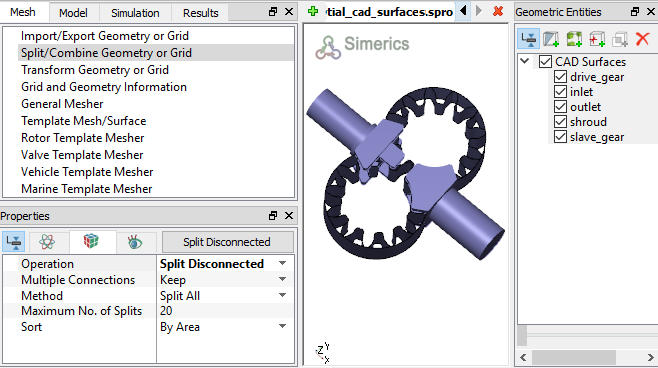
     

Figure 6.165 - Split of CAD surfaces

Inlet Surfaces
  1. Select CAD Surfaces inlet in the Geometric Entities Panel.
  2. Select Split by Angle from the Operation drop-down list in the Properties Panel.
  3. Enter 75 deg for Angle, click Split by Angle. Nine new CAD Surfaces are created.
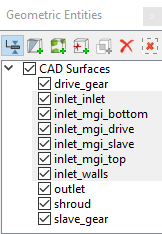
  4. Rename CAD Surfaces inlet_05, inlet_06, inlet_07, inlet_08 and inlet_09 as inlet_mgi_bottom, inlet_mgi_top, inlet_inlet, inlet_mgi_slave and inlet_mgi_drive respectively in the Geometric Entities Panel.
  5. Select the remaining CAD Surfaces and select Combine from the Operation drop-down list in the Properties Panel, click Combine.
  6. Rename the combined CAD Surfaces as inlet_walls.


Figure 6.166 - Inlet surfaces

Rotor Surfaces
  1. Select CAD Surfaces shroud in the Geometric Entities Panel.
  2. Select Split by Angle from the Operation drop-down list in the Properties Panel.
  3. Enter 75 deg for Angle, click Split by Angle. Two new CAD Surfaces are created in the Geometric Entities Panel.
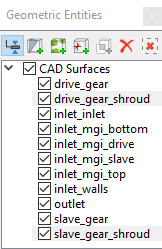
  4. Rename the CAD Surfaces shroud_01 and shroud_02 as drive_gear_shroud and slave_gear_shroud respectively.


Figure 6.167 - Rotor surfaces

Outlet Surfaces
  1. Select CAD Surfaces outlet in the Geometric Entities Panel.
  2. Select Split by Angle from the Operation drop-down list in the Properties Panel.
  3. Enter 75 deg for Angle, click Split by Angle. Fifteen new CAD Surfaces are created in the Geometric Entities Panel.
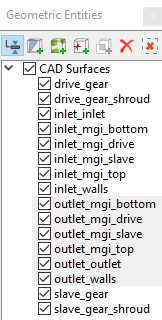
  4. Rename the CAD Surfaces outlet_05, outlet_06, outlet_07, outlet_08, and outlet_09 as outlet_mgi_top, outlet_mgi_bottom, outlet_mgi_slave, outlet_mgi_drive and outlet_outlet respectively in the Geometric Entities Panel.

  5. Select the remaining CAD Surfaces and select Combine from the Operation drop-down list in the Properties Panel, click Combine.
  6. Rename the combined CAD Surfaces as outlet_walls.


Figure 6.168 - Outlet surfaces


Copyright © 2023 Simerics Inc.,