|
You are here: Fluid Machinery Templates and Tutorials > External Gear Pump > External Gear Pump Tutorial > Plots
|
Plots
This section shows some of the common plots used in the external gear pump simulation. The steps to create the plots are:
- Click Load Results in the Simulation Panel.
- Select the required result file in the ensuing Load Results dialog box, click Open.
Mass Flux
The mass balance is monitored with the mass flux plots.
- Select inlet_inlet and outlet_outlet under Boundaries in the Geometric Entities Panel.
- Click Add XY-Plot
 icon in the Toolbar.
 - Click Click for Variable List
 icon, select Mass Flux under Flow in the Plot Panel.
 - Select Plot Selected Variables
 icon > click Plot Property
  icon. In the Plot Property dialog box enable Moving Average and enter 360, click OK.
 - Click Combine Entity Data into a Single Curve
 to obtain the net mass flux.
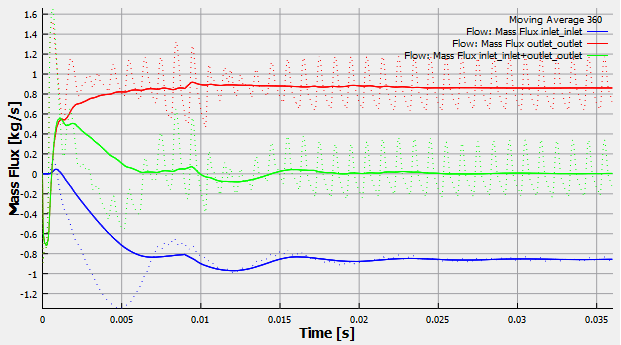
Figure 6.186 - Mass flux
| ´ | Note: The moving average is used in transient simulations to obtain the average behavior over the entire simulation time. It can be specified as, click Click for Variable List icon in Plot Property and enable Moving Average.The value in the Moving Average input is number of preceding time steps (sampling interval) for calculating the average. |
Pressure
The pressure ripples are monitored at the monitoring point outlet_top. It is obtained as follows:
- Select outlet_top under Points in the Geometric Entities Panel.
- Click Add XY-Plot icon in the Toolbar.
- Click Click for Variable List
 icon in Plot Panel, select Pressure from Flow list.
 - Click Plot Selected Variables icon.
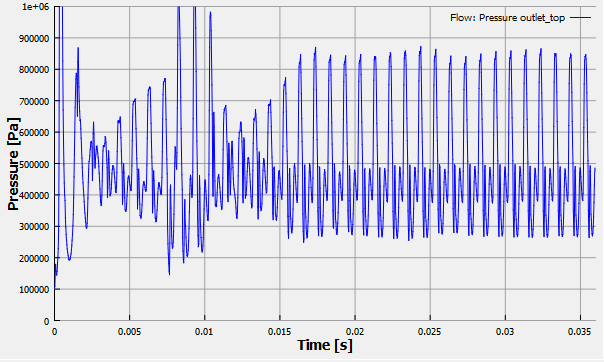
Figure 6.187 - Pressure
Power
The power about the axis of rotation for the Inner, Outer Rotor or Rotating Port is plotted. The power is computed based on the torque and the rotation speed.
To create the plot for the revolution average power:
- Select drive_gear and slave_gear under Boundaries in the Geometric Entities Panel.
- Click Add XY-Plot icon in the Toolbar.
- In the Plot Panel, select Revolution Average Power for Gear list.
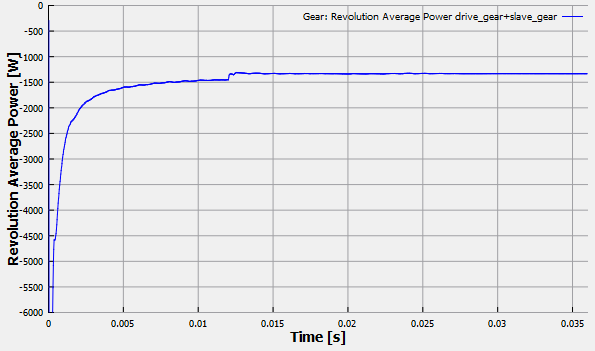
Figure 6.188 - Revolution average power