Boundary/Interface conditions
- Inlet Boundary
- Outlet Boundary
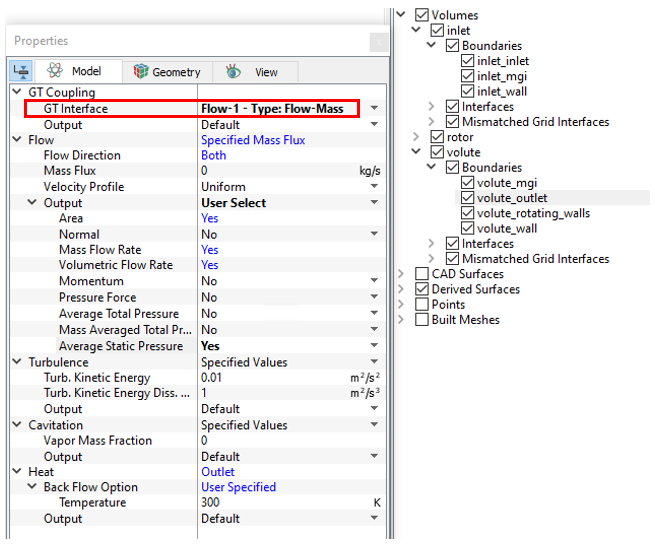
- Select volute_outlet from the Boundaries list under Volumes in the Geometric Entities Panel.
- Select Flow-1 - Type:Flow-Mass for GT Interface under GT Coupling in the Model Tab of Properties Panel.
-
Select Flow – Output and switch on the outputs Average Total Pressure, Mass Averaged Total Pressure and Average Static Pressure in the Model Tab of Properties Panel.
|
Note:The interface type is set in the GT-SUITE model and cannot be modified in Simerics-MP+. Once an interface is matched, the conditions and properties for Flow, Turbulence, Cavitation and Heat are set automatically based on the interface type. |
In this case, the Inlet Pressure and Inlet temperature of 300 K from GT-SUITE are set automatically, when the co-simulation starts running.
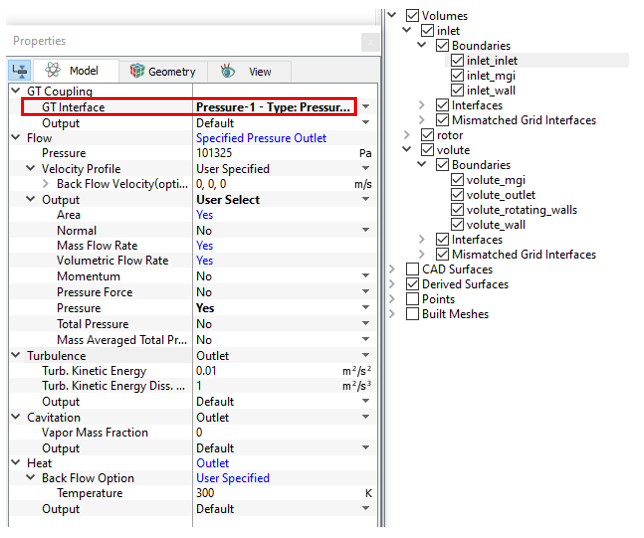
|
Note:The interface type is set in the GT-SUITE model and cannot be modified in Simerics-MP+. Once an interface is matched, the conditions and properties for Flow, Turbulence, Cavitation and Heat are set automatically based on the interface type. |