|
You are here: Additional Templates and Tutorials > GT-SUITE Coupling Module and Tutorial > GT Coupling Tutorials > Specifying GT Coupling settings
|
Specifying GT Coupling settings
The GT Coupling is established with the following steps:
- Select GT Coupling in the Model Panel.
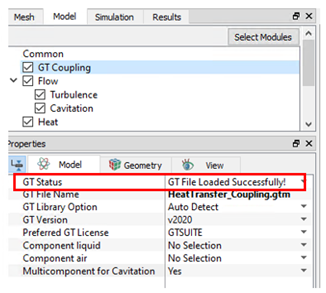
- Ensure GT Version is set to v2020. The GT-SUITE version should be selected correctly as the GT-SUITE files are version specific, a file generated by GT2019 cannot be opened by GT2020.
- Select GT Library Option to Auto Detect and Preferred GT License to GTSUITE.
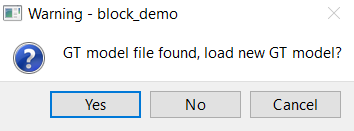
- Enter the name of the GT-SUITE project file, HeatTransfer_Coupling.gtm with the extension (*.gtm) under GT File Name. This file is placed in the same directory as the *.spro file. When prompted to load the GT-SUITE project as shown in Figure 10.125, choose Yes.
- Once the file is successfully loaded, GT Status would update to reflect as shown in Figure 10.126.