11.6.3 Simulation
This section explains the settings to run the simulation
Creating Monitoring Points
The steps are as follows:
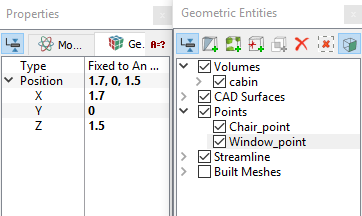
- On the Geometric Entities Panel toolbar, click Create a Monitoring Point
 icon two times, to create points. The Point 01 and Point 02 are created under Points.
 - Rename Point 01, Point 02 and specify their Position values as shown in Table 11.6 in the Geometry Tab of Properties Panel.
| Points | Rename as | Position values (m) |
|---|---|---|
| Point 01 | Window_point | 1.7, 0, 1.5 |
| Point 02 | Chair_point | 0, -1.12, 0.7 |
Table 11.6 - Monitoring points
|
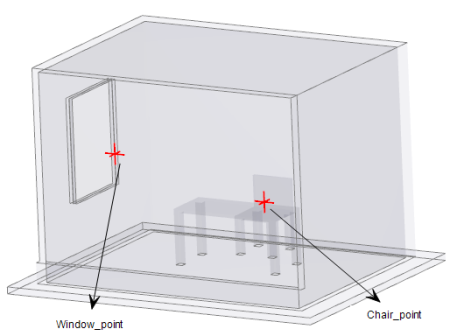
Note: Monitoring points need to be created before running the simulation for recording data (see, Figure 11.141). The position of a points may also be dragged to a new location using the Select |
 option (Toolbar) and the Left Mouse Button.
Simulation Settings
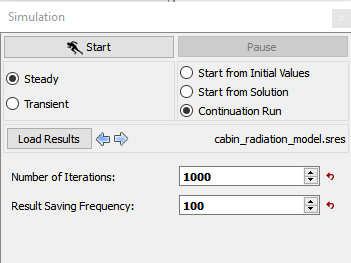
- Select Simulation Panel and enable Steady.
- Enter the Number of Iterations as 1000 and Result Saving Frequency as 100. (see, Figure 11.142).
-
Select Start from Initial Values to start from initial run.
- After you save the project, click Start to run the simulation.
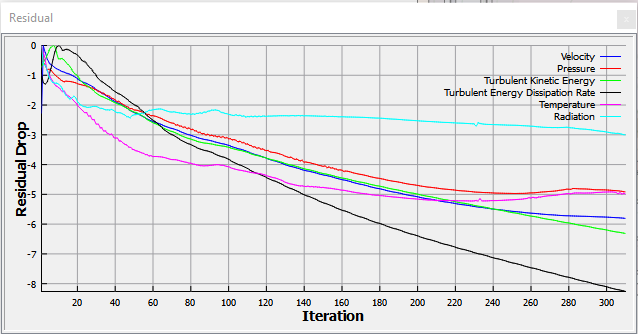
| Note: The result files are saved as .sres in the working folder. The result file will replace the preceding result depending on the Result Saving Frequency till the residuals reach the desired convergence. |