中文 English
You are here: Tutorials > Power Inverter > Setting up the model > Defining Physics and Conditions

Defining Physics and Conditions

The physics and conditions are specified as follows.

Add Modules
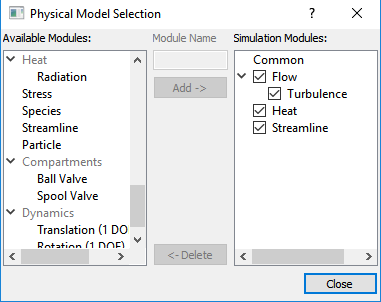
  1. Click Select Modules in the Model Panel. The Physical Model Selection dialog box opens.
  2. Select Turbulence under Available Modules list and click Add.
  3. Select Heat under Available Modules list and click Add.
  4. Select Streamline under Available Modules list and click Add.
  5. Click Close to close the Physical Model Selection dialog box.


Figure 11.32 - Adding modules


Properties
Fluid domain
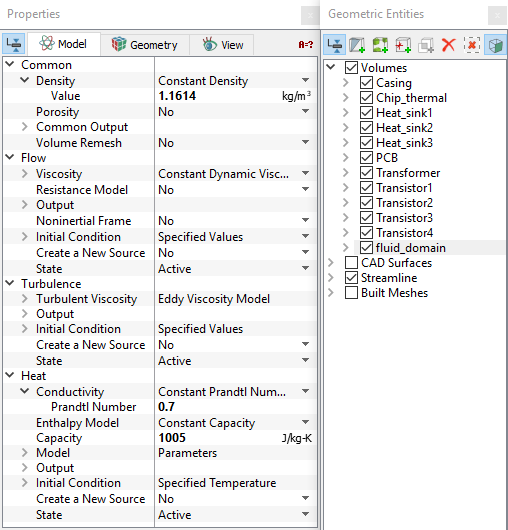
  1. Select fluid_domain under Volumes in the Geometric Entities Panel.
  2. Enter 1.1614 kg/m3 for Value under the Density drop-down list in the Model Tab of Properties Panel.

  3. Enter 1.846e-05 Pa-s for Value under Flow > Viscosity list.
  4. Enter 0.7 for Prandtl Number under the Heat > Conductivity list.
  5. Enter 1005 J/kg-K for Capacity under Heat.
 

Figure 11.33 - Fluid properties


Chip, Casing and Heat sinks
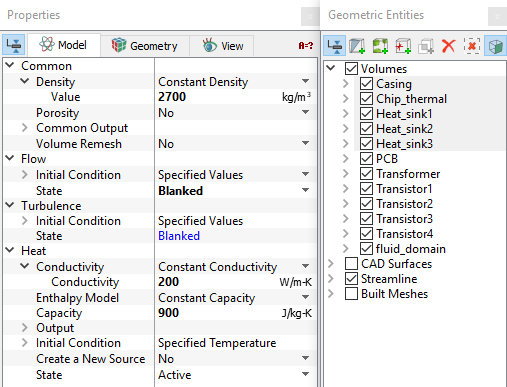
  1. Select Chip_thermal, Casing, Heat_sink1, Heat_sink2 and Heat_sink3 under Volumes in the Geometric Entities Panel as shown in Figure 11.34.

  2. Enter 2700 kg/m3 for Value under Density drop-down list in the Model Tab of Properties Panel.
  3. Select Blanked for State drop-down list under Flow.
  4. Enter 200 W/m-K for Conductivity under the Heat > Conductivity list.
  5. Enter 900 J/kg-K for Capacity under Heat.
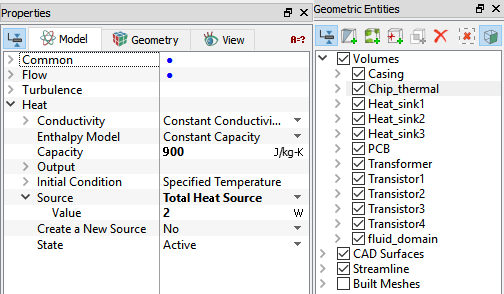
  6. Select Chip_thermal under Volumes in the Geometric Entities Panel as shown in Figure 11.35.
  7. Select Total Heat Source for Create a New Source drop-down list under Heat.

  8. Enter 2 W for Value under Source.


Figure 11.34 - Chip, Casing and Heat sinks properties

Figure 11.35 - Chip heat source


PCB and Transformer
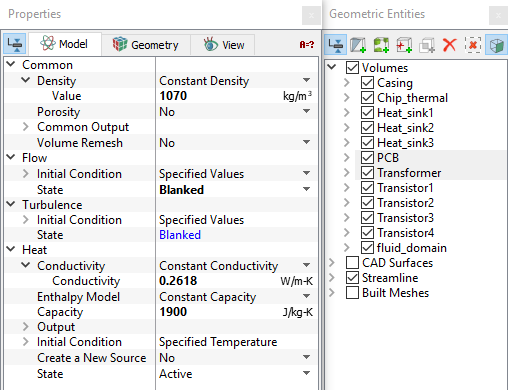
  1. Select PCB and Transformer under Volumes in the Geometric Entities Panel as shown in Figure 11.36.

  2. Enter 1070 kg/m3 for Value under Density drop-down list in the Model Tab of Properties Panel.
  3. Select Blanked for State drop-down list under Flow.
  4. Enter 0.2618 W/m-K for Conductivity under the Heat > Conductivity list.
  5. Enter 1900 J/kg-K for Capacity under Heat list.
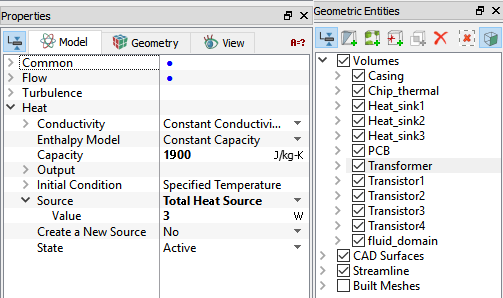
  6. Select Transformer under Volumes in the Geometric Entities Panel as shown in Figure 11.37.
  7. Select Total Heat Source for Create a New Source drop-down list under Heat list.

  8. Enter 3 W for Value under Source list.


Figure 11.36 - PCB and Transformer properties

Figure 11.37 - Transformer heat source


Transistors
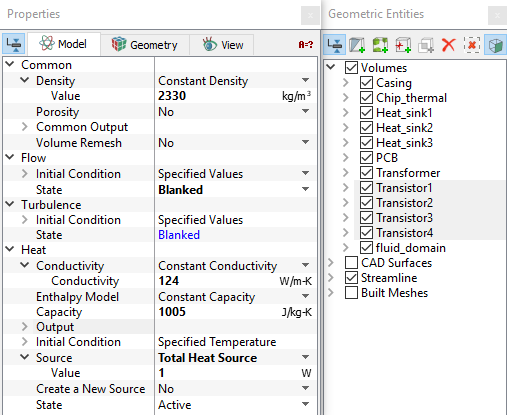
  1. Select Transistor1, Transistor2, Transistor3 and Transistor4 under Volumes in the Geometric Entities Panel.

  2. Enter 2330 kg/m3 for Value under Density drop-down list in the Model Tab of Properties Panel.
  3. Select Blanked for State drop-down list under Flow.
  4. Enter 124 W/m-K for Conductivity under the Heat > Conductivity list.
  5. Enter 1005 J/kg-K for Capacity under Heat list.
  6. Select Total Heat Source for Create a New Source drop-down list under Heat list.

  7. Enter 1 W for Value under Source list.


Figure 11.38 - Transistors properties


Boundary conditions

The boundary conditions are specified as follows:

Inlet
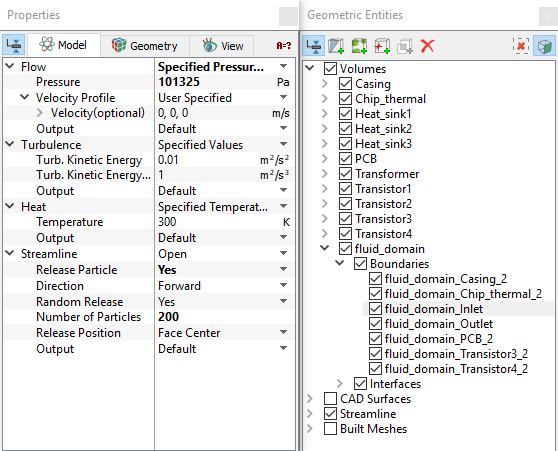
  1. Select fluid_domain_Inlet from the Boundaries list in the Geometric Entities Panel.
  2. Select Specified Pressure Inlet from the Flow drop-down list in the Model Tab of Properties Panel.
  3. Enter 101325 Pa for Pressure under Flow list.

  4. Select Yes for Release Particle under Streamline list.
  5. Enter 200 as Number of Particles under Streamline list.
 

Figure 11.39 - Inlet conditions


Outlet
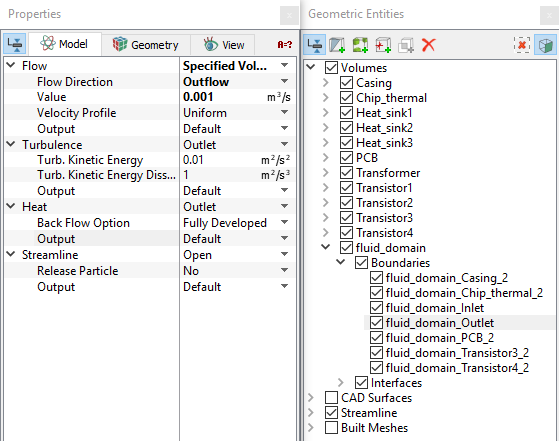
  1. Select fluid_domain_Outlet from the Boundaries list in the Geometric Entities Panel.
  2. Select Specified Volumetric Flux from the Flow drop-down list in the Model Tab of Properties Panel.
  3. Select Outflow from the Flow Direction and enter 0.001 m3/s for the Value under Flow list.
 

Figure 11.40 - Outlet conditions


Copyright © 2023 Simerics Inc.,