Defining Physics and Conditions
The physics and conditions are specified as follows.
Add Modules
- Click Select Modules in the Model Panel. The Physical Model Selection dialog box opens.
- Select Flow under Available Modules list and click Add.
- Select Turbulence under Available Modules list and click Add.
- Click Close to close the Physical Model Selection dialog box.
|
|
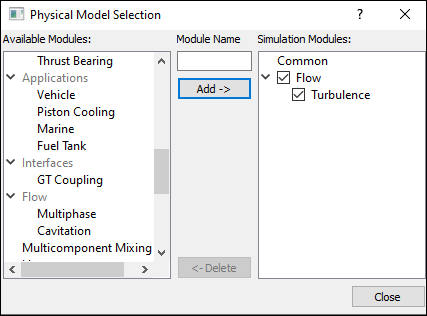
Figure 11.264 - Adding modules
|
Boundary conditions
The boundary conditions are specified as follows:
Inlet
- Select diffuser_inlet from the Boundaries list in the Geometric Entities Panel.
- Select Specified Velocity from the Flow drop-down list in the Model Tab of Properties Panel.
-
Enter Velocity as 18.06, 0, 0 m/s
|
|
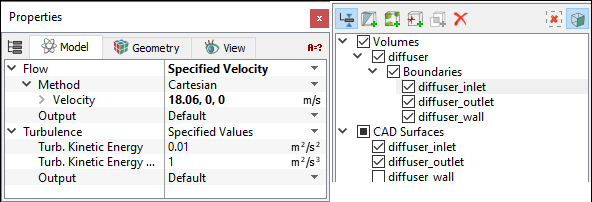
Figure 11.265 - Inlet conditions
|
Outlet
- Select diffuser_outlet from the Boundaries list in the Geometric Entities Panel.
- Select Specified Pressure Outlet from the Flow drop-down list in the Model Tab of Properties Panel.
- Enter 0 Pa for Pressure under Flow.
|
|
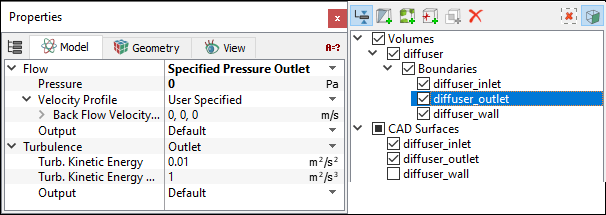
Figure 11.266 - Outlet conditions
|
Fluid Properties
- Select Volumes list in the Geometric Entities Panel.
- Enter 1.15758 kg/m3 for air Density under Density for the Common list in the Model Tab of Properties Panel.
- Enter 1.8406e-05 Pa-s for Value under Viscosity for the Flow list.
|
|
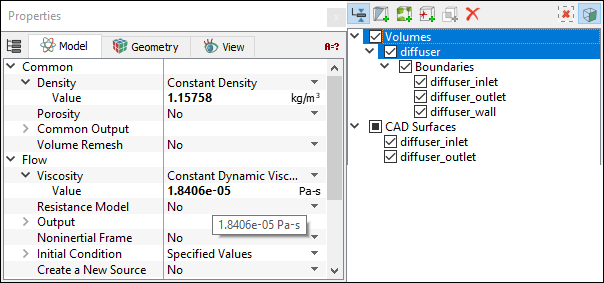
Figure 11.267 - Fluid properties
|