Animations
Animations are created by adding streamlines into the simulation. The steps for creating an animation are shown below:
- Click Load Results in the Simulation Panel.
- Select the required result file in the ensuing Load Results dialog box, click Open.
Add Streamline module
- Click Select Modules in the Model Panel. The Physical Model Selection dialog box opens.
- Select Streamline in the Available Modules list and click Add.
- Click Close, to close the Physical Model Selection dialog box.
Streamlines colored with velocity magnitude
- Select Boundaries fuelpipe_inlet, nozzle_inlet, and nozzle_side_inlet in the Geometric Entities Panel.
- In the Model Tab of Properties Panel
- Select Yes for Release Particle drop-down list
- Set Number of Particles to 100
- Select Streamline in the Geometric Entities Panel.
- Enter 0.001 for Line Thickness and 0.005 for Animation Time Size in Model Tab of Properties Panel.
- Select Velocity Magnitude from the Derived Variables list in the Variable drop-down list of Results Panel.
- Set Min to 0 and Max to 20 m/s.
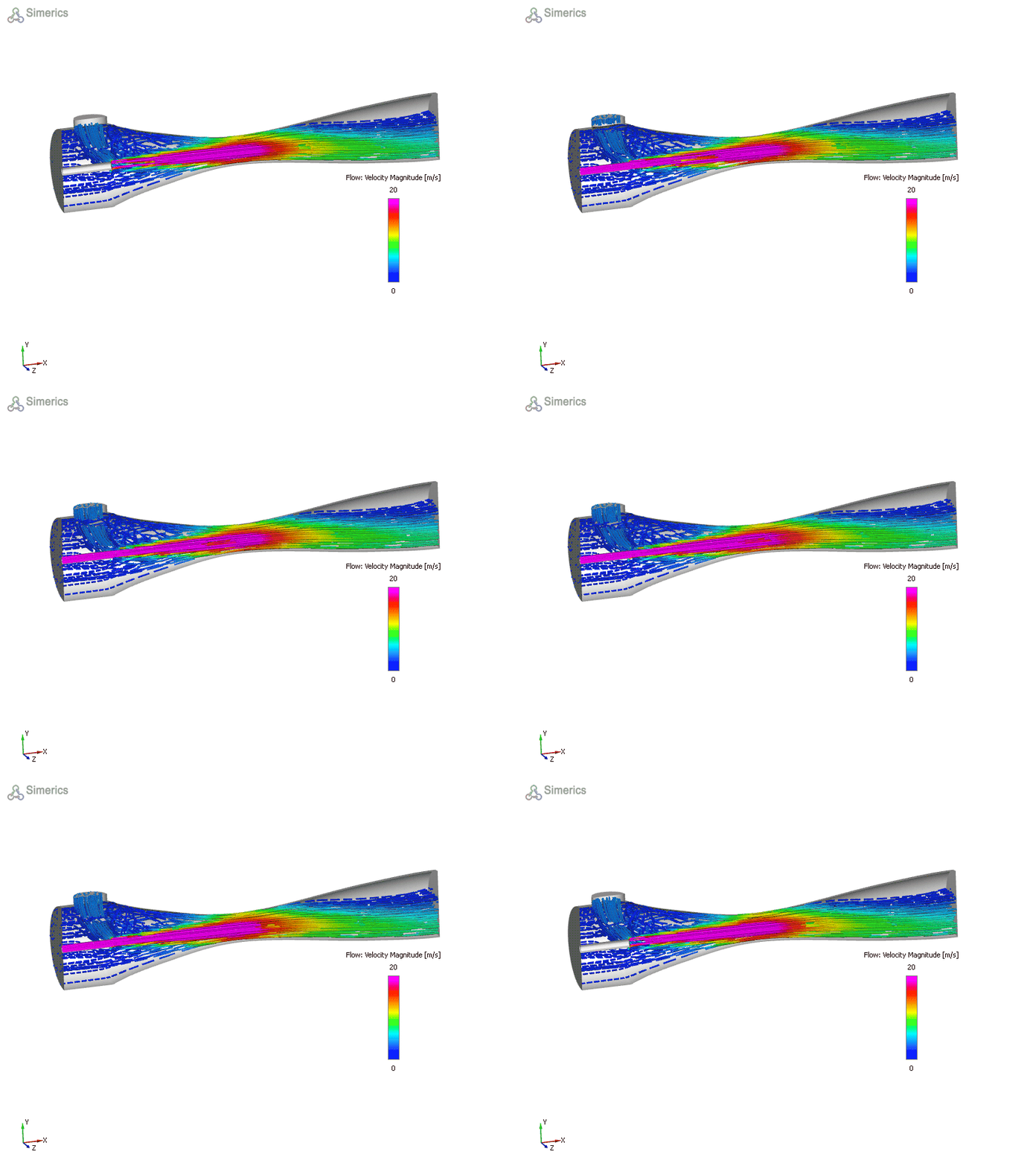
Figure 11.178 - Streamline animation
| Note: Particle animation is created to show the flow of each component particle. For more details on how to create particle refer Particle. |

Figure 11.179 - Particle animation