- Select Marine Template Mesher in the Mesh Panel.
- Select Extended Mode from the Setup Options drop-down list.
- Select Displacement from the Hull Type drop-down list in the Properties Panel.
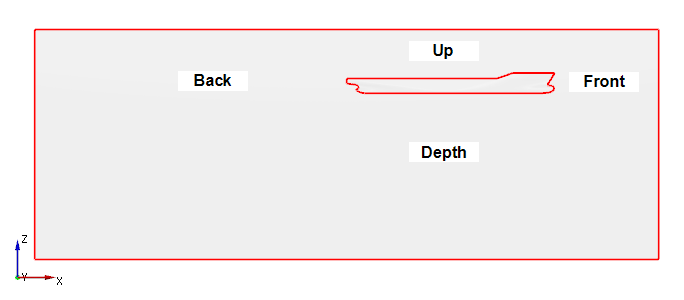
- Enter the Domain Size as follows.
- Size Reference: Maximum Dimension
- Front: 0.5
- Back: 1.5
- Side: 1
- Depth: 0.8
- Up: 0.2
- Ensure Yes for Half Domain, 2 deg for Max Pitch Angle and 1 m for Max Heave is selected, under Domain Size.
- Select CAD Surfaces entity hull in the Geometric Entities Panel, click Add Surfaces
 icon for Hull in the Properties Panel. Similarly, select CAD Surfaces entity deck and click Add Surfaces icon for Deck respectively. icon for Hull in the Properties Panel. Similarly, select CAD Surfaces entity deck and click Add Surfaces icon for Deck respectively.
- Ensure 0, 0, 1 for Up Direction and 1, 0, 0 for Forward Direction.
- Enter 2.98524,0,-0.111 for Center of Gravity in m.
- Enter 0.111 m for Waterline Position. The Waterline position is always defined perpendicular to the Up Direction, relative to the Center of Gravity.(Example : If the waterline is at an absolute position of 0 m, to a vessel whose Center of Gravity is at 0,0,-1 m, the Waterline Position is defined as 1 m.)
|
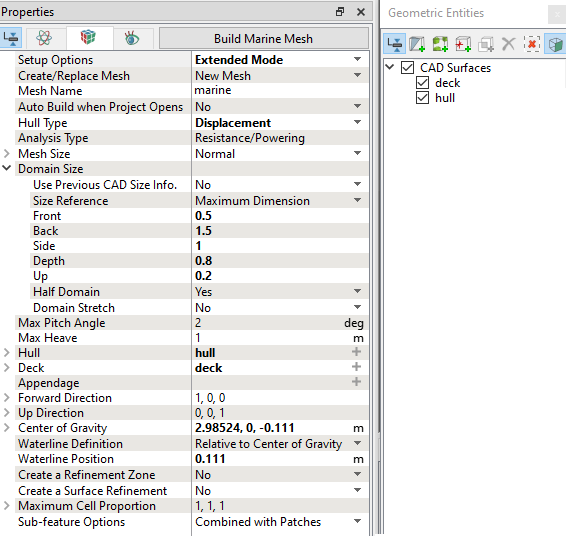
Figure 8.36 - Domain settings
|