Building the mesh
This section describes the step-by-step procedure to prepare the mesh for the dual heat exchanger simulation. The mesh is created using the Template Mesh/Surface.
Inlet
-
Select Template Mesh/Surface in the Mesh Panel.
- Enter inlet under Mesh Name in the Properties Panel.
- Enter the parameters as follows:
- Reference Point: 0, 0, 0 m
1st Point: 1, 0, 0 m 2nd Point: 0, 0.2, 0 m 3rd Point: 0, 0, 1 m No. of Grid in 1st Dir.: 50 No. of Grid in 2nd Dir.: 20 No. of Grid in 3rd Dir.: 50
- Click Build Hex Mesh. A new mesh inlet is created under Built Meshes in the Geometric Entities Panel and meshed Volume inlet is generated under Volumes.
- Rename inlet Boundaries dir2_min as air_inlet in the Geometric Entities Panel.
|
|
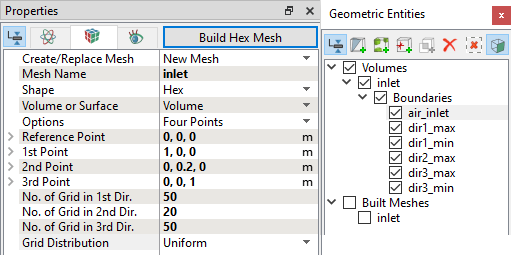
Figure 7.307 - Inlet mesh settings
|
Outlet
-
Select Template Mesh/Surface in the Mesh Panel.
- Enter outlet under Mesh Name in the Properties Panel.
- Enter the parameters as follows:
- Reference Point: 0, 0.3, 0 m
1st Point: 1, 0.3, 0 m 2nd Point: 0, 0.5, 0 m 3rd Point: 0, 0.3, 1 m No. of Grid in 1st Dir.: 50 No. of Grid in 2nd Dir.: 20 No. of Grid in 3rd Dir.: 50
- Click Build Hex Mesh. A new mesh outlet is created under Built Meshes in the Geometric Entities Panel and meshed Volume outlet is generated under Volumes.
- Rename outlet Boundaries dir2_max_1 as air_outlet in the Geometric Entities Panel.
|
|
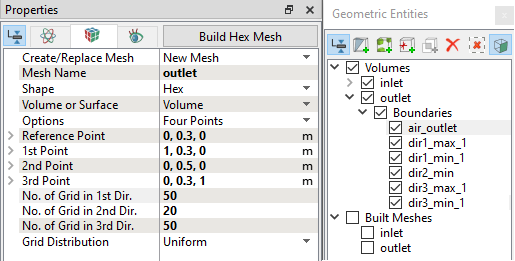
Figure 7.308 - Outlet mesh settings
|
Radiator mesh
-
Select Template Mesh/Surface in the Mesh Panel.
- Enter radiator under Mesh Name in the Properties Panel.
- Enter the parameters as follows:
- Reference Point: 0, 0.2, 0 m
1st Point: 1, 0.2, 0 m 2nd Point: 0, 0.3, 0 m 3rd Point: 0, 0.2, 1 m No. of Grid in 1st Dir.: 50 No. of Grid in 2nd Dir.: 20 No. of Grid in 3rd Dir.: 50
- Click Build Hex Mesh. A new mesh radiator is created under Built Meshes in the Geometric Entities Panel and meshed Volume radiator is generated under Volumes.
|
|
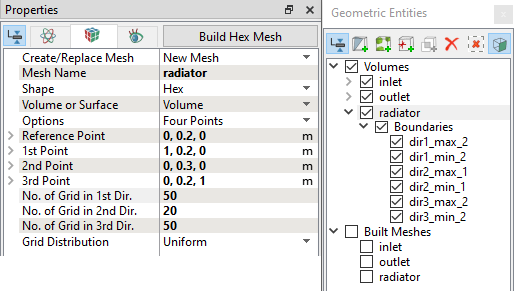
Figure 7.309 - Radiator mesh settings
|
Radiator linked volume
The fluid mesh for the secondary fluid must be same as that for primary fluid and is created using Create Linked Volumes option. Perform the following steps to create the secondary fluid volume (radiator_linked).
-
Select Volumes radiator in the Geometric Entities Panel.
- Select Split/Combine Geometry or Grid in the Mesh Panel.
- Select Create Linked Volumes from the Operation drop-down list in the Properties Panel.
- Click Create Linked Volumes. The linked Volume radiator_linked is generated under Volumes.
|
|
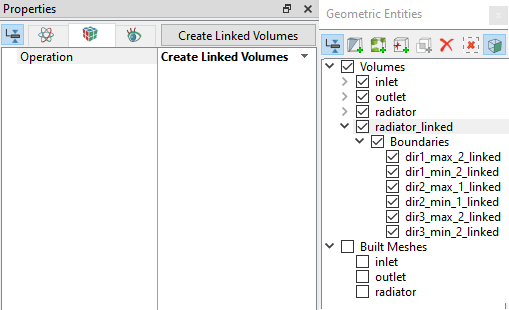
Figure 7.310 - Create linked volume
|
The mesh created for the fluid domain is shown below.
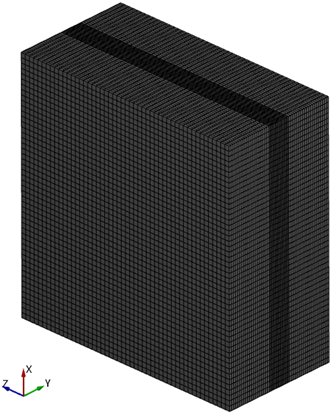
Figure 7.311 - Full mesh
|
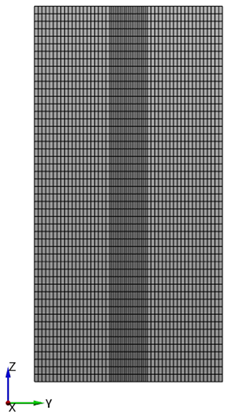
Figure 7.312 - Sectional view (X=0.5)
|
Create interfaces
In this section, the Mismatched Grid Interfaces (MGIs) are generated between the following boundaries.
The steps to create the MGI is as follows:
- Geometric Entities Panel > Volumes > Boundaries, select entities under Boundaries as shown in Table 7.6.
- Click Connect Selected Boundaries via MGI
 icon to create the MGI entities (Figure 7.313).
A group display of entities can be viewed using the Group Entities by Volumes/Types icon in Geometric Entities Panel toolbar.
| inlet and radiator |
dir2_max and dir2_min_1 |
MGI01 |
| outlet and radiator |
dir2_max_1 and dir2_min |
MGI02 |
Table 7.6 - Creating interfaces
The new entities are created under MGI in Volumes (see, Figure 7.314).
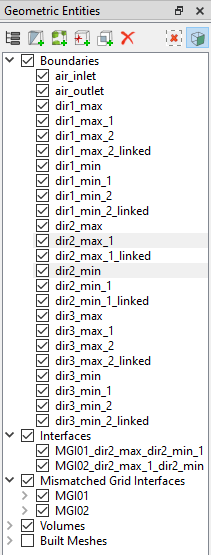
Figure 7.313 - Connecting inlet and radiator
|
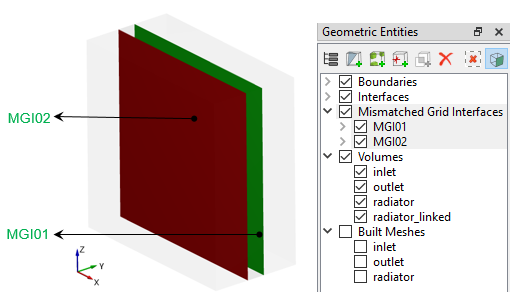
Figure 7.314 - Created interfaces
|
| ´ |
Note: If MGIs are created by connecting the wrong Boundaries, delete the created MGIs by clicking on Delete Selected Geometric Entity icon and then recreate the MGIs. icon and then recreate the MGIs.
|
Renaming Boundaries of Radiator linked volume
- Under Volumes > radiator_linked > Boundaries, select dir1_min_2_linked, dir1_max_2_linked and rename as coolant_inlet, coolant_outlet respectively in the Geometric Entities Panel.
|
|

Figure 7.315 - Radiator linked volume
|