中文 English

Defining Physics and Conditions

The physics and conditions are specified as follows:

Adding Modules
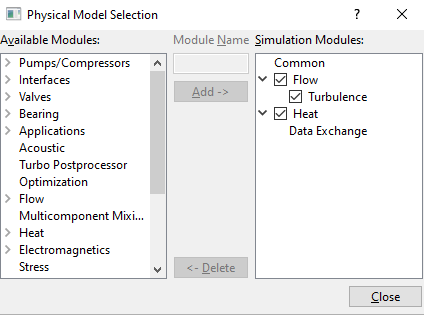
  1. Click Select Modules in the Model Panel. The Physical Model Selection dialog box opens.
  2. Select Turbulence under Flow and Data Exchange under Heat in the Available Modules list, click Add.
  3. Click Close to close the Physical Model Selection dialog box.


Figure 10.20 - Adding modules

Common
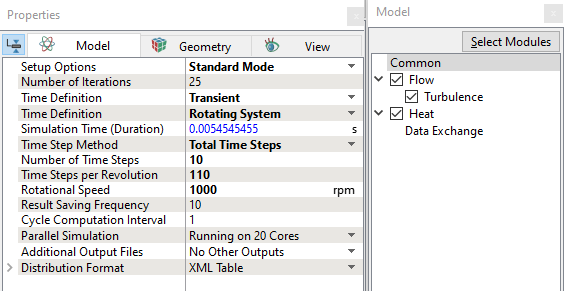
  1. Select Common in the Model Panel.
  2. Select Transient for Time Definition drop-down list in the Model Tab of Properties Panel.
  3. Select Rotating System from the Time Definition drop down list as shown in the Figure 10.21.
  4. Select Total Time Steps from the Time Step Method drop down list.
  5. Enter Number of Time Steps = 10 and Time Steps per Revolution = 110.
  6. Enter Rotational Speed = 1000 rpm.


Figure 10.21 - Common Operating parameters

Data Exchange
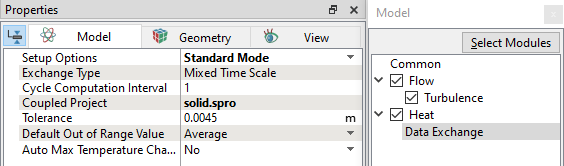
  1. Select Data Exchange in the Model Panel.
  2. Enter Coupled Project as solid.spro.


Figure 10.22 - Data Exchange parameters

Boundary conditions

The boundary conditions are specified as follows:
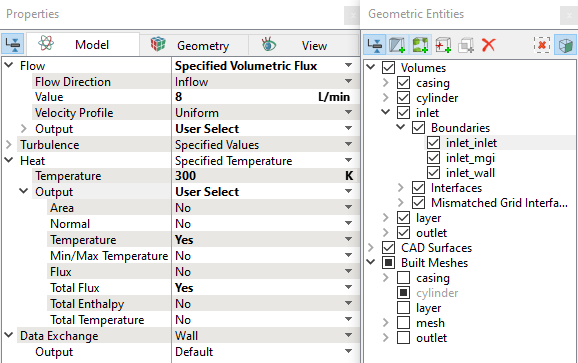
Inlet
  1. Select inlet_inlet from the Boundaries list under Volumes in the Geometric Entities Panel.
  2. Select Specified Volumetric Flux from the Flow drop-down list in the Model Tab of Properties Panel.
  3. Enter the Value = 8 L/min under the Flow list.
  4. Ensure Specified Temperature from the Heat drop-down list and 300 K for Temperature in the Model Tab of Properties Panel.
  5. Select User Select for Output drop-down list.
  6. Select Yes for Temperature, Total Flux under Output list for the Heat.


Figure 10.23 - Inlet conditions


Outlet
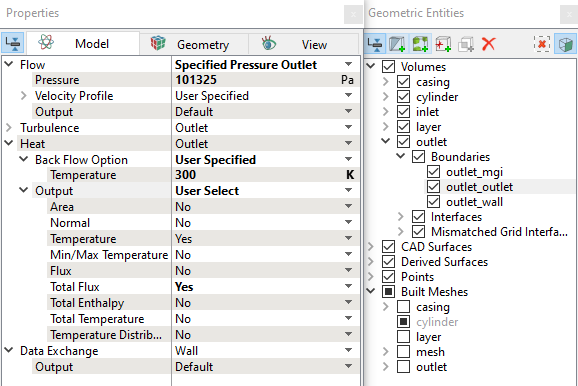
  1. Select outlet_outlet from the Boundaries list under Volumes in the Geometric Entities Panel.

  2. Select Specified Pressure Outlet from the Flow drop-down list in the Model Tab of Properties Panel.
  3. Enter 101325 Pa for Pressure under the Flow drop-down list.
  4. Select outlet from the Heat drop-down list in the Model Tab of Properties Panel.
  5. Select User Specified from the Back Flow drop-down list and enter 300 K for Temperature in the Model Tab of Properties Panel.
  6. Select User Select for Output drop-down list.
  7. Select Yes for Temperature, Total Flux under Output list for the Heat.


Figure 10.24 - Outlet conditions


Fluid properties
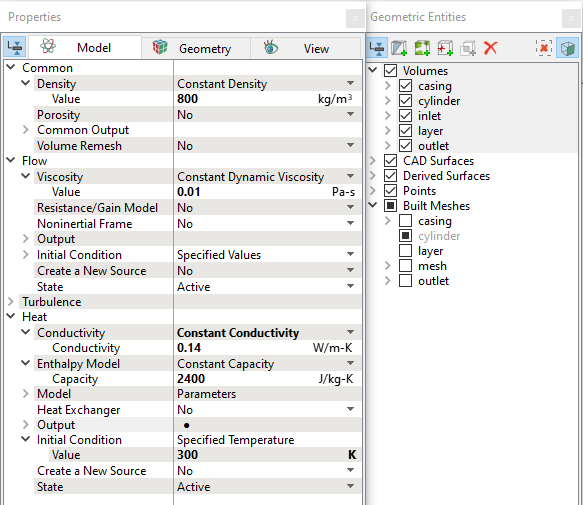
  1. Select all Volumes in the Geometric Entities Panel.
  2. Select Model Tab in the Properties Panel.
  3. Enter the Value = 800 kg/m3 under Densityfor the Common list.
  4. Enter the Value = 0.01 Pa-s under Viscosity in the Flow list.
  5. Enter the Value = 0.14 W/m-K under Conductivity and Value = 2400 J/kg-K under Capacity in the Heat list.
  6. Select Yes for Temperature under Output list for the Heat.


Figure 10.25 - Fluid properties


Rotating Conditions
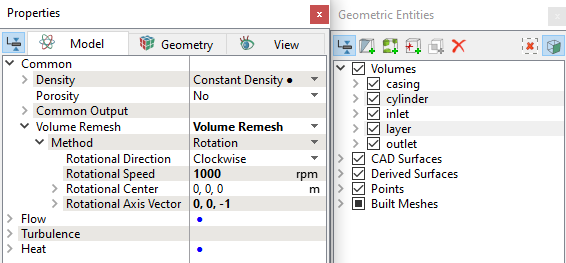
  1. Select cylinder and layer under Volumes list in the Geometric Entities Panel.

  2. Select Volume Remesh under Volume Remesh from the Common in the Model Tab of Properties Panel.

  3. Enter the parameters for the Volume Remesh as follows, see Figure 10.26

  • Rotational Direction: Clockwise
  • Rotational Speed: 1000 rpm
  • Rotational Centre: 0,0,0
  • Rotational Axis Vector: 0,0,-1
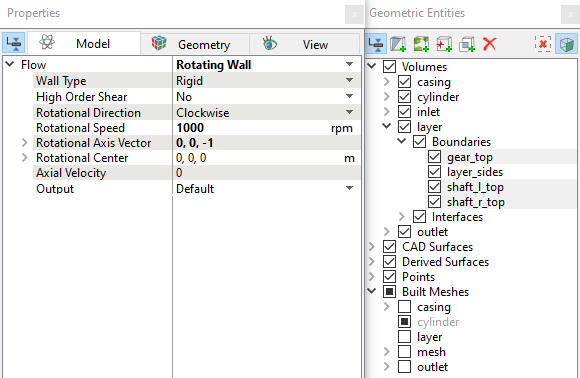
  • Select gear_top, shaft_l_top and shaft_r_top from the Boundaries list under Volumes in the Geometric Entities Panel.
  • Select Rotating Wall from the Flow drop down list in the Model Tab of Properties Panel, see Figure 10.27.
  •  


    Figure 10.26 - Rotating Volume conditions


    Figure 10.27 - Rotating Boundary conditions

    Fluid Coupling Condition
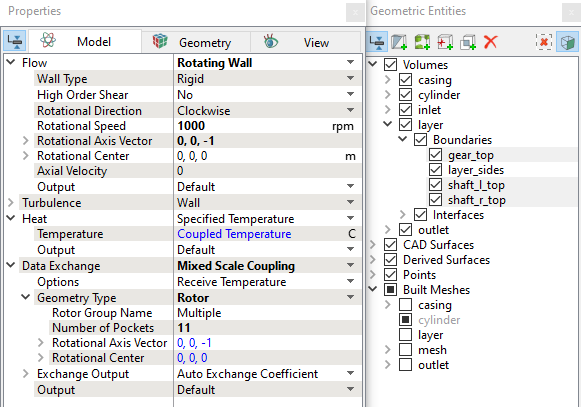
    1. Select gear_top, shaft_l_top and shaft_r_top from the Boundaries list under Volumes in the Geometric Entities Panel.
    2. Select Mixed Scale Coupling from the Data Exchange drop down list in the Model Tab of Properties Panel. Ensure Rotor from the Geometry Type drop down list is selected.
    3. Enter the Number of Pockets = 11 under Geometry Type in the Heat list.


    Figure 10.28 - Fluid Coupling conditions


    Copyright © 2023 Simerics Inc.,