中文 English

Building the Mesh

This section describes the step-by-step procedure to prepare the mesh for the planetary gearbox simulation. The Rotor Template Mesher is used for creating the gear mesh for sun, ring, and planets and the General Mesher is used for carrier, cavity and housing.

Carrier
  1. Select General Mesher in the Mesh Panel.
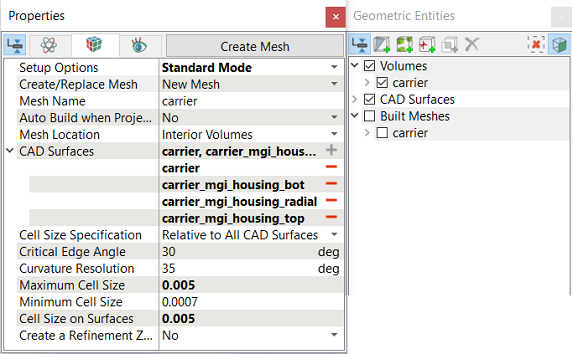
  2. Select all CAD Surfaces carrier in the Geometric Entities Panel and click Add Surfaces icon for CAD Surfaces in the Properties Panel.
  3. Enter Maximum Cell Size as 0.005, Minimum Cell Size as 0.0007 and Cell Size on Surfaces as 0.005.
  4. Click Create Mesh. A new mesh carrier is created under Built Meshes in the Geometric Entities Panel.
  5. The meshed volume carrier is generated under Volumes.


Figure 7.189 - Carrier mesh settings


Cavity
  1. Select General Mesher in the Mesh Panel.
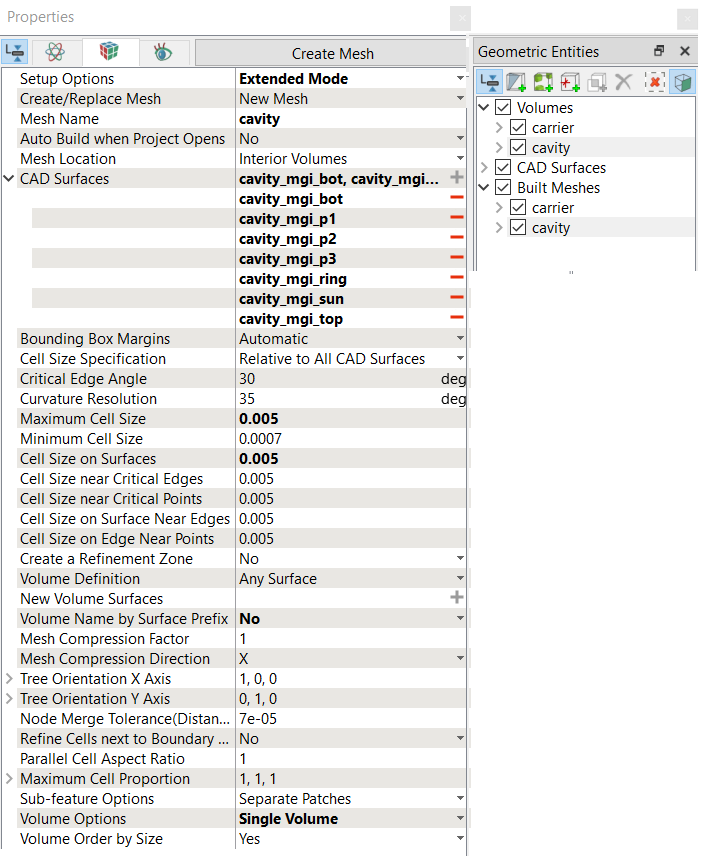
  2. Enter cavity for Mesh Name in the Properties Panel.
  3. Select all CAD Surfaces cavity in the Geometric Entities Panel and click Add Surfaces icon for CAD Surfaces in the Properties Panel.
  4. Enter Maximum Cell Size as 0.005, Minimum Cell Size as 0.0007 and Cell Size on Surfaces as 0.005.
  5. Select No for Volume Name by Surface Prefix drop-down list.

  6. Select Single Volume for Volume Options drop-down list.

  7. Click Create Mesh. A new mesh cavity is created under Built Meshes in the Geometric Entities Panel.
  8. The meshed volume cavity is generated under Volumes.


Figure 7.190 - Cavity mesh settings


Housing
  1. Select General Mesher in the Mesh Panel.
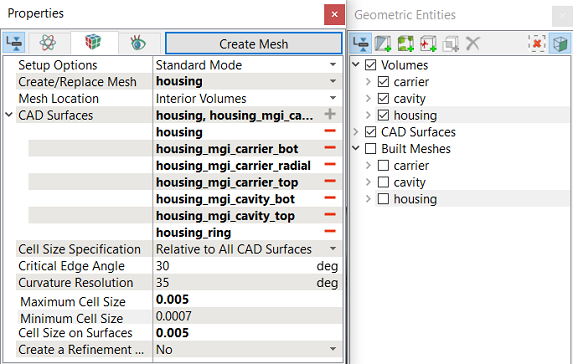
  2. Select all CAD Surfaces housing in the Geometric Entities Panel and click Add Surfaces icon for CAD Surfaces in the Properties Panel.
  3. Enter Maximum Cell Size as 0.005, Minimum Cell Size as 0.0007 and Cell Size on Surfaces as 0.005.
  4. Click Create Mesh. A new mesh housing is created under Built Meshes in the Geometric Entities Panel.
  5. The meshed volumes housing is generated under Volumes.


Figure 7.191 - Housing mesh settings

Planetary Gears
General Parameters
  1. Select Rotor Template Mesher in the Mesh Panel.
  2. Select General Gear for Rotor Type drop-down list in the Properties Panel.
  3. Enter 0, 0, 1 for Rotate Axis Direction.
Gear 1: Sun Gear Parameters
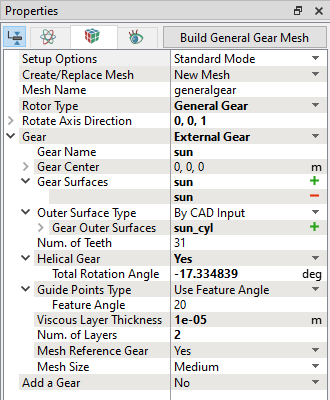
  1. Select External Gear under Add a Gear drop-down list.
  2. Enter sun for Gear Name.
  3. Enter 0, 0, 0 m for Gear Center in Gear 1 list.
  4. Select CAD Surfaces sun in the Geometric Entities Panel, click Add Surfaces icon for Gear Surfaces in the Properties Panel.
  5. Select By CAD Input under Outer Surface Type.
  6. Similarly, select CAD Surfaces sun_cyl in the Geometric Entities Panel and click Add Surfaces for Gear Outer Surfaces.
  7. Ensure 31 for Num. of Teeth.
  8. Select Yes for Helical Gear drop down list.

  9. Enter -17.334839 deg for Total Rotation angle.

  10. Enter 1e-05 m for Viscous Layer Thickness.
  11. Enter 2 for Num. of Layers.
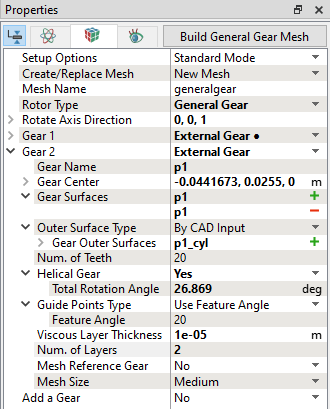
Gear 2: P1 mesh Parameters
  1. Select External Gear under Add a Gear drop-down list.
  2. Enter p1 for Gear Name.
  3. Enter -0.0441673, 0.0255, 0 m for Gear Center in Gear 2 list.
  4. Select CAD Surfaces p1 in the Geometric Entities Panel, click Add Surfaces icon for Gear Surfaces in the Properties Panel.
  5. Select By CAD Input under Outer Surface Type.
  6. Similarly, select CAD Surfaces p1_cyl in the Geometric Entities Panel and click Add Surfaces for Gear Outer Surfaces.
  7. Ensure 20 for Num. of Teeth.
  8. Select Yes for Helical Gear drop down list.

  9. Enter 26.869 deg for Total Rotation angle.

  10. Enter 1e-05 m for Viscous Layer Thickness.
  11. Enter 2 for Num. of Layers.
Gear 3: P2 mesh Parameters
  1. Select External Gear under Add a Gear drop-down list.
  2. Enter p2 for Gear Name.
  3. Enter 0.0441673, 0.0255, 0 m for Gear Center in Gear 3 list.
  4. Select CAD Surfaces p2 in the Geometric Entities Panel, click Add Surfaces icon for Gear Surfaces in the Properties Panel.
  5. Select By CAD Input under Outer Surface Type.
  6. Similarly, select CAD Surfaces p2_cyl in the Geometric Entities Panel and click Add Surfaces for Gear Outer Surfaces.
  7. Ensure 20 for Num. of Teeth.
  8. Select Yes for Helical Gear drop down list.

  9. Enter 26.869 deg for Total Rotation angle under Helical Gear list.

  10. Enter 1e-05 m for Viscous Layer Thickness.
  11. Enter 2 for Num. of Layers.


Figure 7.192 - Gear1 mesh settings


Figure 7.193 - Gear2 mesh settings
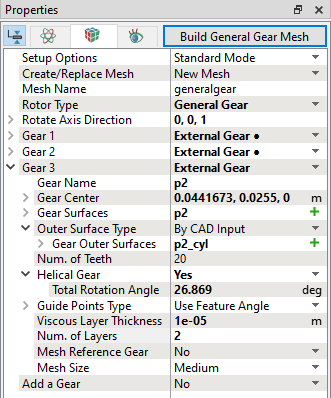
 

Figure 7.194 - Gear3 mesh settings

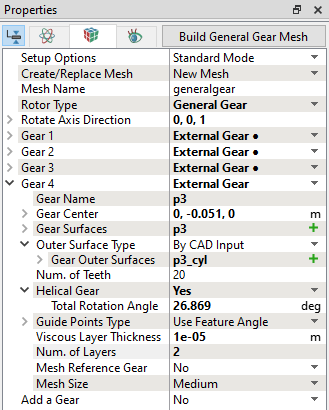
Gear 4: P3 mesh Parameters
  1. Select External Gear under Add a Gear drop-down list.
  2. Enter 0, -0.051, 0 m for Gear Center in Gear 4 list.
  3. Select CAD Surfaces p3 in the Geometric Entities Panel, click Add Surfaces icon for Gear Surfaces in the Properties Panel.
  4. Select By CAD Input under Outer Surface Type.
  5. Similarly, select CAD Surfaces p3_cyl in the Geometric Entities Panel and click Add Surfaces for Gear Outer Surfaces in the Properties Panel.
  6. Ensure 20 for Num. of Teeth.
  7. Select Yes for Helical Gear drop down list.

  8. Enter 26.869 deg for Total Rotation angle.

  9. Enter 1e-05 m for Viscous Layer Thickness.
  10. Enter 2 for Num. of Layers.
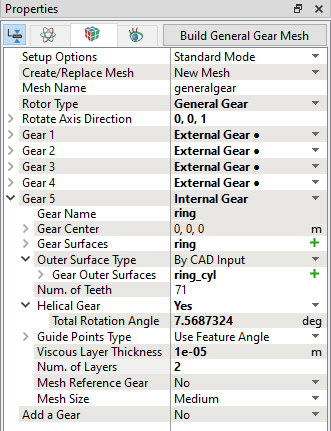
Gear 5: Ring Gear Parameters
  1. Select Internal Gear under Add a Gear drop-down list.
  2. Enter 0, 0, 0 m for Gear Center in Gear 5 list.
  3. Select CAD Surfaces ring in the Geometric Entities Panel, click Add Surfaces icon for Gear Surfaces in the Properties Panel.
  4. Select By CAD Input under Outer Surface Type.
  5. Similarly, select CAD Surfaces ring_cyl in the Geometric Entities Panel and click Add Surfaces for Gear Outer Surfaces in the Properties Panel.
  6. Ensure 71 for Num. of Teeth.
  7. Select Yes for Helical Gear drop down list.

  8. Enter 7.5687324 deg for Total Rotation angle.

  9. Enter 1e-05 m for Viscous Layer Thickness.
  10. Enter 2 for Num. of Layers.


Figure 7.195 - Gear4 mesh settings

Figure 7.196 - Gear5 mesh settings

Build General Gear Mesh

After specifying all planetary gear mesh parameters, generate mesh as follows:

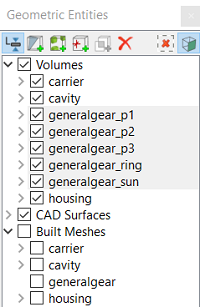
  1. Click Build General Gear Mesh. The new mesh general gear is created under Built Meshes in the Geometric Entities Panel.
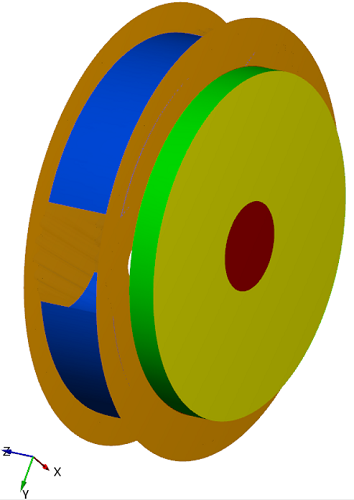
  2. The names of meshed volumes obtained are generalgear_p1, generalgear_p2, generalgear_p3, generalgear_sun and generalgear_ring are generated under Volumes.


Figure 7.197 - Planetary Gear volumes

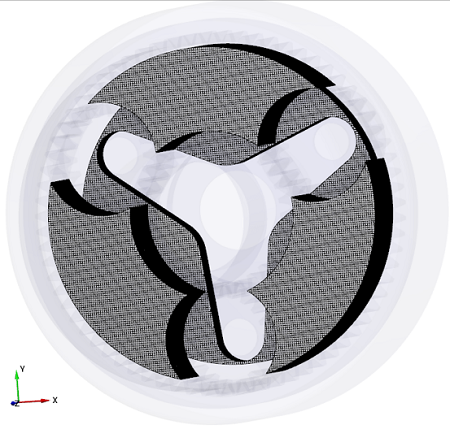
The mesh created for the fluid domain is shown below.
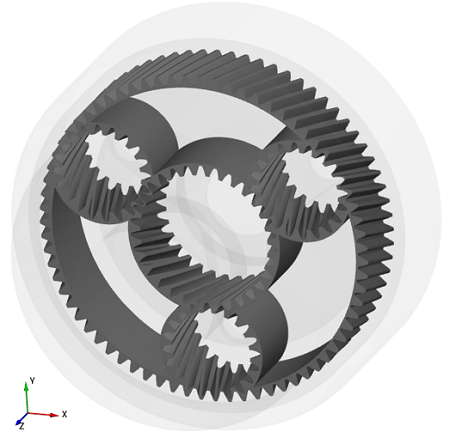
Figure 7.198 - Gear mesh


Figure 7.199 - Cavity and Carrier mesh


Note: The mesh can be edited/replaced by selecting required volume under Built Meshes and modify the mesh parameters in the Properties Panel. Click Create Mesh to reflect the changes.


Default MGI Creation in Template Mesher
Create interfaces

In this section, the Mismatched Grid Interfaces (MGIs) are generated between boundaries for connected volumes.

The steps to create the MGIs are shown below:

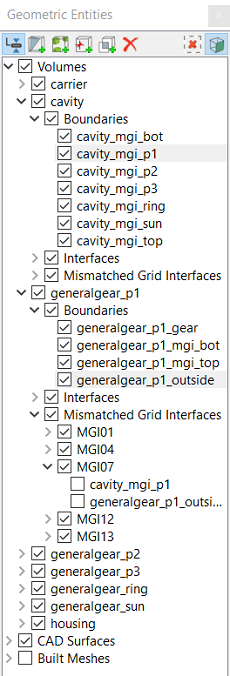
  1. Geometric Entities Panel > Volumes > Boundaries, select Boundaries as shown in Table 7.4.
  2. Click Connect Selected Boundaries via MGI icon to create the MGI entities as shown in Figure 7.200.
  3. Enter 0.005 for Projection Tolerance in the Model Tab of Properties Panel for MGI07, MGI08 and MGI09.

A group display of entities can be viewed using the Group Entities by Volumes/Types icon in Geometric Entities Panel toolbar.

Connecting interfaces Boundaries Entity Projection Tolerance
Cavity and generalgear_p1_gear cavity_mgi_p1 and generalgear_p1_outside MGI07 0.005
Cavity and generalgear_p2_gear cavity_mgi_p2 and generalgear_p2_outside MGI08 0.005
Cavity and generalgear_p3_gear cavity_mgi_p3 and generalgear_p3_outside MGI09 0.005
Cavity and generalgear_ring cavity_mgi_ring and generalgear_ring_outside MGI10 Default
Cavity and generalgear_sun cavity_mgi_sun and generalgear_sun_outside MGI11 Default
Cavity, Housing and all gears cavity_mgi_bot, generalgear_p1_mgi_bot, generalgear_p2_mgi_bot, generalgear_p3_mgi_bot, generalgear_sun_mgi_bot, generalgear_ring_mgi_bot and housing_mgi_cavity_bot MGI12 Default
Cavity, Housing and all gears cavity_mgi_top, generalgear_p1_mgi_top, generalgear_p2_mgi_top, generalgear_p3_mgi_top, generalgear_sun_mgi_top, generalgear_ring_mgi_top and housing_mgi_cavity_top MGI13 Default
Carrier and housing carrier_mgi_housing_bot and housing_mgi_carrier_bot MGI14 Default
Carrier and housing carrier_mgi_housing_top and housing_mgi_carrier_top MGI15 Default
Carrier and housing carrier_mgi_housing_radial and housing_mgi_carrier_radial MGI16 Default

Table 7.4 - Creating interfaces


The new entities are created under MGI in Volumes (refer, Figure 7.200).

Figure 7.200 - Connecting cavity and planet gear1


Figure 7.201 - Created MGIs


´ Note:  If MGIs are created by connecting the wrong boundaries, delete the created MGIs by clicking on Delete Selected Geometric Entity icon and then recreate the MGIs.


Copyright © 2023 Simerics Inc.,