|
You are here: Additional Templates and Tutorials > GT-SUITE Coupling Module and Tutorial > GT Coupling Module settings
|
10.3.2 GT Coupling Module settings
The GT Coupling module is added in Simerics-MP+ as follows:
|
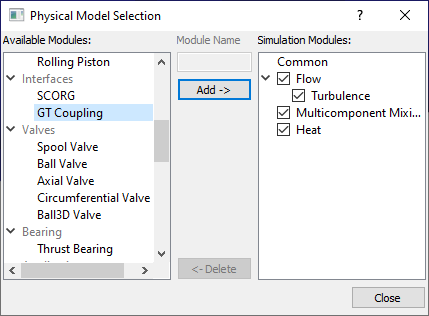
Figure 10.82 - Adding GT Coupling module |
|
Note: Only one GT Coupling module is allowed in a Simerics-MP+ project. |
The settings under GT Coupling are invoked by clicking GT Coupling in the Model Panel. They are as follows:
GT Status
This shows the status of the GT coupled co-simulation:
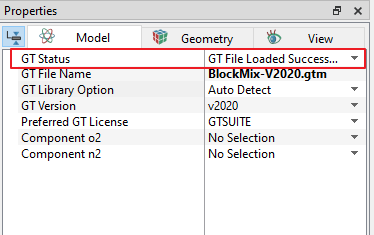
- GT File Loaded Successfully!: This denotes that the .gtm file from the GT-SUITE environment is coupled successfully with Simerics-MP+.
- No File Specified: This denotes that no GT-SUITE file is specified in the GT File Name field.
- Previously Loaded GT File: This is the status shown for remembered previous connections. When opening a Simerics-MP+ project file that was associated with a GT-SUITE project before, Simerics-MP+ will remember the association settings, such as species mapping and boundary connection without reading the GT-SUITE project.
- GT File Not Loaded: This denotes that the GT File Name is specified, but API is not called to load the file.
- ERROR: GT not connected. Check GT output files: Loading GT files failed, ensure to check GT-SUITE output file for detailed reason.
- Error Loading GT Library!: Cannot load GT-SUITE library correctly, this usually happens when the version of GT-SUITE is incorrectly specified.
- GT File does Not Exist: The GT File Name is specified, but no file by that name is found in the current working directory.
- Reload GT File: This allows the user to reload the .gtm file from GT-SUITE.
GT File Name
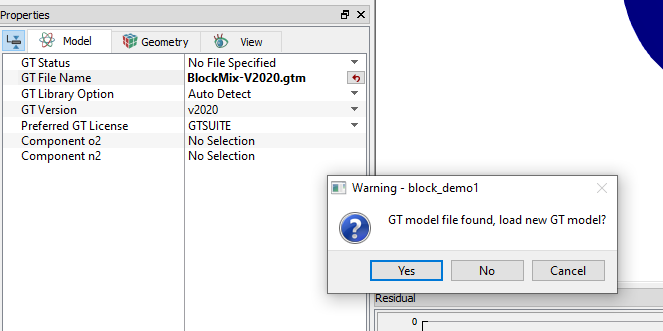
This denotes the name of the *.gtm file that must be imported into Simerics-MP+ for the co-simulation. The user enters the name of the GT-SUITE project file with the extension *.gtm. The *.gtm file should be placed in the same directory as the *.spro file.
When prompted to load the GT project as shown in Figure 10.83, choose Yes. Once the file is successfully loaded, GT Status would update to reflect as shown in Figure 10.84.
GT Library Option
When GT Library Option is set to Auto Detect, Simerics-MP+ determines the library location based on the GT Version selection.
When GT Library Option is set to User Specify *dll, a path to the *dll file must be specified.
GT Version
The GT-SUITE version is specified correctly, before loading the file. GT-SUITE files are version specific, a file generated by GT-SUITE 2019 cannot be opened by GT-SUITE 2020.
The available versions are v2020, v2019, v2018, v2017 and Custom Version. Custom Version allows to specify the version under User GT Version.
Preferred GT License
This allows the user to select the preferred GT License as GTPower, GT-SUITE or GT-SUITEmp. Usually this option is left to the default setting, since GT can automatically choose the best license to run a certain project. This is only used, when a user has multiple different tiers of GT licenses and has preference for a particular one.
Fluid Component in GT-SUITE and CFD model
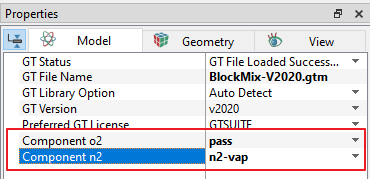
The components in Simerics-MP+ need to be mapped to the corresponding components on the GT-SUITE side, to receive appropriate species information from GT-SUITE. The user matches the Simerics-MP+ components with the corresponding GT-SUITE component names loaded from the GT-SUITE project.
|
Note: The fluid properties are not imported from GT-SUITE through the mapping. User needs to specify the fluid properties in Simerics-MP+. |
Example: "pass” is the name used in GT-SUITE for the component o2 in the project shown in Figure 10.85
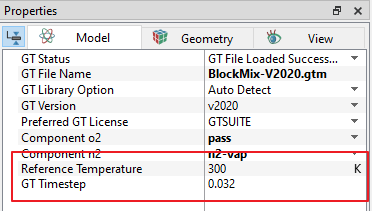
Reference Temperature
The Energy equation is always solved in GT-SUITE. When a Simerics-MP+ model does not involve Heat module, this option would appear as shown in Figure 10.86 to determine the temperature sent to GT-SUITE at the boundaries.
GT Timestep
GT-SUITE always runs a transient simulation, so if the Simerics-MP+ simulation is set to Steady state, this option would appear to set the timestep for GT-SUITE corresponding to each Simerics-MP+ iteration.
Multicomponent for Cavitation
When Multicomponent for Cavitation is turned set to Yes, Simerics provides two components that can be matched with GT species, which are Component liquid and Component air, as shown in Figure 10.87.
Component liquid denotes fluids, such as oil or water and Component air denotes free air. This option works best with the Variable Gas Mass fraction model among the Cavitation models, where the air content is received from GT-SUITE and applied as a boundary condition.
When Multicomponent for Cavitation is turned set to No, Simerics only has one component, which is the oil and air mixture that must match with the whole mixture on the GT-SUITE side. This works best with the Constant Gas Mass Fraction model or Equilibrium Dissolved Gas model.
