11.1.3 Simulation
This section explains the settings to run the cyclone separator simulation.
Creating Monitoring Points
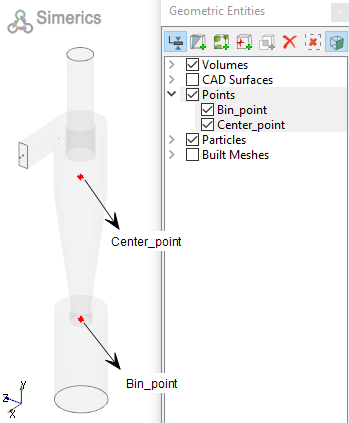
In a cyclone separator simulation, the pressure gradient is developed in the body. Hence, monitoring points are created at the centre if the body and entry to the bin. The steps to create the monitoring points are as follows:
- On the Geometric Entities Panel toolbar, click Create a Monitoring Point
 twice, to create Point 01 and Point 02 under Points.
 - Rename Point 01 as Center_point.
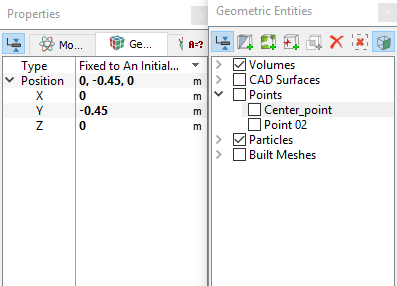
- Enter 0, -0.45, 0 for Position in the Geometry Tab of Properties Panel (see Figure 11.14).
- Rename Point 02 as Bin_point.
- Enter 0, -1.65, 0 for Position in the Geometry Tab of Properties Panel.
|
Note: Monitoring points need to be created before running the simulation for recording data (see Figure 11.15). The position of a Points may also be dragged to a new location using the Select |
 in
in
| Note: Initially Steady State Simulation is performed without Particles. Once the flow is developed, Transient Simulations is performed without Flow and Particle module. |
Steady Simulation Settings
|
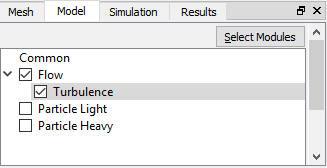 Figure 11.16 - Steady simulation modules |
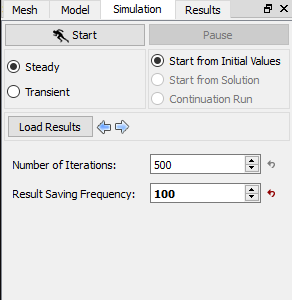
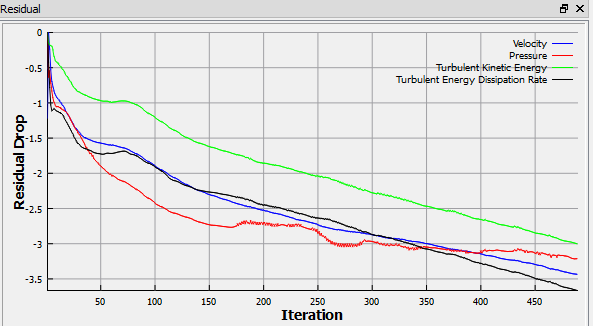
| Note: For a Steady State Simulation, the result file is saved as .sres in the working folder and the same file gets overwritten at regular intervals specified by the Result Saving Frequency parameter. The final result file is written at the end of all iteration or when the solution converges. | |
| Note: The default Converge Criterion is 0.001 for Steady Simulation. When the residuals for all the variables drop by three orders or the maximum Number of Iterations reached, the calculation stops. |
Transient Simulation Settings
|
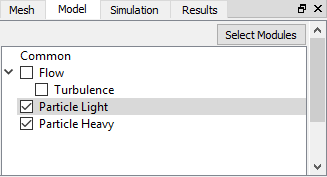
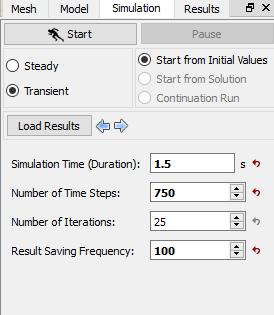
| Note: The Result Saving Frequency option in the Simulation Panel is set to a small value (say 5 or 10) before running the simulation to obtain better animations. | |
| Note: The default Converge Criterion is 0.1 for Transient simulations. When the residuals for all the variables drop by one order or the maximum Number of Iterations is reached, the calculation proceeds to the next time-step. |