Defining Physics and Conditions
The physics and conditions are specified as follows.
Add Modules
|
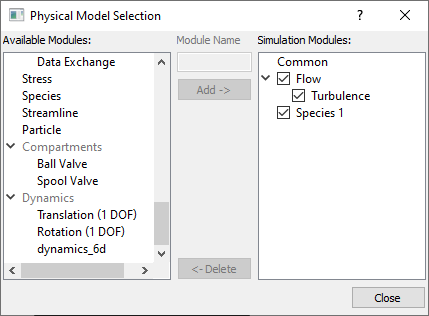
Figure 11.289 - Adding modules |
Operating Parameters
Common
|
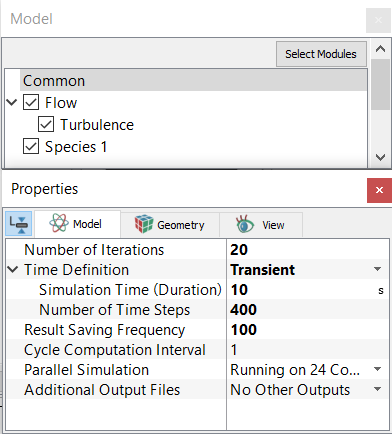
Figure 11.290 - Common Operating parameters |
Boundary Conditions
The boundary conditions are specified as follows.
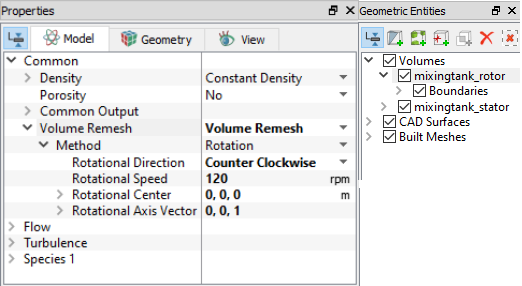
Rotor Boundary
|
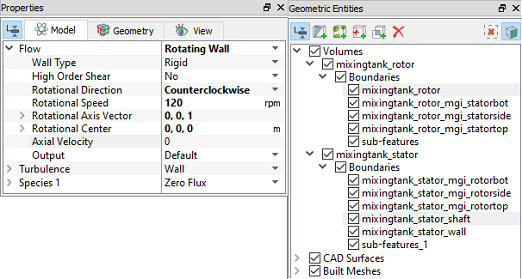
Figure 11.292 - Rotor Boundary conditions |
Fluid Properties
Initial Conditions
|
 icon on the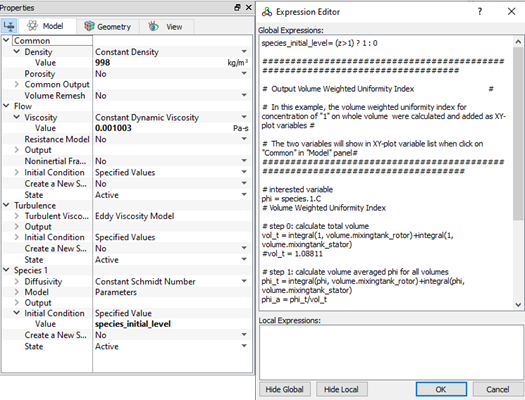
Uniformity Index
Generally, mixing performance is evaluated by visual uniformity and quantitative change in local concentration as a function of time and Average concentration. The Expression Editor in Simerics-MP is used to evaluate the quantitative change in the Volume Weighted Uniformity Index of Species and Volume Average Species.
The volume averaged phi for and weighted uniformity index is calculated using following equation.
volume averaged phi: phi_a = Sum(phi)/volume
volume weighted uniformity index: u_i = sum(abs(phi-phi_a))/volume/phi_a
 Description
# Species initial condition
species_initial_level= (z>1.00) ? 1 : 0
##############################################################################
# Output Volume Weighted Uniformity Index #
# ------------------------------------------------------------------------ #
# In this example, the volume weighted uniformity index for concentration of "1" on whole volume were calculated and added as XY-plot variable #
# The variables will show in XY-plot variable list when click on "Common" in "Model" panel. #
##############################################################################
# interested variable
phi = species.1.C
# Volume Weighted Uniformity Index
# ==============================
# step 0: calculate total volume
# ------------------------------------
#vol_t = integral(1, volume.mixingtank_rotor)+integral(1, volume.mixingtank_stator)
vol_t = 1.08811
# step 1: calculate volume averaged phi for all volumes
# --------------------------------------------------
phi_t = integral(phi, volume.mixingtank_rotor)+integral(phi, volume.mixingtank_stator)
phi_a = phi_t/vol_t
# step 2: calculate volume weighted uniformity index
# ------------------------------------------------
phi_awui = 1 - 0.5*( integral(abs(phi-phi_a), volume.mixingtank_rotor)+
integral(abs(phi-phi_a), volume.mixingtank_stator) )/ phi_a /vol_t
# step 3: add plot variable
# -------------------------
plot.phi_awui = phi_awui
#plot.phi_awui: Volume Weighted Uniformity Index Species 1 [-]
| Note:For more information, refer Expression Editor. |