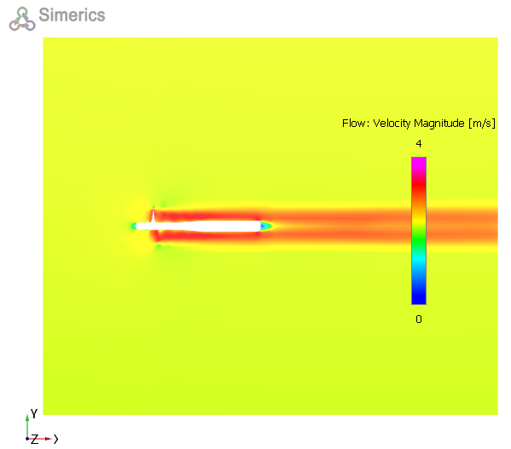
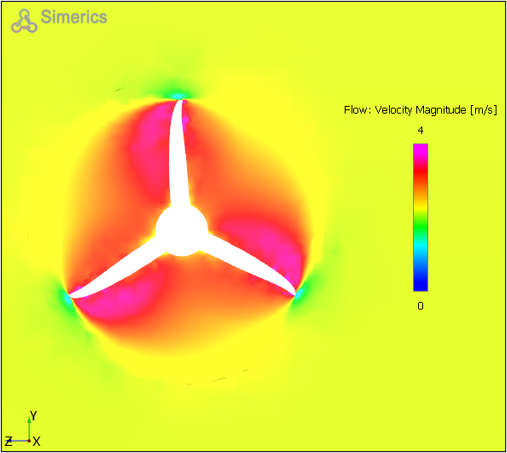
Contours
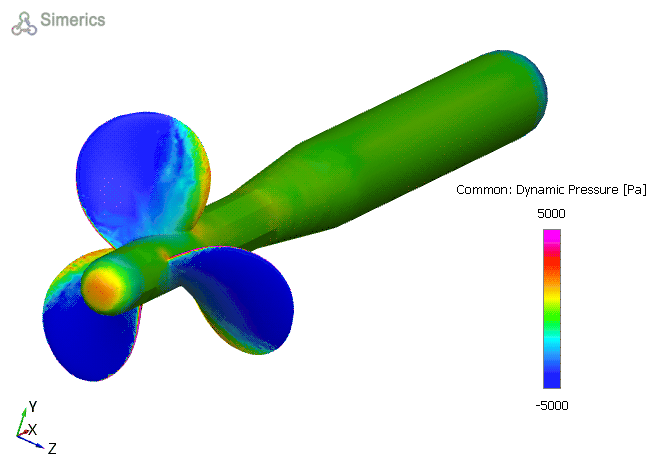
The most common contours for the propeller simulation are the dynamic pressure and the velocity contours.
Pressure contours
- Select propeller under Boundaries in the Geometric Entities Panel.
- Select Dynamic Pressure from the User Defined Variable list under Variable drop-down list in the Results Panel. For variables and legends, refer Post-Processing.
- Specify Min as -5000 Pa and Max as 5000 Pa in the Results Panel.
Creating a section
The section is created with the following steps:
- Click Create a Cross-Section
 icon twice in the Geometric Entities Panel. Two new sections Section 01 and Section 02 are created under Derived Surfaces.
 - Select Section 01 under Derived Surfaces and specify the Type as Plane Z and Position as 0 m in the Geometry Tab of Properties Panel.
- Select Section 02 under Derived Surfaces and specify the Type as Plane X and Position as 0 m in the Geometry Tab of Properties Panel.
Velocity contours
- Select the Section 01 under Sections in the Geometric Entities Panel.
- Select Velocity Magnitude from the Derived Variables drop-down list under Variable option in the Results Panel.
- Specify Min as 0 m/s and Max as 4 m/s in the Results Panel.
Similarly the velocity magnitude contours are also obtained on Section 02. Changes to the display, such as legend, contour color, image sizing and transparency can be made under the View Tab of Properties Panel.