|
You are here: Marine Templates and Tutorials > Propeller Template > Propeller Tutorial > Computational domain
|
Computational domain
This section explains the preparation of surfaces to create the domain. This is done with the operations splitting, combining and renaming of the surfaces.
Split Geometry
- Select CAD Surfaces propeller_enclosure in the Geometric Entities Panel.
- Select Split/Combine Geometry or Grid in the Mesh Panel.
- Select Split Disconnected from the Operation drop-down list in the Properties Panel.
- Click Split Disconnected. Three new CAD Surfaces entities propeller_enclosure _01 to propeller_enclosure _03 are created in the Geometric Entities Panel.
- Rename propeller_enclosure_03 as propeller.
- Select propeller_enclosure_01.
- Select Split by Angle from the Operation drop-down list in the Properties Panel, click Split by Angle. Three new CAD Surfaces entities propeller_enclosure _01_01 to propeller_enclosure_01_03 are created in the Geometric Entities Panel.
- Rename the CAD Surfaces propeller_enclosure _01_01, propeller_enclosure_01_02 and propeller_enclosure_01_03 as propeller_side_mgi, propeller_front_mgi and propeller_back_mgi respectively.
- Select propeller_enclosure_02.
- Select Split by Angle from the Operation drop-down list in the Properties Panel, click Split by Angle. Three new CAD Surfaces entities propeller_enclosure _02_01 to propeller_enclosure_02_03 are created in the Geometric Entities Panel.
- Rename the CAD Surfaces propeller_enclosure _02_01, propeller_enclosure_02_02 and propeller_enclosure_02_03 as enclosure_side_mgi, enclosure_front_mgi and enclosure_back_mgi respectively.
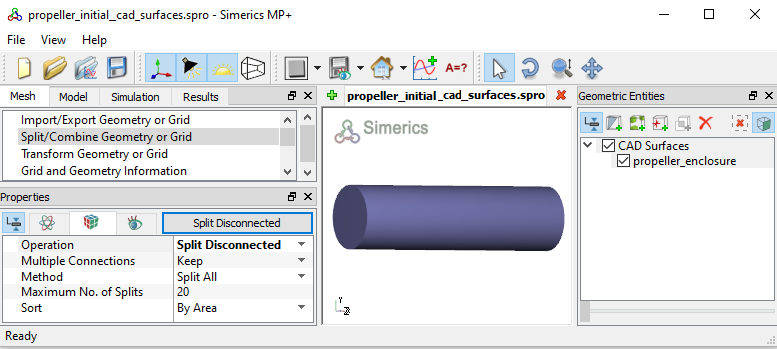
Figure 8.88 - Initial surfaces |
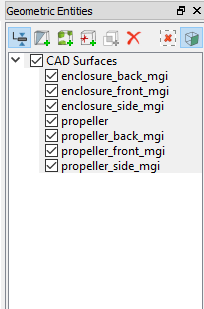
Figure 8.89 - Propeller surfaces after splitting and renaming |
| Note: Splitting of the surfaces can also be done by mouse selection using the Split by Mouse option from the Method drop-down list in the Geometry Tab of Properties Panel. |