Simulation
This section explains the settings to run the Steady (Multiple Reference Frame) or the Transient (Moving Grid) simulations.
Solver Settings
- Select Flow in the Model Panel.
- Specify Velocity to 2nd Order Upwind under Numerics Scheme.
| Note: The 2nd Order Upwind Scheme is more accurate, and is strongly recommended for propeller simulations. |
Steady simulation
- Select Propeller in the Model Panel.
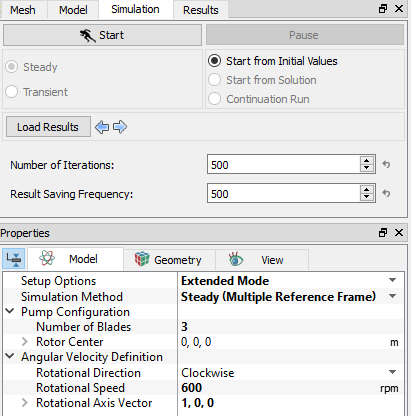
- Ensure Simulation Method is set to Steady (Multiple Reference Frame) in the Model Tab of Properties Panel.
- Select Simulation Panel, set Number of Iterations as 500 and Result Saving Frequency as 500.
- After you save the project, click Start to run the simulation (See Figure 8.102).
- The result files are saved as *.sres in the working folder. This file is overwritten depending on the Result Saving Frequency.
The residuals for the Steady-state simulation are displayed under the Residual Tab in the Plot Panel (see, Figure 8.103).
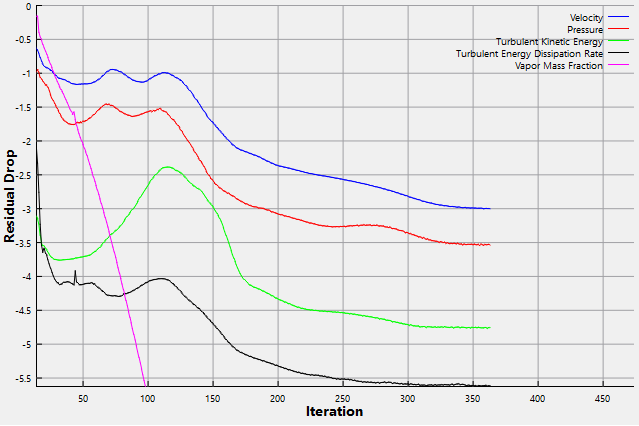
| Note: The default Converge Criterion is 0.001 for Steady State Simulation. A Steady State Simulation will run, until the residual for each variable drops by 3 orders or until the maximum Number of Iterations is reached, at which time a results file will be saved as "filename.sres". |
Transient simulation
The transient simulation is started from the steady state results. The steady state simulation serves as a good initial guess to start the transient simulation.
The steps to run the transient simulation are as follows:
- Select Propeller in the Model Panel.
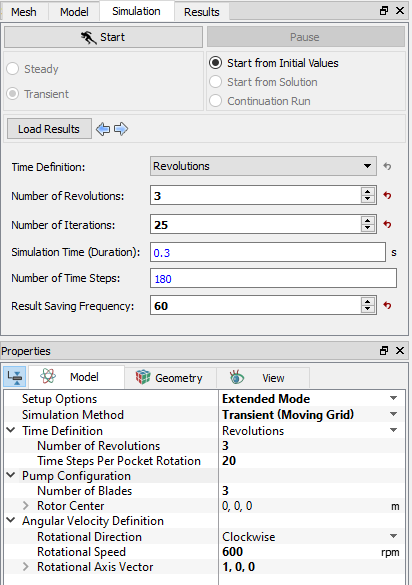
- Select Simulation Method as Transient (Moving Grid) in the Model Tab of Properties Panel.
- Enter Number of Revolutions and Time Steps Per Pocket as 3 and 20 respectively. They determine the angular rotation each time-step. The Simulation Time (Duration) and Number of Time Steps are automatically calculated based on the above settings.
- Specify Number of Iterations and Result Saving Frequency as 25 and 60 respectively in the Simulation Panel.
- Ensure the Start from Solution radio button is selected in the Simulation Panel.
- After you save the project, click Start to run the simulation (See Figure 8.104).
- The result files are saved as *.sres in the working folder (Example : "propeller_model_060.sres"). The number of result files depends on the Result Saving Frequency.
| Note: The Result Saving Frequency option in the Simulation Panel is set to a small value (say 5 or 10) before running the simulation to obtain better animations. |
The residuals for the transient simulation are displayed under the Residual Tab in the Plot Panel (see, Figure 8.105).
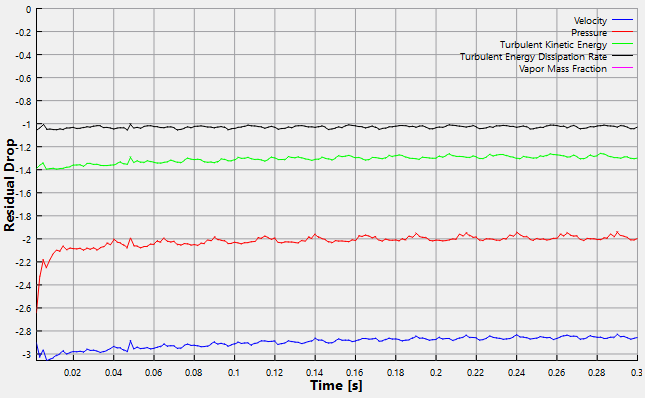
| Note: The default Converge Criterion is 0.1 for Transient Simulations. When the residuals for all the variables drop by one order or the maximum Number of Iterations is reached, the calculation proceeds to the next time-step. |