-
Select Marine Template Mesher in the Mesh Panel. The parameters can be changed in the Properties Panel.
- Select Extended Mode for the Setup Options drop-down list.
- Select Planing in the Hull Type drop-down list.
-
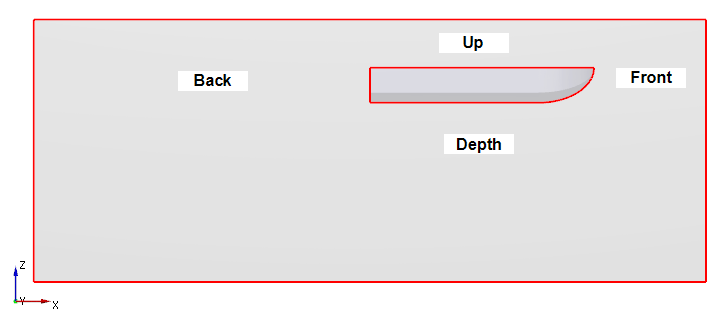
Verify the Domain Size as follows:
- Size Reference: Maximum Dimension
- Front: 0.5
- Back: 1.5
- Side: 1
- Depth: 0.8
- Up: 0.2
- Ensure Yes for Half Domain, Max Pitch Angle to 10 deg and Max Heave to 1 m.
-
Select the CAD Surfaces entity hull and transom in the Geometric Entities Panel, click Add Surfaces
 icon for Hull in the Properties Panel.Similarly, select CAD Surfaces entity deck , click Add Surfaces icon for Deck respectively. icon for Hull in the Properties Panel.Similarly, select CAD Surfaces entity deck , click Add Surfaces icon for Deck respectively.
- Ensure Forward Direction as 1,0,0 and Up Direction as 0,0,1.
- Enter Center of Gravity as -0.36576,0,0.021932 m.
- Enter Waterline Position as -0.021932 m. The Waterline position is always defined perpendicular to the Up Direction, relative to the Center of Gravity.(Example : If the waterline is at an absolute position of 0 m, to a vessel whose Center of Gravity is at 0,0,-1 m, the Waterline Position is defined as 1 m.)
|
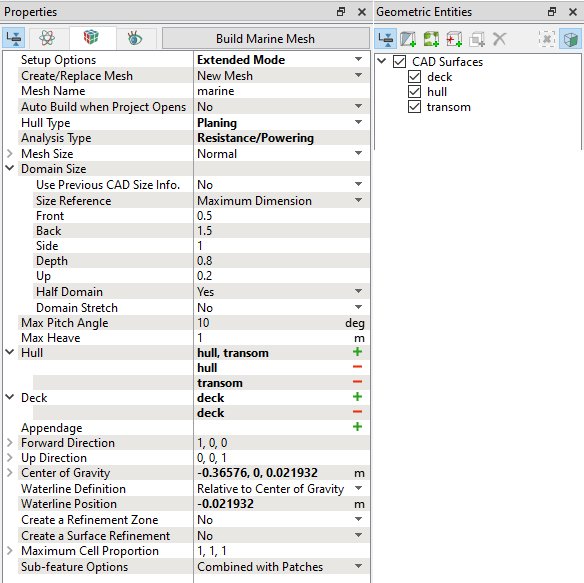
Figure 8.50 - Domain settings
|