中文 English

Defining Physics and Conditions

The physics and conditions are specified as follows:

Adding Modules
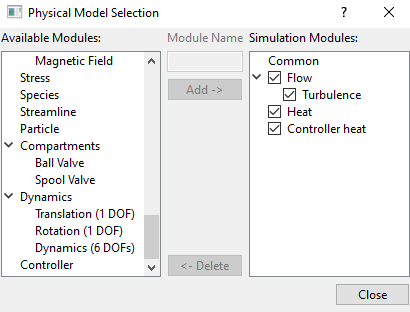
  1. Click Select Modules in the Model Panel. The Physical Model Selection dialog box opens.
  2. Select Turbulence under Available Modules list and click Add.
  3. Select Heat under Available Modules list and click Add.
  4. Select Controller under Available Modules list and enter Module Name as heat and click Add.
  5. Click Close to close the Physical Model Selection dialog box.


Figure 10.68 - Adding modules


Global Expression
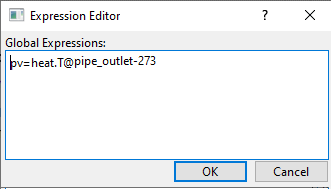
  1. Click Edit Expressions icon on the View Toolbar to open the Expression Editor dialog box.
  2. Copy and paste the expressions written under Description drop-down list for Global Expressions, see Figure 10.69.
  3. Click OK to close the Expression Editor dialog box.
 

Figure 10.69 - Global expression


Controller heat Module
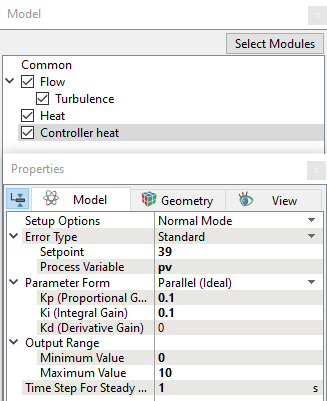
  1. Select Controller heat in the Model Panel.
  2. Enter 39 for the Setpoint.
  3. Enter pv for the Process Variable. Refer Figure 10.70.
  4. Enter 0.1 for the Kp (Proportional Gain) and Ki (Integral Gain) under Parameter Form list.
  5. Enter 0 for Minimum Value and 10 for Maximum Value under Output Range list.
  6. Enter 1 for Time Step For Steady State Run.
 

Figure 10.70 - Controller heat - Operating parameters

Boundary Conditions

The boundary conditions are specified as follows:

Cold Fluid Inlet
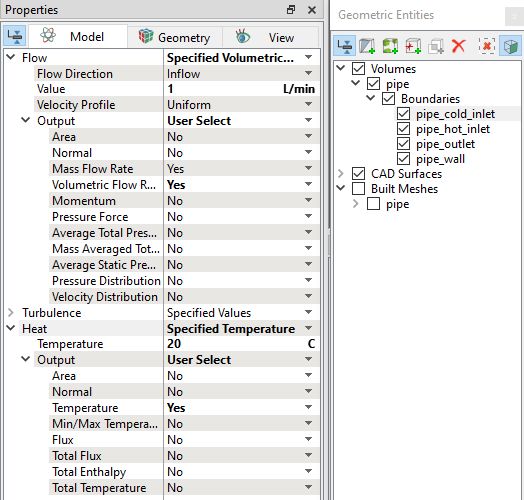
  1. Select pipe_cold_inlet from the Boundaries list under Volumes in the Geometric Entities Panel.
  2. Select Specified Volumetric Flux from the Flow drop-down list in the Model Tab of Properties Panel.
  3. Enter 1 L/min for Value under the Flow drop-down list.
  4. Select User Select for the Output drop-down under Flow. Select Yes for Volumetric Flow Rate drop-down list.
  5. Select Specified Temperature from the Heat drop-down list in the Model Tab of Properties Panel.
  6. Enter 20 C for Temperature under the Heat drop-down list.
  7. Select User Select for the Output dropdown under Heat. Select Yes for Temperature drop-down list.


Figure 10.71 - Inlet conditions - Cold fluid


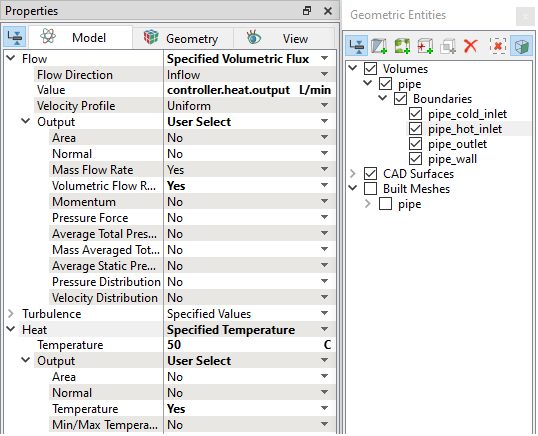
Hot Fluid Inlet
  1. Select pipe_hot_inlet from the Boundaries list under Volumes in the Geometric Entities Panel.
  2. Select Specified Volumetric Flux from the Flow drop-down list in the Model Tab of Properties Panel.
  3. Enter controller.heat.output L/min for Value under the Flow drop-down list.
  4. Select User Select for the Output dropdown under Flow. Select Yes for Volumetric Flow Rate drop-down list.
  5. Select Specified Temperature from the Heat drop-down list in the Model Tab of Properties Panel.
  6. Enter 50 C for Temperature under the Heat drop-down list.
  7. Select User Select for the Output dropdown under Heat. Select Yes for Temperature drop-down list.


Figure 10.72 - Inlet conditions - Hot fluid


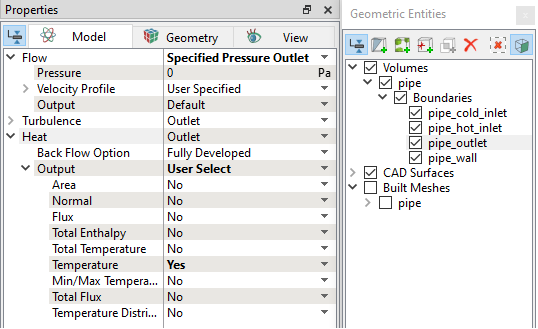
Outlet
  1. Select  pipe_outlet from the Boundaries list in the Geometric Entities Panel.

  2. Select Specified Pressure Outlet from the Flow drop-down list in the Model Tab of Properties Panel.
  3. Select User Select from the Output drop-down list under the Heat.
  4. Select Yes for Temperature drop-down list from the Output drop-down list under the Heat.
 

Figure 10.73 - Outlet conditions


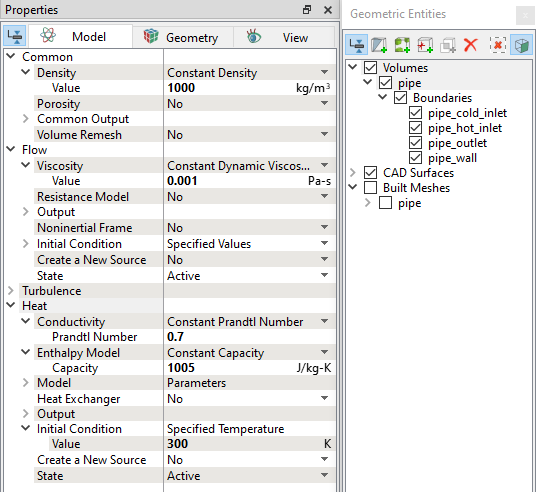
Fluid Properties
  1. Select Volumes in the Geometric Entities Panel.
  2. Select Model Tab in the Properties Panel.
  3. Enter 1000 kg/m3 for Value under Density for the Common list in the Model Tab in the Properties Panel.

  4. Enter 0.001 Pa-s for Value under Viscosity in the Flow list.

  5. Enter 0.7 for Prandtl Number in the Heat list.

  6. Enter 1005 J/kg-K for Capacity under Enthalpy Model in the Heat list.

  7. Enter 300 K for Value under Initial Condition in the Heat list.


Figure 10.74 - Fluid properties


Copyright © 2023 Simerics Inc.,