中文 English
You are here: Post-Processing > Cross-Sections and Monitoring Points

12.1 Cross-Sections and Monitoring Points

Sections

Sections, also referred as cross-sections are derived planar surfaces that slice through volumes at a user specified location and orientation. They are used to reveal features and/or display a variable.

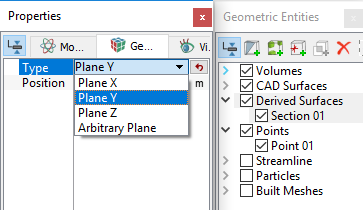
  • The section can be planar (Plane X, Plane , or Plane Z) or Arbitrary Plane.
  • The orientation and location of the sections is set in the Geometry Tab of Properties Panel.
 

Figure 12.1 - Section

Create a section
  1. Click Create a Cross-Section   in the Geometric Entities Panel. A new section Section 01 is created under Derived Surfaces.
  2. Select Section 01 the Type and Position are specified in the Geometry Tab of Properties Panel (see, Figure 12.1).
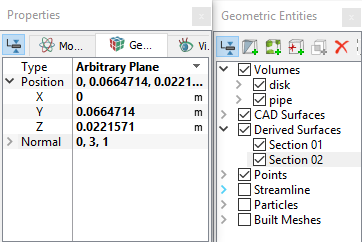
  3. Click Create a Cross-Section in the Geometric Entities Panel. A new section Section 02 is created under Derived Surfaces.
  4. Select Section 02 the Type, Position and Normal are specified in the Geometry Tab of Properties Panel (see, Figure 12.2).
 

Figure 12.2 - Arbitrary section


Note: The position of a Section can be moved along its normal direction using the slide bar at the bottom of the Geometric Entities Panel, when the Section is selected.


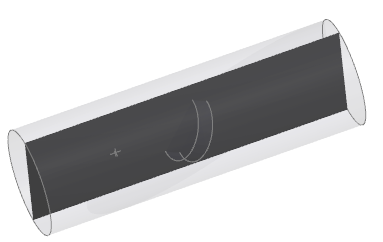
Figure 12.3 - Section (Plane-Y)


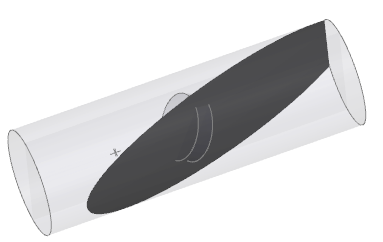
Figure 12.4 - Section (Arbitrary)

Monitoring Points

A Point is a specified coordinate within a model, used to record Primary Variables, Property Variables and Derived Variables data at that location.

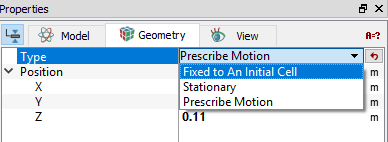
There are three different ways to create Points, distinguished by how their positions changes during a transient simulation. They are:

  • Fixed to An Initial Cell: The Point remains attached to a specified cell even if the cell is moving.
  • Stationary: The Point remains at a specified location and is not affected by mesh motion.
  • Prescribed Motion: Allows to specify the location of the Point using the Expression Editor, typically as a function of time.
 

Figure 12.5 - Point type


Create a Monitoring Point
  • Points are generated using the Create a Monitoring Point icon in the Geometric Entities Panel.
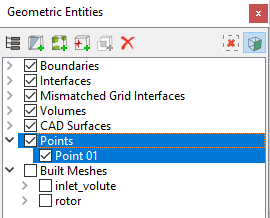
  • Points are listed in the Geometric Entities Panel, as shown in Figure 12.6
  • The position of a Point can be set explicitly under the Geometry Tab of Properties Panel.
 

Figure 12.6 - Point


´ Note: The position of Points may be dragged to a new location using the Select icon and the Left Mouse Button.
 

Note: Points may be added during a simulation, but will only record data after being created. For this reasons, monitoring points are typically added prior to running a simulation.


Note: The position of a Point is associated with a given mesh cell when the Point is inside the simulation domain, and from where the Point gets its output data. The associated cell is automatically chosen based on its location at the start of a simulation. For Fixed to An Initial Cell points, this association will not change as far as the Point position is not manually moved. For Stationary points and Prescribe Motion points, the association will be updated every time-step. If the mesh moves, the associated cell can also move. The current position of the associated cell may be displayed by selecting the Point and enabling Grid in the Results Panel.


Copyright © 2023 Simerics Inc.,