12.4 Display Streamline
To generate streamlines, add the Streamline module and release Streamlines from the desired boundary.
Streamline viewing options is specified as follows:
-
Line Thickness: This is used to control the thickness of streamlines and is specified in terms of absolute value (m).
-
Animation Time Size: When set to a non-zero positive real number, together with an assignment for streamline display variable, each streamline will be divided into multiple sections and each section will keep moving along the flow direction with a speed proportional to the local flow speed. The length of a streamline section equals the local velocity times the animation time size.
-
Maximum Integral Steps: This limits how far the streamline algorithm will track a streamline. This prevents the Streamline module from spending excessive computation time trying to track a streamline that is either looping or near stagnant. A smaller value reduces the amount of calculations, but may end a streamline earlier than desired.
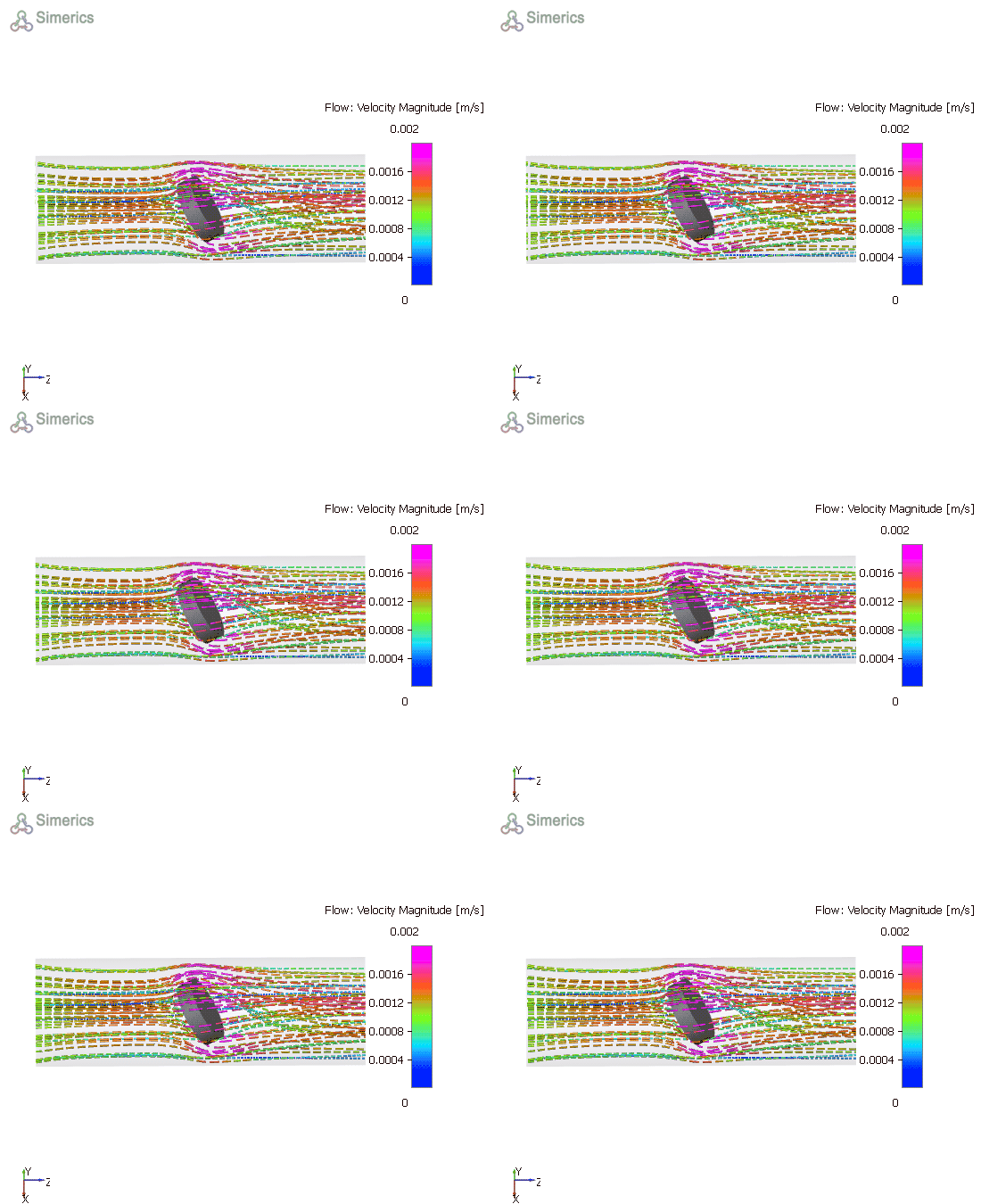
Figure 12.19 - Streamline with contour overlay
Animated streamline can be save as a GIF animation using the following steps:
-
Select File > Save Image.
-
Choose Save as Type as Animated GIF Image (*.gif).
- Input a File name and click Save.
| ´ | Note: For a step-by-step procedure to create streamlines, refer to tutorial Heated Disk. |