导出图形
该对话框可通过菜单访问,用于创建导出至其他应用程序的文件。Tecplot 360 可导出三种类型的变体文件:矢量图形、图像和影片文件格式。
Tecplot 360 导出以下格式:
- EPS Export
-
专为嵌入其他应用程序而设计的特殊 PostScript 文件中的矢量或图像图形。
- PostScript (PS) Export
-
适合直接打印但通常不适合导入其他应用程序的矢量或图像图形。建议使用 Encapsulated PostScript (EPS) 格式导入其他应用程序。
- WMF Export
-
用于导入各种 Windows 应用程序的矢量图形。
Tecplot 360 exports the following formats:
- BMP Export
-
Windows 位图格式的图像。
- JPEG Export
-
JPEG 文件在对应分辨率下体积很小,在互联网上非常常见,但会损失部分图像质量,可能影响某些绘图图像。
- PNG Export
-
PNG 图像同样常见于互联网,图像质量高但文件体积大于 JPEG。
- TIFF Export
-
标签图像文件格式的图像。
Tecplot 360 还可将动画导出为多种影片文件格式。有关导出动画的更多信息,请参阅Animation。Tecplot 360 还可将动画导出为序列图像文件。更多信息请参阅Sequenced Image Files。
某些图像格式支持抗锯齿功能,可平滑文本、线条和边缘的锯齿状边缘。本章末尾将讨论此功能。请参阅Antialiasing Images.
Tecplot 360 还可将图像直接导出到剪贴板而非文件。更多信息请参阅Clipboard Exporting to Other Applications。
Performance Tips
如果导出耗时异常长,或收到无法导出图像的错误消息,最可能的原因是尝试导出的图像宽度过大。选择较小的图像宽度可加快导出过程。
对于尺寸为 长度 x 宽度的图像导出,未压缩真彩色图像的文件大小约为 长度 x 宽度 x 3。导出此类图像所需的内存可能高达此大小的两倍。
对于 256 色图像,最大文件大小约为 长度 x 宽度,但由于所有 256 色图像文件均已压缩,实际大小通常更小。然而,导出所需的内存要求与未压缩真彩色图像相同。
抗锯齿功能会显著增加图像导出的内存和时间需求,因为需要先渲染大尺寸图像,再缩小至最终图像尺寸。此外,某些显卡驱动程序在无法为此操作分配足够内存时可能不会报告错误,而是生成黑色图像或其他渲染问题。请参阅Antialiasing Images.
布局包
作为导出图像和矢量图形表示的替代方案,Tecplot 360 支持打包数据布局格式(即布局包)。布局包(从 Tecplot 360 导出为 .lpk文件而非.lay文件)仅包含布局所需的数据。您可以将生成的文件重新加载到 Tecplot 360 中进行查看和旋转。该图形在视觉上与原始图形完全一致,但无法像源图形那样操作变量和其他图形元素。
通过精简导出文件中包含的元素,打包数据导出功能可将生成的 LPK 文件大小平均缩减至25% 原始文件大小(但缩减幅度因原始布局内容不同而有显著差异)。
若要以 Tecplot Viewer 导出格式导出当前(3D 笛卡尔)图形,请从菜单中选择。在弹出的对话框中,选择作为格式,然后单击"确定"。
为减小文件大小,轻量级文件仅包含以下内容:
-
当前图形中绘制的当前曲面和线条对应的数据
-
派生元素(如切片和等值面)作为区域
-
绘制每个区域所需的变量(例如,若等值面显示等高线填充,则仅输出该等值面区域的空间变量和等高线变量数据)
-
图形上显示的文本、几何图形、自定义标签及所有可见数据元素
适用以下限制条件:
-
仅可导出 3D 笛卡尔图形的活动帧
-
仅可导出瞬态数据集的当前时间步
-
图形必须包含至少一个区域、切片、流线或等值面
-
以下图形特征不会反映在导出的图形中:
-
启用了等高线或着色图层且"要绘制的曲面"设置为非"无"或"边界面"的有限元体区域将不显示。
-
启用了散点图层且"要绘制的点"设置为非"表面节点"或"近表面单元中心"的体区域将不显示。
-
启用了散点图层且点索引 I-Skip 非 1 的有限元体区域可能在不同位置渲染散点符号。
-
有序区域的 IJK 消隐将不显示。
-
流线箭头可能在不同位置以不同大小渲染。
Vector Graphics Formats
矢量导出文件具有与设备无关的分辨率,因此可以轻松调整大小,但存在与矢量打印输出相同的局限性。Table 1总结了使用矢量图形文件格式的优缺点。
| 优点 | 缺点 |
|---|---|
分辨率无关(可反复调整至任意尺寸) |
不支持半透明效果 |
始终达到期刊出版质量(适合发表) |
线条显示效果可能与屏幕显示不同 |
XY图和二维输出文件体积小 |
三维输出文件体积非常大 |
不适用于网页 |
|
可在第三方程序中编辑,但此类程序通常价格较高 |
|
需要PostScript打印机才能正确输出 |
EPS Export
封装PostScript文件(EPS)是包含附加命令的PostScript文件,其他程序可利用这些命令确定绘图尺寸。将EPS文件导入其他程序后,可在打印前进行定位和缩放。
| 若尝试将EPS直接发送至打印机,可能导致纸张上定位错误。建议将EPS导入文字处理或页面排版软件进行页面定位。如需创建直接发送至打印机的文件,请使用PostScript导出格式。 |
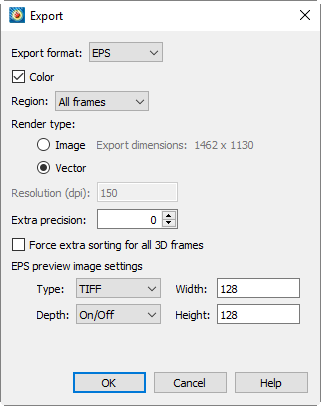
The EPS格式的对话框包含以下选项:
- 彩色
-
勾选复选框以输出彩色图像,否则将输出灰度图像。
- 区域
-
选择仅导出当前帧、包含所有帧的最小矩形或完整工作区域。
- 渲染类型
-
若选择"矢量",将保存绘制图像所需的各个PostScript命令;若选择"图像",则会在文件中嵌入位图图像。
矢量模式通常生成更小的文件,且此类图形在放大时仍保持平滑,但图像模式能像其他位图格式一样精确表现半透明或平滑色彩渐变。不过多数情况下,TIFF、BMP或PNG格式比图像EPS更优,因其兼容性更广。
将矢量EPS文件打印到非PostScript打印机时,根据操作系统和打印驱动程序,可能仅打印低分辨率预览图像。在Windows平台上,必须将打印机指定为PostScript打印机才能以全质量打印矢量EPS文件。多数情况下,图像模式EPS可在任何打印机上正确打印。
若选择渲染模式,可使用以下选项:
- 分辨率
-
以每英寸点数输入图像分辨率。数值越大生成的图形越精确,但文件体积也越大。
If you choose the 渲染模式,可使用以下选项:
- 额外精度
-
指定矢量EPS输出中尺寸和位置参数的小数位数。数值越大生成的图形越精确,但文件体积也越大。
- 对所有3D帧强制额外排序
-
开启后对所有3D帧使用额外排序。覆盖Advanced 3D Control对话框中的设置。若选中,Tecplot 360将采用更慢但更精确的方法,检测并解决例如相交对象渲染方式的问题。
- EPS预览图像设置
-
Tecplot 360提供以下预览图像选项:
- 类型
-
预览图像的类型,或选择"无"。
- 无
-
不包含预览图像信息。若应用程序不使用此类信息,此选项可最小化文件体积。但图形在多数应用程序中显示为空白,仅在打印时正确显示。
- TIFF
-
包含单色或灰度TIFF预览图像。这是最常见的预览图像格式。可在下拉菜单中指定预览图像的位深度。
- EPSIV2
-
包含单色(每像素1位)封装PostScript版本2预览图像。这也是EPS文件中常见的预览图像类型。
- FrameMaker
-
包含与旧版 Adobe® FrameMaker® 兼容的单色预览图像。此预览图像类型通常无需使用,因为新版 FrameMaker 已支持 TIFF 预览。
- 深度
-
通过每像素使用的信息位数,指定预览图像的灰度级数。每像素位数越大,生成的文件越大,但可用的灰度级数也越多。选项包括:
- 开/关
-
采用开/关策略,每像素使用一位。所有背景像素设为白色(开),所有前景像素设为黑色(关)。此设置生成的文件较小,适用于背景较多的图像,如线图和等值线图。
- 1 位/像素
-
每像素使用一位,根据像素灰度值决定黑白。灰度超过 50% 的像素为黑色,其余为白色。此设置生成的小文件可能适用于草稿或预览图像。
- 4 位/像素
-
每像素使用四位,产生 16 级灰度。此设置生成的文件较小,且包含适中的灰度级数,适用于大多数预览图像场景。
- 8 位/像素
-
每像素使用八位,产生 256 级灰度。此设置适用于完整图像表示,但生成的文件可能较大。
- 宽度、高度
-
预览图像的尺寸。
| 当渲染类型为 Image 时,这些预览图像的宽度、高度和深度值与 EPS 图像本身的特性无关。EPS 图像尺寸由分辨率设置决定,深度则自动确定。 |
Performance Tips如果导出耗时异常,或收到图像无法导出的错误提示,最常见的原因是尝试导出的图像宽度过大。选择较小的图像宽度可显著加快导出过程。
对于尺寸为 长度 x 宽度的图像导出,未压缩真彩色图像的文件大小约为 长度 x 宽度 x 3。导出此类图像所需的内存可能高达此值的两倍。
对于 256 色图像,最大文件大小约为 长度 x 宽度,但由于所有 256 色图像文件均经过压缩,实际大小通常更小。然而,导出所需的内存与未压缩真彩色图像相同。
PostScript (PS) 导出
The对话框允许您以 PostScript (PS) 格式导出图形。此格式通常用于直接打印到打印机或打印缓冲池。建议使用 Encapsulated PostScript (EPS) 格式导入到页面布局或插图应用程序中。详见EPS Export了解详情。
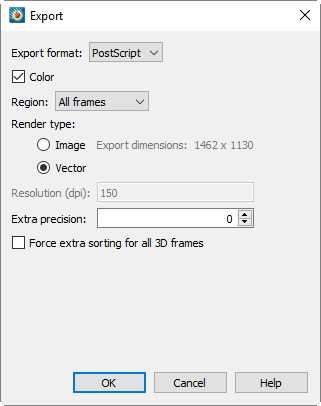
PostScript 格式的导出对话框包含以下选项:
- Color
-
Mark the checkbox to output in color. Otherwise output will be in grayscale.
- Region
-
Choose to export only the current frame, the smallest rectangle containing all frames, or the full work area.
- Render Type
-
如果选择 Vector,将保存绘制图像所需的独立 PostScript 命令。如果选择 Image,则会在文件中嵌入位图图像。
Vector 模式通常生成较小的文件,且放大后图形仍保持平滑;而 Image 模式能像其他位图格式一样准确表示半透明或平滑颜色渐变。如果选择渲染模式,则提供以下选项:
- Resolution
-
Enter the resolution of the image in dots per inch. Larger values create more accurate plots, but result in larger file sizes.
If you choose the 渲染模式下,提供以下选项:
- Extra Precision
-
Specify the number of decimal places to specify the size and position parameters in the vector-based EPS output. Larger values create more accurate plots, but result in larger file sizes.
- Force Extra Sorting for All 3D Frames
-
Toggle on to use extra sorting in all 3D frames. Overrides the setting in the Advanced 3D Control dialog. If selected, Tecplot 360 uses a slower, more accurate approach that detects and resolves problems with how, for example, intersecting objects are rendered.
WMF 导出
WMF(Windows 图元文件)是一种被 Windows 应用程序广泛接受的微软矢量图形格式。由于 WMF 是矢量图形,导入应用程序可以轻松调整其大小而不会产生视觉伪影,但无法准确表示带有半透明或平滑颜色渐变的绘图。
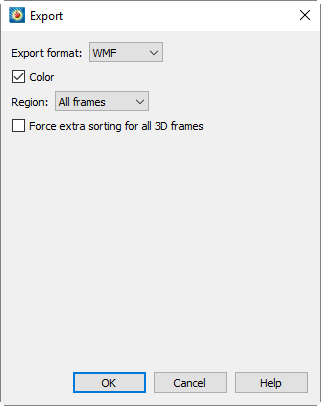
从格式下拉菜单中选择 WMF 会显示 WMF 选项:
- Color
-
Mark the checkbox to output in color. Otherwise output will be in grayscale.
- Region
-
Choose to export only the current frame, the smallest rectangle containing all frames, or the full work area.
- Force Extra Sorting for All 3D Frames
-
启用后可在所有 3D 帧中使用额外排序。覆盖Advanced 3D Control dialog. If selected, Tecplot 360 uses a slower, more accurate approach that detects and resolves problems with how, for example, intersecting objects are rendered.
图像格式
图像输出的优势在于能准确表示半透明和平滑颜色渐变,但缺点通常是文件比矢量输出更大,尤其在指定高图像分辨率时(打印时可能需要)。图像文件有时被称为光栅或位图。Table 2提供了图像文件格式优缺点的总结。
| Advantages | Disadvantages |
|---|---|
看起来与屏幕图像一致或更优 |
依赖分辨率(过度放大时画质下降) |
可调整导出尺寸 |
专业打印质量下文件会非常大 |
支持半透明 |
|
文件体积相对较小 |
|
易于被演示软件管理 |
|
适合网页使用 |
|
可通过廉价第三方程序轻松处理 |
|
可在任何打印机上打印 |
导出指定 DPI 的图像
图像文件的一个特性是每英寸点数(DPI)设置,它与图像的像素尺寸共同决定打印尺寸。要自定义导出图像的 DPI,首先使用对话框(通过从菜单中选择"编辑活动帧"访问)将帧宽度设置为所需导出图像的尺寸。然后在实际导出图像时,将帧宽度(英寸)乘以目标 DPI,并在对话框的"输入宽度"字段中输入该数值。
例如,要导出 4 英寸 × 6 英寸、300 DPI 的图像,请将画面尺寸设置为 4 英寸 × 6 英寸,然后在导出时输入宽度为 1200(4 乘以 300)。
BMP 导出
BMP(位图)是一种图像格式,因此能准确呈现具有半透明效果和平滑颜色渐变的绘图。虽然它起源于 Windows 系统,但在其他平台上也被众多应用程序广泛接受。不过,该格式不执行任何压缩,因此文件体积比 JPG 和 PNG 等现代格式更大。
BMP 始终以彩色模式导出。BMP 导出选项如下所示。
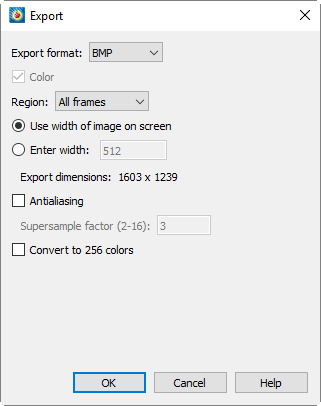
- Region
-
Choose to export only the current frame, the smallest rectangle containing all frames, or the full work area.
- 使用屏幕图像宽度
-
选择此选项可生成与当前屏幕绘图尺寸相同的图像文件。
- 输入宽度
-
选择此选项可指定生成图像的宽度(以像素为单位)。较大的宽度可提升图像质量,但指定的宽度越大,导出图像所需的时间越长,导出的文件也越大。
- 抗锯齿
-
选择此选项可平滑图像中的锯齿边缘。详见Antialiasing Images for details.
- 超采样因子
-
控制图像中使用的抗锯齿程度。详见Antialiasing Images for details.
- 转换为 256 色
-
选择此选项可生成仅包含 256 种颜色的图像(从可能的 1600 万种颜色中缩减)。Tecplot 360 会自动选择颜色。此选项有助于减小文件体积,但效果可能不理想;若与透明度、平滑颜色渐变或抗锯齿功能同时使用,可能导致图像质量下降。
Performance Tips
If exporting is taking an unusually long time, or you get an error message saying that the image cannot be exported, the most likely cause is that the image width you are trying to export is too large. Selecting a smaller image width will greatly speed up the export process.
For an image export size of Length x Width, the file size for an uncompressed true color image is approximately Length x Width x 3. Memory requirements to export such an image can be up to twice this size.
For 256 color images, the maximum file size is approximately Length x Width, but is usually less since all 256 color image files are compressed. However, the memory requirements for exporting are the same as they are for a true color uncompressed image.
JPEG 导出
JPEG(联合图像专家组)是一种图像格式,因此能准确呈现具有半透明效果和平滑颜色渐变的绘图。但 JPEG 是一种高压缩的"有损"格式,意味着导出的文件可能与原始绘图不完全一致。这可能导致某些类型的图像质量下降。JPEG 的优势在于文件体积极小,且几乎被所有互联网平台接受。
JPEG 支持不同级别的压缩,Tecplot 360 允许您控制图像质量(从而反向控制文件大小)。
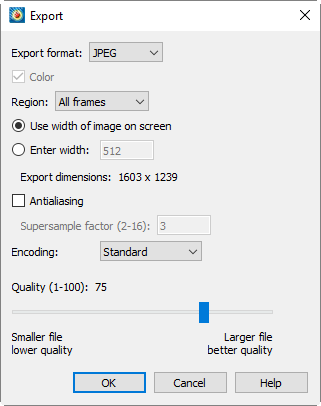
JPEG 图像始终以彩色模式导出。在对话框中选择 JPEG 时,您将拥有以下选项:
- Region
-
Choose to export only the current frame, the smallest rectangle containing all frames, or the full work area.
- Use Width of Image on Screen
-
Select this option to generate an image file the same size as the current plot on the screen.
- Enter Width
-
Select this option to specify a width (in pixels) for the generated image. A larger width increases the quality of your image. However, the greater the width you specify, the longer it will take to export the image and the larger the exported file.
- Antialiasing
-
选择此选项可平滑图像中的锯齿边缘。详见Antialiasing Images for details.
- Supersample Factor
-
Control the amount of antialiasing used in the image. See Antialiasing Images for details.
- 编码
-
为 JPEG 文件选择编码方式。
- 标准
-
逐行编码 JPEG,从顶部行开始。在大多数 Web 浏览器中,这意味着图像完全加载前不会显示任何内容。
- 渐进
-
对JPG进行两次编码,先以较低质量编码,再以较高质量编码。在网页浏览器中,这意味着图像的低质量版本会快速显示,待文件完全加载后,再替换为更高质量的版本。
在相同质量级别下,编码的JPEG文件通常比等效的编码的JPEG文件视觉效果更好,但文件体积更大。
- 质量
-
选择JPEG图像的质量。较高质量设置会生成更大的文件,导出的图像效果更好。较低质量设置会生成较小的文件。质量设置约为75通常是最优的;低于此值的设置可能会明显降低图像外观,而高于此值的设置通常不会带来明显的视觉改善,但会生成更大的文件。
Performance Tips
If exporting is taking an unusually long time, or you get an error message saying that the image cannot be exported, the most likely cause is that the image width you are trying to export is too large. Selecting a smaller image width will greatly speed up the export process.
For an image export size of Length x Width, the file size for an uncompressed true color image is approximately Length x Width x 3. Memory requirements to export such an image can be up to twice this size.
PNG导出
PNG(便携式网络图形)是一种图像格式,因此能精确呈现具有半透明和平滑颜色渐变的图形。与JPEG图像不同,PNG可以精确表示图形,不会丢失任何细节。
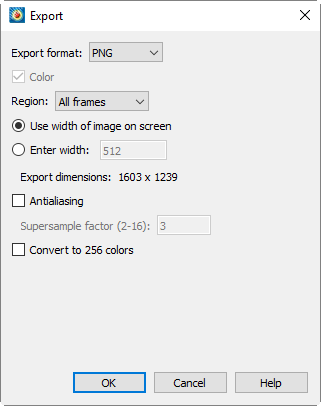
PNG图像始终以彩色导出。当您在 dialog, you have the following options:
- Region
-
Choose to export only the current frame, the smallest rectangle containing all frames, or the full work area.
- Use Width of Image on Screen
-
Select this option to generate an image file the same size as the current plot on the screen.
- Enter Width
-
Select this option to specify a width (in pixels) for the generated image. A larger width increases the quality of your image. However, the greater the width you specify, the longer it will take to export the image and the larger the exported file.
- Antialiasing
-
Select this option to smooth jagged edges in the image. See Antialiasing Images for details.
- Supersample Factor
-
Control the amount of antialiasing used in the image. See Antialiasing Images for details.
- Convert to 256 Colors
-
Select this option to generate an image with only 256 colors (down from a possible 16 million colors). Tecplot 360 selects the colors. This option can help reduce file size, but the results may be suboptimal; using it with transparency, smooth color gradations, or antialiasing may result in poor image quality.
Performance Tips
If exporting is taking an unusually long time, or you get an error message saying that the image cannot be exported, the most likely cause is that the image width you are trying to export is too large. Selecting a smaller image width will greatly speed up the export process.
For an image export size of Length x Width, the file size for an uncompressed true color image is approximately Length x Width x 3. Memory requirements to export such an image can be up to twice this size.
For 256 color images, the maximum file size is approximately Length x Width, but is usually less since all 256 color image files are compressed. However, the memory requirements for exporting are the same as they are for a true color uncompressed image.
TIFF导出
TIFF(标签图像文件格式)是一种图像格式,因此能精确呈现具有半透明和平滑颜色渐变的图形。Tecplot 360可生成彩色和灰度TIFF图像。
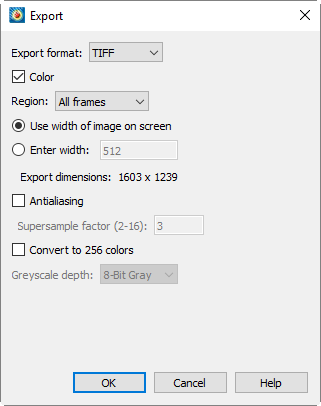
当您在 dialog, you have the following options:
- Color
-
Mark the checkbox to output in color. Otherwise output will be in grayscale.
- Region
-
Choose to export only the current frame, the smallest rectangle containing all frames, or the full work area.
- Use Width of Image on Screen
-
Select this option to generate an image file the same size as the current plot on the screen.
- Enter Width
-
Select this option to specify a width (in pixels) for the generated image. A larger width increases the quality of your image. However, the greater the width you specify, the longer it will take to export the image and the larger the exported file.
- Antialiasing
-
Select this option to smooth jagged edges in the image. See Antialiasing Images for details.
- Supersample Factor
-
Control the amount of antialiasing used in the image. See Antialiasing Images for details.
- Convert to 256 Colors
-
Select this option to generate an image with only 256 colors (down from a possible 16 million colors). Tecplot 360 selects the colors. This option can help reduce file size, but the results may be suboptimal; using it with transparency, smooth color gradations, or antialiasing may result in poor image quality.
- 灰度深度
-
对于灰度图像,此选项通过每像素使用的灰度信息位数来指定灰度级数。每像素位数越大,生成的文件越大。您的选项包括:
- On/Off
-
每像素1位,采用开/关策略。所有背景像素设为白色(开),所有前景像素设为黑色(关)。此设置生成小文件,适用于背景较多的图像,如线图和等值线。
- 1 Bit/Pixel
-
One bit per pixel using gray scale values of pixels to determine black or white. Those pixels that are more than 50 percent gray are black; the rest are white. This setting creates small files that might be useful for a rough draft or a preview image.
- 4 Bit/Pixel
-
每像素4位,产生16级灰度。此设置生成相当小的图像文件,并具有适中的灰度级数。此设置适用于大多数预览图像用途。
- 8 Bit/Pixel
-
Eight bits per pixel resulting in 256 levels of gray. This setting is useful for full image representation, but the files generated by this setting can be large.
图像抗锯齿
抗锯齿通过超采样过程平滑文本、线条和图像输出格式边缘的锯齿状边缘。
超采样。先渲染一个较大的中间图像,然后缩小到最终图像尺寸。最终图像中的每个像素由多个渲染像素生成。中间图像的宽度和高度是最终图像宽度和高度乘以某个比例因子。该比例因子称为超采样因子。您可以使用2到16之间的值。通常不需要大于3的因子。较大的比例因子会消耗更多时间和内存。某些显卡将渲染图像的尺寸限制为最大2048x2048或4096x4096像素,因此如果中间图像超过此限制,Tecplot 360将无法进行抗锯齿处理。某些显卡驱动程序在这种情况下不会报告错误,而是生成空白或乱码图像。
抗锯齿会使用多种颜色。如果您在激活选项的情况下导出,抗锯齿适用于颜色选择非常有限的图形(例如黑色背景上的红色网格)。否则,将抗锯齿应用于256色会浪费时间,并可能降低图形质量。
使用动画格式可能会加剧抗锯齿和256色问题,因为动画所有帧中的颜色通常必须使用相同的256种颜色。对于这些格式,在创建整个动画之前,请先尝试使用抗锯齿功能测试几步动画。
