中文 English
You are here: Automotive Templates and Tutorials > Automotive Tutorials > Dual Heat Exchanger Tutorial > Defining physics and conditions

Defining physics and conditions

The physics and conditions are specified as follows.

Adding modules
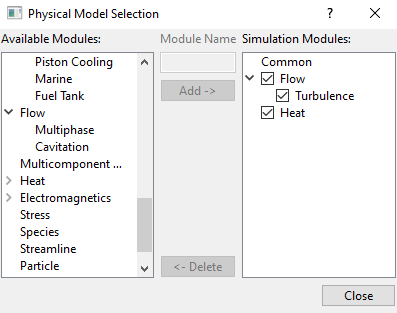
  1. Click Select Modules in the Model Panel. The Physical Model Selection dialog box opens.
  2. Select Turbulence under Available Modules list and click Add.
  3. Select Heat under Available Modules list and click Add.
  4. Click Close, to close the Physical Model Selection dialog box.


Figure 7.316 - Adding modules

Flow parameters
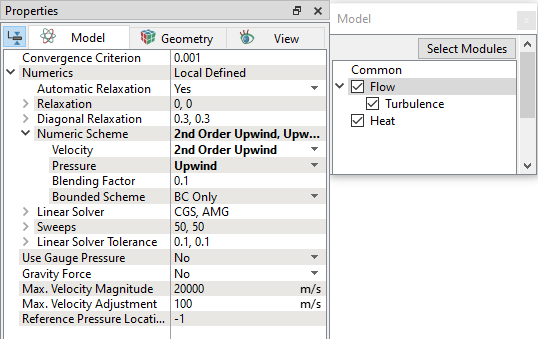
  1. Select Flow in the Model Panel.
  2. Select 2nd Order Upwind for Velocity under Numeric Scheme drop-down list in the Model Tab of Properties Panel.
 

Figure 7.317 - Flow operating parameters

Boundary conditions

The boundary conditions are specified as follows:

Air inlet
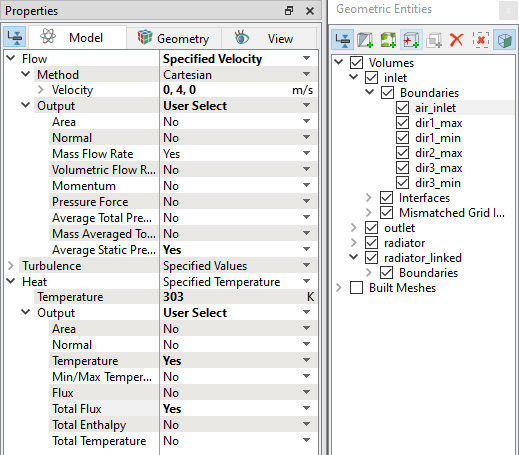
  1. Select air_inlet from the Boundaries list under Volumes in the Geometric Entities Panel.
  2. Select Specified Velocity from the Flow drop-down list and enter 0,4,0 m/s for Velocity in the Model Tab of Properties Panel.
  3. Select User Select for the Output under Flow drop-down list.
  4. Select Yes for the Average Static Pressure under Flow drop-down list.
  5. Enter 303 K for Temperature under Heat drop-down list.
  6. Select User Select for the Output under Heat drop-down list.
  7. Select Yes for Temperature and Total Flux under Heat drop-down list.
 

Figure 7.318 - Air inlet conditions


Air outlet
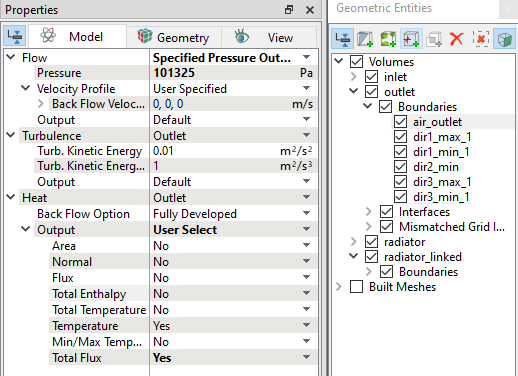
  1. Select air_outlet from the Boundaries list under Volumes in the Geometric Entities Panel.
  2. Select Specified Pressure Outlet under Flow drop-down list and enter 101325 Pa for Pressure in the Model Tab of Properties Panel.
  3. Select User Select for the Output under Flow drop-down list.
  4. Select Yes for Total Flux under Heat drop-down list.
 

Figure 7.319 - Air outlet conditions

Coolant inlet
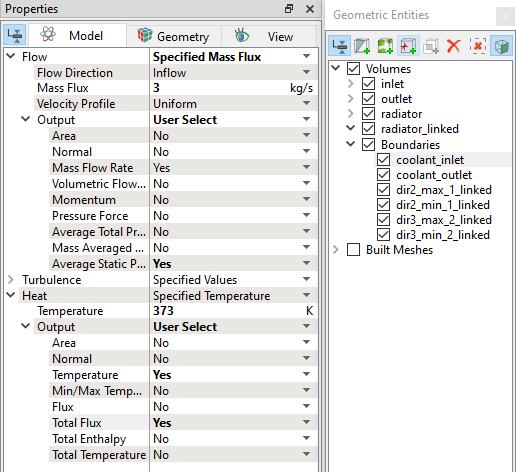
  1. Select coolant_inlet from the Boundaries list under Volumes in the Geometric Entities Panel.
  2. Select Specified Mass Flux under Flow drop-down list and enter 3 kg/s for Value in the Model Tab of Properties Panel.
  3. Select User Select for the Output under Flow drop-down list.
  4. Select Yes for Average Static Pressure under Flow drop-down list.
  5. Select User Select for the Output under Heat drop-down list.
  6. Select Yes for Temperature and Total Flux under Heat drop-down list.
 

Figure 7.320 - Coolant inlet conditions

Coolant outlet
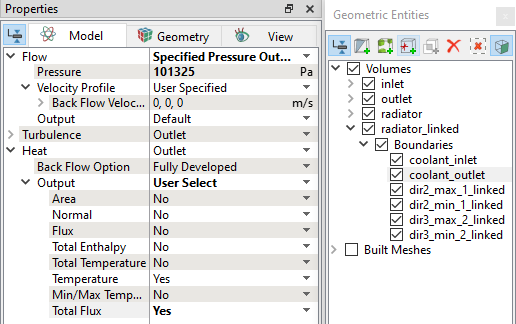
  1. Select coolant_outlet from the Boundaries list under Volumes in the Geometric Entities Panel.
  2. Select Specified Pressure Outlet under Flow drop-down list and enter 101325 Pa for Pressure in the Model Tab of Properties Panel.
  3. Select User Select for the Output under Heat drop-down list.
  4. Select Yes for Total Flux under Heat drop-down list.
 

Figure 7.321 - Coolant outlet conditions

Air properties
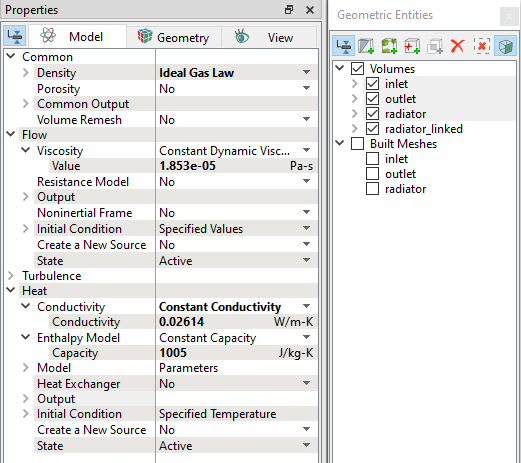
  1. Select inlet, outlet and radiator Volumes in the Geometric Entities Panel.
  2. Select Ideal Gas Law for Density under Common drop-down list in the Model Tab of Properties Panel.
  3. Enter 1.853e-5 Pa-s for Value under the Flow > Viscosity drop-down list.
  4. Select Constant Conductivity from the Conductivity drop-down list and enter 0.02614 W/m-K for Conductivity under the Heat list.
  5. Enter 1005 J/kg-K for Capacity under the Heat > Enthalpy Model drop-down list.
 

Figure 7.322 - Air properties


Coolant properties
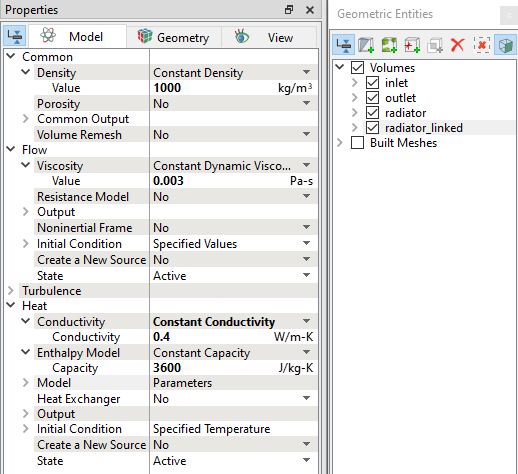
  1. Select radiator_linked under Volumes in the Geometric Entities Panel.
  2. Enter 1000 kg/m3 for Value under Density drop-down list in the Model Tab of Properties Panel.

  3. Enter 0.003 Pa-s for Value under the Flow > Viscosity drop-down list.
  4. Select Constant Conductivity from the Conductivity drop-down list and enter 0.4 W/m-K for Conductivity under the Heat list.
  5. Enter 3600 J/kg-K for Capacity under the Heat > Enthalpy Model drop-down list.
 

Figure 7.323 - Coolant properties

Two fluid heat exchanger model - Air
  1. Select radiator under Volumes in the Geometric Entities Panel.
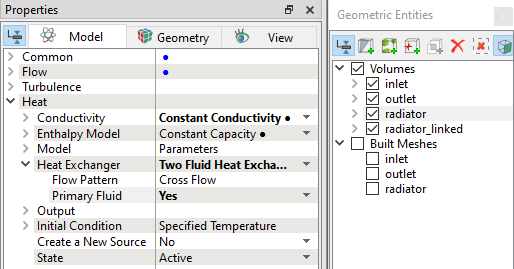
  2. Select Two Fluid Heat Exchanger from the Heat Exchanger drop-down list and select Yes for Primary Fluid under the Heat list.
 

Figure 7.324 - Two fluid heat exchanger - Air properties


Two fluid heat exchanger model - Coolant
  1. Select radiator_linked under Volumes in the Geometric Entities Panel.
  2. Select Two Fluid Heat Exchanger from the Heat Exchanger drop-down list under the Heat list.
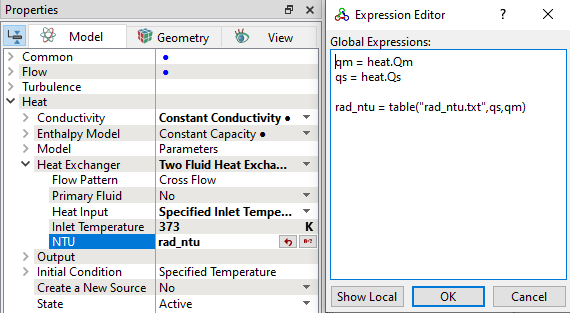
  3. Select Specified Inlet Temperature from the Heat Input drop-down list under the Heat Exchanger list.
  4. Enter the following under Heat Exchanger drop-down list of Heat module.

    • Inlet Temperature : 373 K

    • NTU : rad_ntu
  5. Click Edit Expression icon in the NTU under the Heat Exchanger drop-down list to open the Expression Editor dialog box.
  6. Copy and paste the expressions written under Description drop-down list for Global Expressions, see Figure 7.325.
  7. Click OK to close the Expression Editor dialog box.
 

Figure 7.325 - Two fluid heat exchanger - Coolant properties


´ Note:  The NTU is obtained from the heat rejection data of the heat exchanger, which is a function of primary and secondary fluid flow rates. An executable is available to convert the heat rejection data into NTU data.


Resistance model
  1. Select radiator under Volumes in the Geometric Entities Panel.
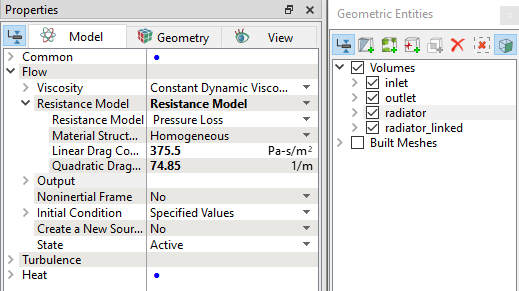
  2. Select Resistance Model from the Resistance Model drop-down list under the Flow list.
  3. Enter the following under Resistance Model drop-down list of Flow module.

    • Linear Drag Coefficient : 375.5 Pa-s/m2

    • Quadratic Drag Coefficient : 74.85 1/m
 

Figure 7.326 - Resistance model


  Note: The two Coefficients under Resistance Model are obtained from Q-DP Curve for air-side of the radiator. Refer to Porous Media Resistance Model for more details.


Copyright © 2023 Simerics Inc.,