|
You are here: Automotive Templates and Tutorials > Vehicle Template > Vehicle FEAF Tutorial > Animations
|
Animations
Animations are created by adding streamlines into the simulation. The steps for creating an animation are shown below:
- Click Select Modules in the Model Panel. The Physical Model Selection dialog box opens.
- Select Streamline under Available Modules list and click Add.
- Click Close to close the Physical Model Selection dialog box.
- Select Body_i1 and Grille from the Boundaries list in the Geometric Entities Panel.
- Select Yes for Release Particle under Streamline list in the Model Tab of Properties Panel.
- Enter 1000 as Number of Particles under Streamline list.
- Similarly, select Boundaries Mirrors, Shroud, front_intakes_i1, lights_front_i2, windows_i1 and select Yes for Release Particle and enter 200 as Number of Particles under Streamline list.
Streamlines overlay by Velocity Magnitude
- Select Streamline in the Geometric Entities Panel.
- Enter 0.01 for Line Thickness and 0.05 for Animation Time Size.
- Select all Boundaries under vehicle except vehicle_floor, vehicle_inlet, vehicle_outlet, vehicle_roof, vehicle_side1 and vehicle_side2 .
- Select Velocity Magnitude from the Derived Variables list in the Variable drop-down list of Results Panel.
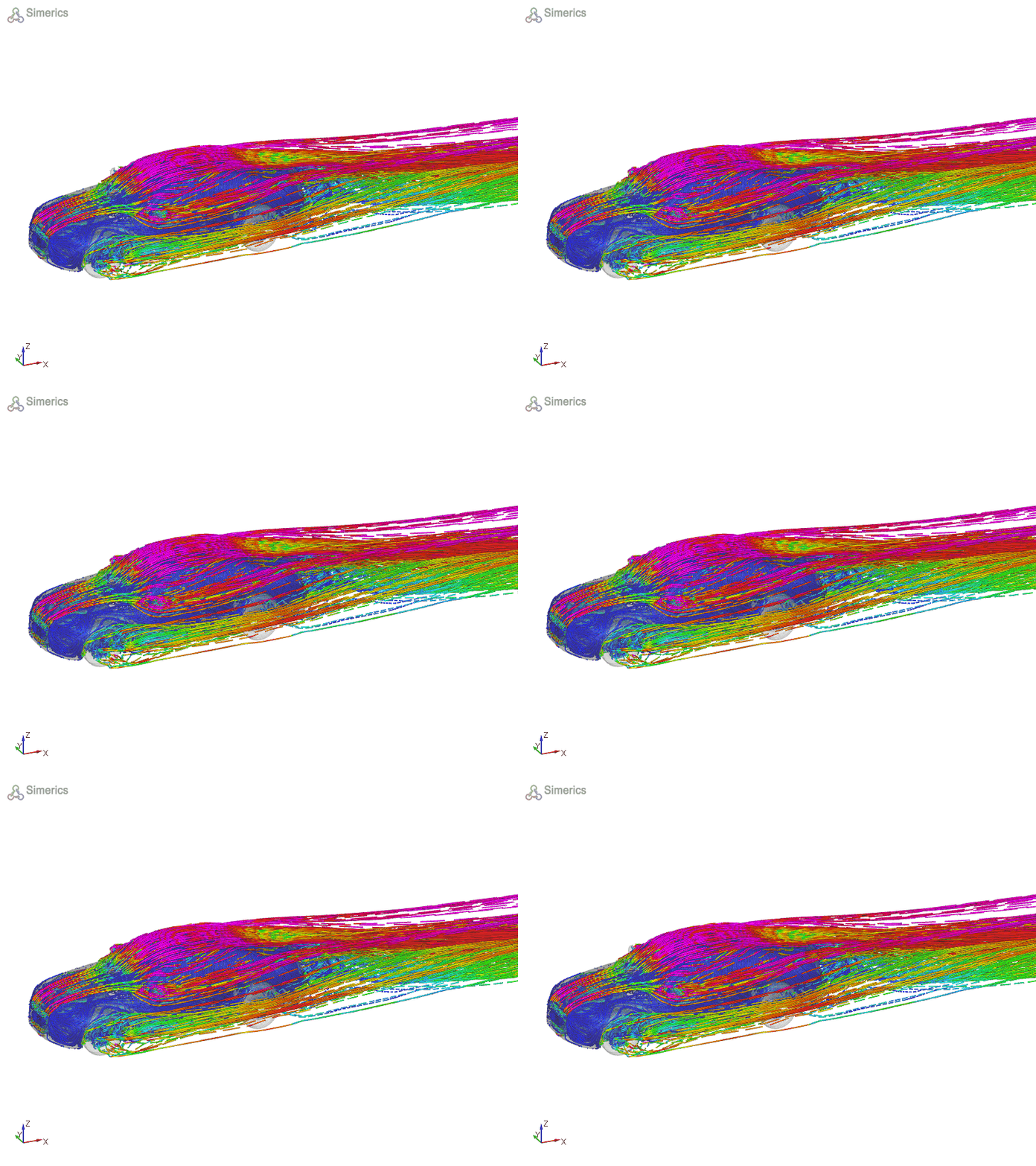
Figure 7.66 - Velocity magnitude streamlines