中文 English

Building the Mesh

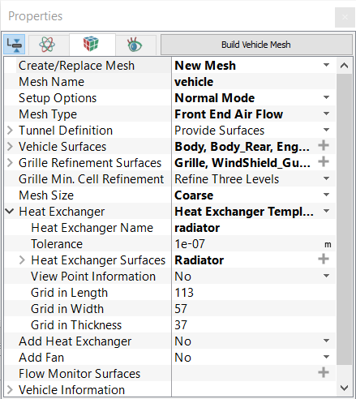
This section describes the step-by-step procedure for preparing the mesh for this simulation. The mesh is created using the Vehicle Template Mesher. The settings for the mesh generation are explained in the following steps:

Mesh parameter
  1. Select Vehicle Template Mesher in the Mesh Panel.
  2. Select Normal Mode from the Setup Options drop-down list in the Properties Panel.
  3. Select Front End Air Flow from the Mesh Type drop-down list in the Properties Panel.
  4. Select Wind_Tunnel under CAD Surfacesin the Geometric Entities Panel and click Add Surfaces icon for Tunnel Surfaces under Tunnel Definition in the Properties Panel.
  5. Select the CAD Surfaces Body, Body_Rear, Engine, Exhaust, Mirror_Cover, Mirrors, Shroud, Underbody, Underhood, front_intakes, lights_front, tyres_fr, tyres_rear, wheels_fr, wheels_rear, windows, windows_rear in the Geometric Entities Panel and click Add Surfaces icon for Vehicle Surfaces.
  6. Select CAD Surfaces Grille, WindShield_Guard and click Add Surfaces icon for Grille Refinement Surfaces.
  7. Select Coarse for the Mesh Size drop-down list.
  8. Select Heat Exchanger Template for the Add Heat Exchanger drop-down list. A set of parameters appear under Heat Exchanger.
  9. Specify radiator for Heat Exchanger Name and select CAD Surfaces Radiator in the Geometric Entities Panel and click Add Surfaces icon for Heat Exchanger Surfaces in the Properties Panel.
 

Figure 7.44 - Create mesh (Normal mode)

Refinement parameter

Perform the following steps to refine the surfaces further.

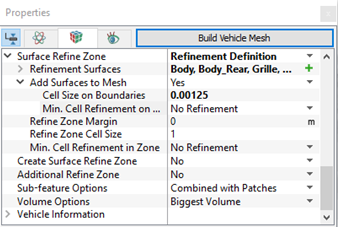
  1. Select Advanced Mode from the Setup Options drop-down list in the Properties Panel.
  2. Select Add Surface Refine Zone from the Create Surface Refine Zone drop-down list. A set of parameters appear under Surface Refine Zone.
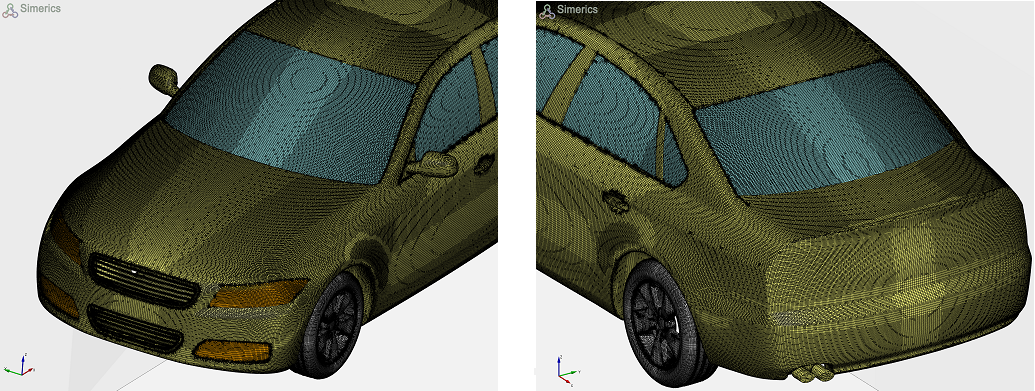
  3. Select CAD Surfaces Body, Body_Rear, Grille, Mirror_Cover, Mirrors, Underbody, WindShield_Guard, front_intakes, lights_front, tyres_fr, tyres_rear, wheels_fr, wheels_rear, windows, windows_rear in the Geometric Entities Panel and click Add Surfaces icon for the Refinement Surfaces in the Properties Panel.
  4. Enter 0.00125 for Cell Size on Boundaries under Add Surfaces to Mesh.
 

Figure 7.45 - Create mesh (Advanced mode)

Build Vehicle mesh
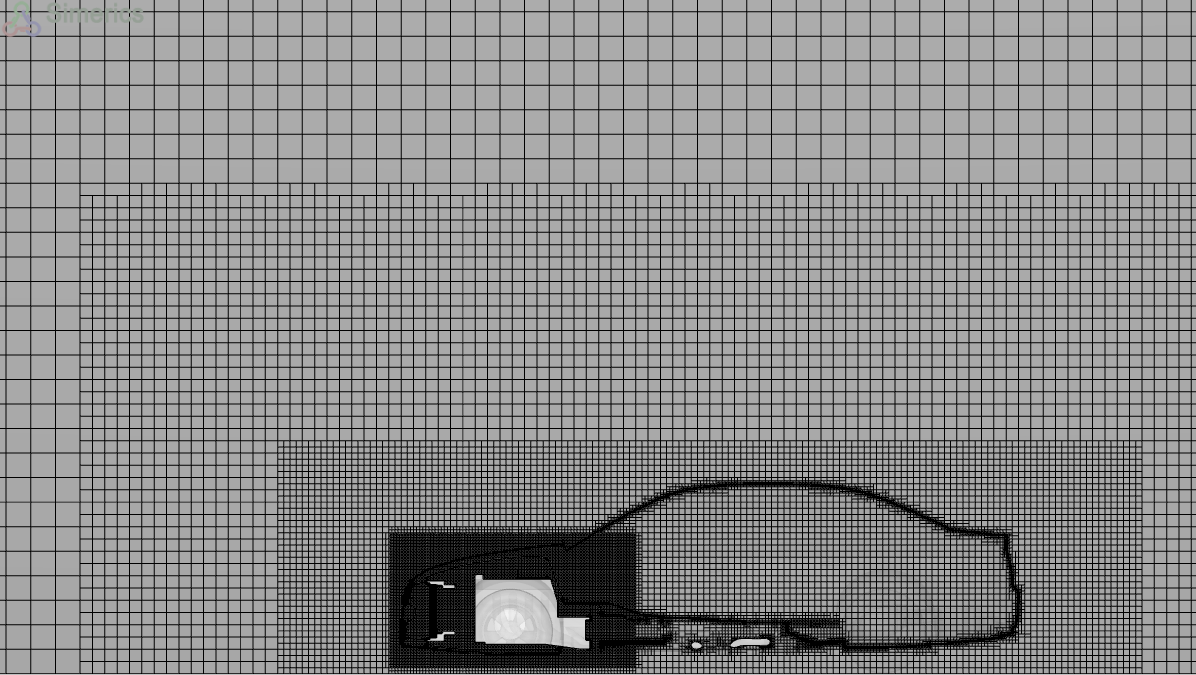
  1. Click Build Vehicle Mesh. A new mesh vehicle is created under Built Meshes in the Geometric Entities Panel.
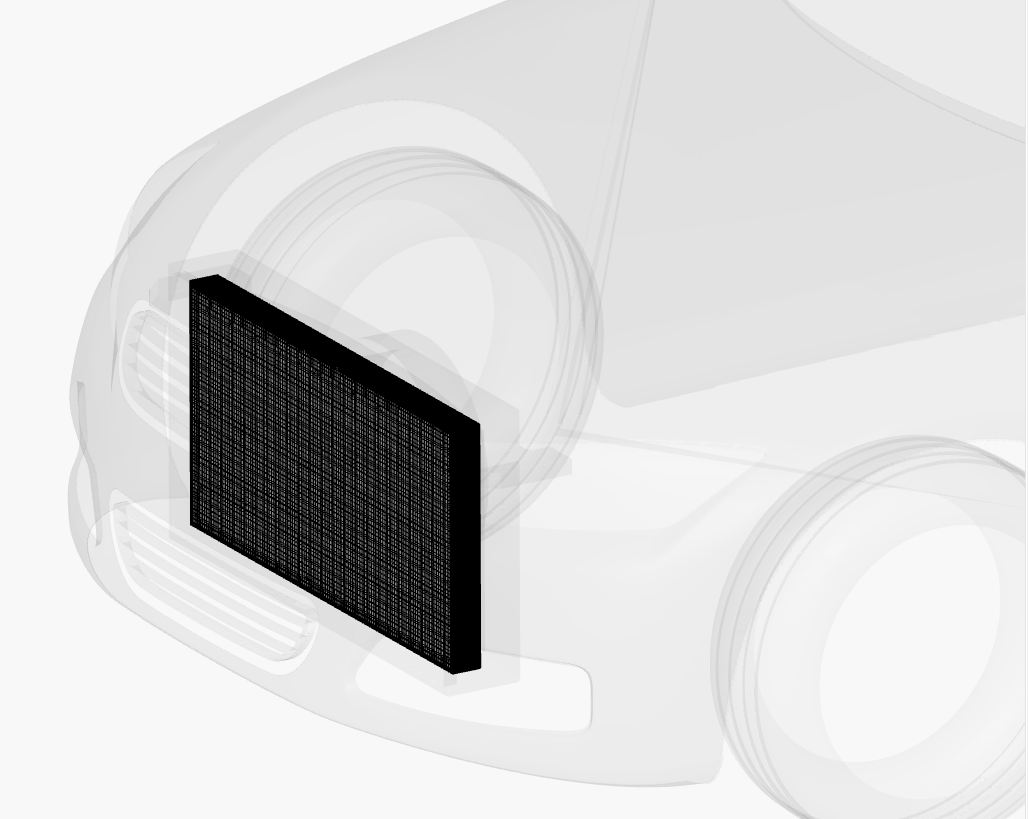
  2. The meshed volumes vehicle and radiator are generated under Volumes.


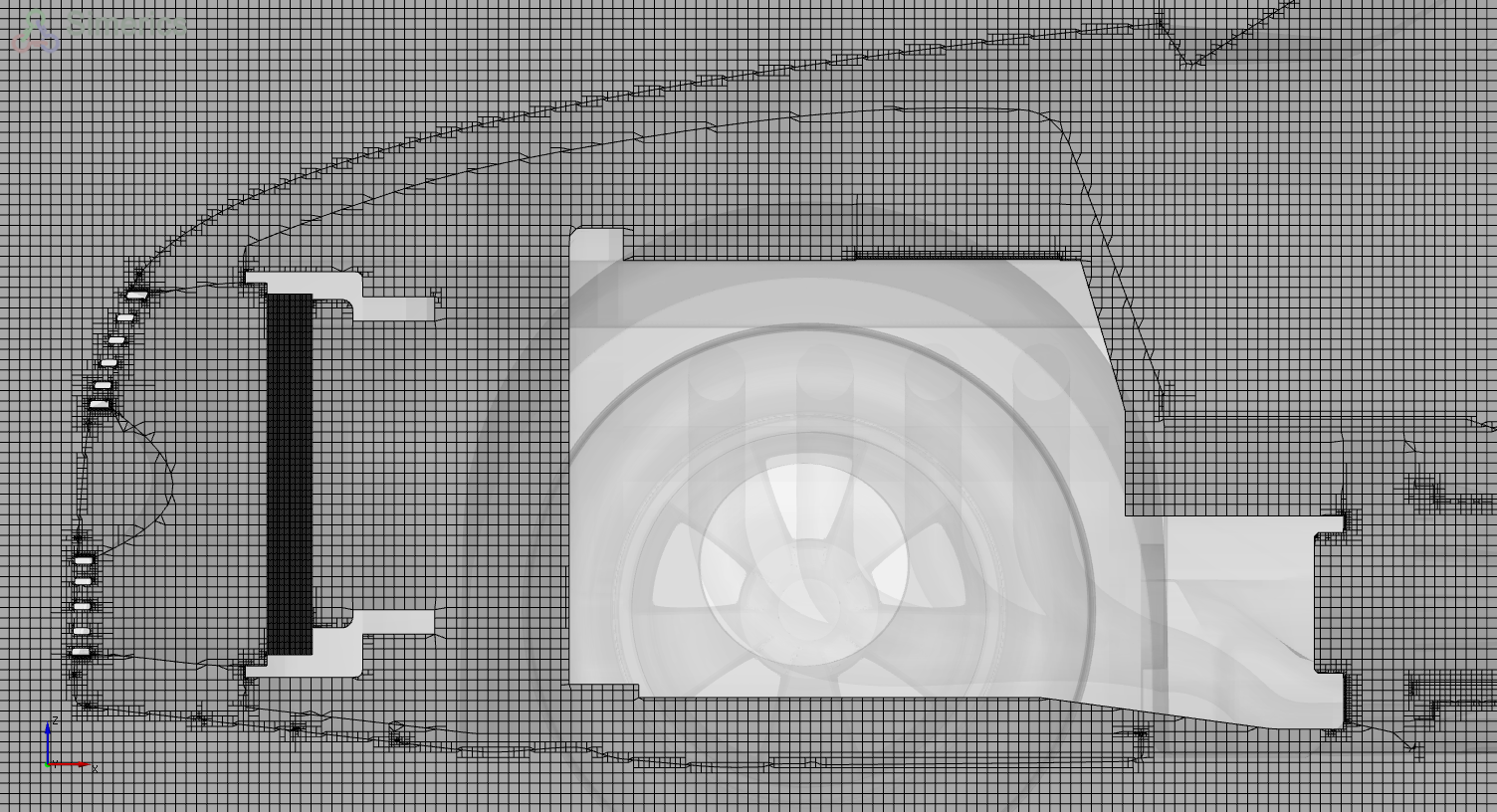
Figure 7.46 - Mesh sectional view


Figure 7.47 - Radiator mesh


Figure 7.48 - Mesh at CRFM region


Figure 7.49 - Surface refinements


Copyright © 2023 Simerics Inc.,