3.1 Menu and Toolbar
This section explains the GUI menu and Toolbar functions available in Simerics-MP/Simerics-MP+.
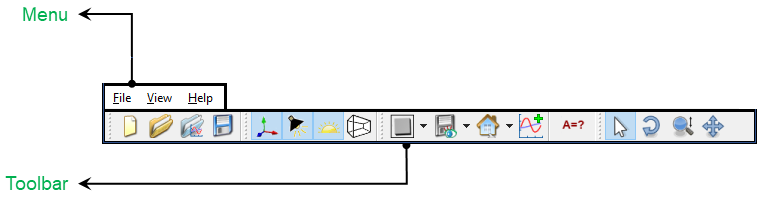
Figure 3.2 - GUI menu and Toolbar
3.1.1 GUI Menu
 Description
This menu provides pull-down options for frequently executed actions like file management (File), viewing (View), and information (Help).
File Menu
This menu provides options for file management
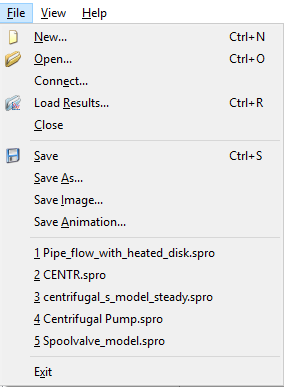
Figure 3.3 - File menu |
Name | Description |
|---|---|---|
| New | Start a new project | |
| Open | Open an existing project (using the browser) | |
| Load Results | Load existing simulations results | |
| Close | Close the active project | |
| Save | Save the active project | |
| Save As | Save under a new name | |
| Save Image | Save the Viewing Window Image, Including animated streamlines | |
| Save Animation | Save an animation from transient results | |
| Recent Projects | Open from a list of recent projects | |
| Exit | Exit Simerics-MP |
View Menu
This menu provides options for viewing.
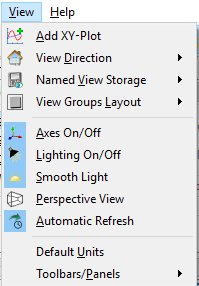
Figure 3.4 - View menu |
Name | Description |
|---|---|---|
| Add XY-Plot | Enables the creation of X-Y Plots windows in the Simerics-MP GUI. | |
| View Direction | Change the viewing direction | |
| Named View Storage | Save or restore a given view in a file (.sdsp) | |
| View Group Layout | Activate and organize multiple views | |
| Axes On/Off | Turn the coordinate axes on or off | |
| Lighting On/Off | Turn shading on or off | |
| Smooth Light | Smooth out the display of surfaces | |
| Perspective View | Turn perspective on or off | |
| Automatic Refresh | Automatic refresh | |
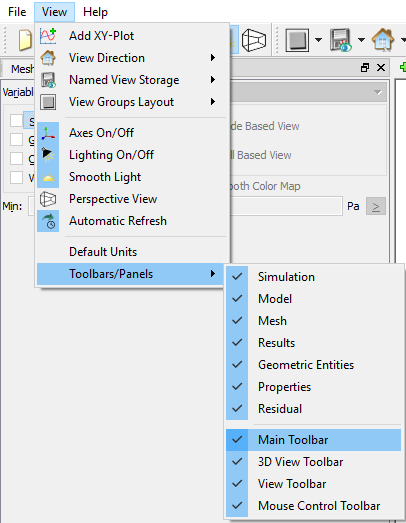
| Toolbars/Panels | Activates or Deactivates the toolbars and panels, see Figure 3.5 | |
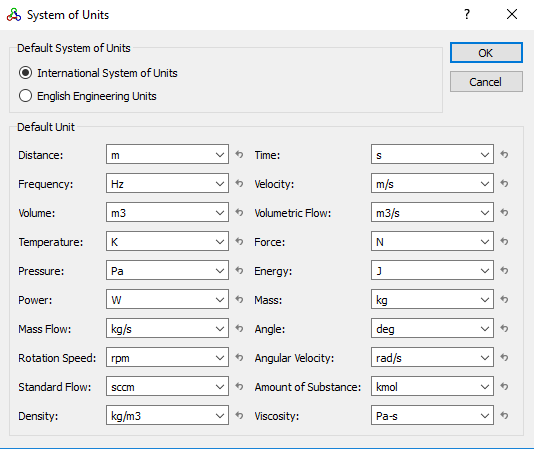
| Default Units | Launches the System of Units dialog box for variable of interest, see Figure 3.6 |
|
|
Help MenuThis menu provides information about Simerics-MP/Simerics-MP+.
|
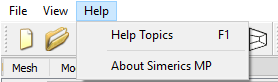
Figure 3.7 - Help menu |
3.1.2 Toolbars
Description
The Toolbar provides quick links to options available in Simerics-MP/Simerics-MP+.
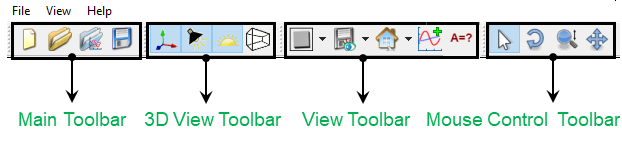
Figure 3.8 - Toolbar
Main Toolbar
The Toolbar options are provided in the table below:
| Icon | Name | Description |
|---|---|---|

|
New | Start a new project |

|
Open | Open an existing project (using the browser) |

|
Load Results | Load existing simulations results |

|
Save | Save the active project |
3D View Toolbar
The 3D View Toolbar options are provided in the table below:
| Icon | Name | Description |
|---|---|---|

|
Axes On/Off | Turn the coordinate axes on or off |

|
Lighting On/Off | Turn shading on or off |

|
Smooth Light | Smooth out the display of surfaces |

|
Perspective View | Turn perspective on or off |
View Toolbar
The View Toolbar options are provided in the table below:

 ,
,  ,
,  ,
,  ,
,  ,
, 


 , Front View
 , Back View (-Z)
 , Right View (+X)
 , Left View (-X)
 , Top View (+Y)
 , Bottom View (-Y)


Mouse Control Toolbar (Icon)
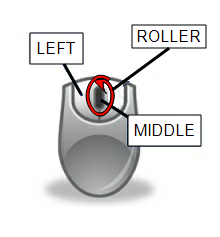
Figure 3.9 - Mouse control toolbar
Mouse operations are described below:
| Icon | Name | Description |
|---|---|---|

|
Select | Left: Selects Middle: Rotate Roller: Zooms |

|
Rotate | Left: Rotates Middle: Rotate Roller: Zooms |

|
Zoom | Left: Zooms Middle: Rotate Roller: Zooms |

|
Pan | Left: Pans Middle: Rotate Roller: Zooms |
|
Note: The right-click on the mouse, shows all the four mouse controls (Select, Rotate, Zoom, Pan). |