|
You are here: Optimization Module and Tutorial > Optimization of 2D Shape Tutorial > Post processing > Animations
|
Animations
Animations are created from saved .sres files, The Result Saving Frequency option in the Simulation Panel is set to a small value (say 5 or 10) before running the simulation to obtain better animations. The steps for an animation are shown below:
- Click Load Results in the Simulation Panel.
- Select the required result file in the ensuing Load Results dialog box, click Open.
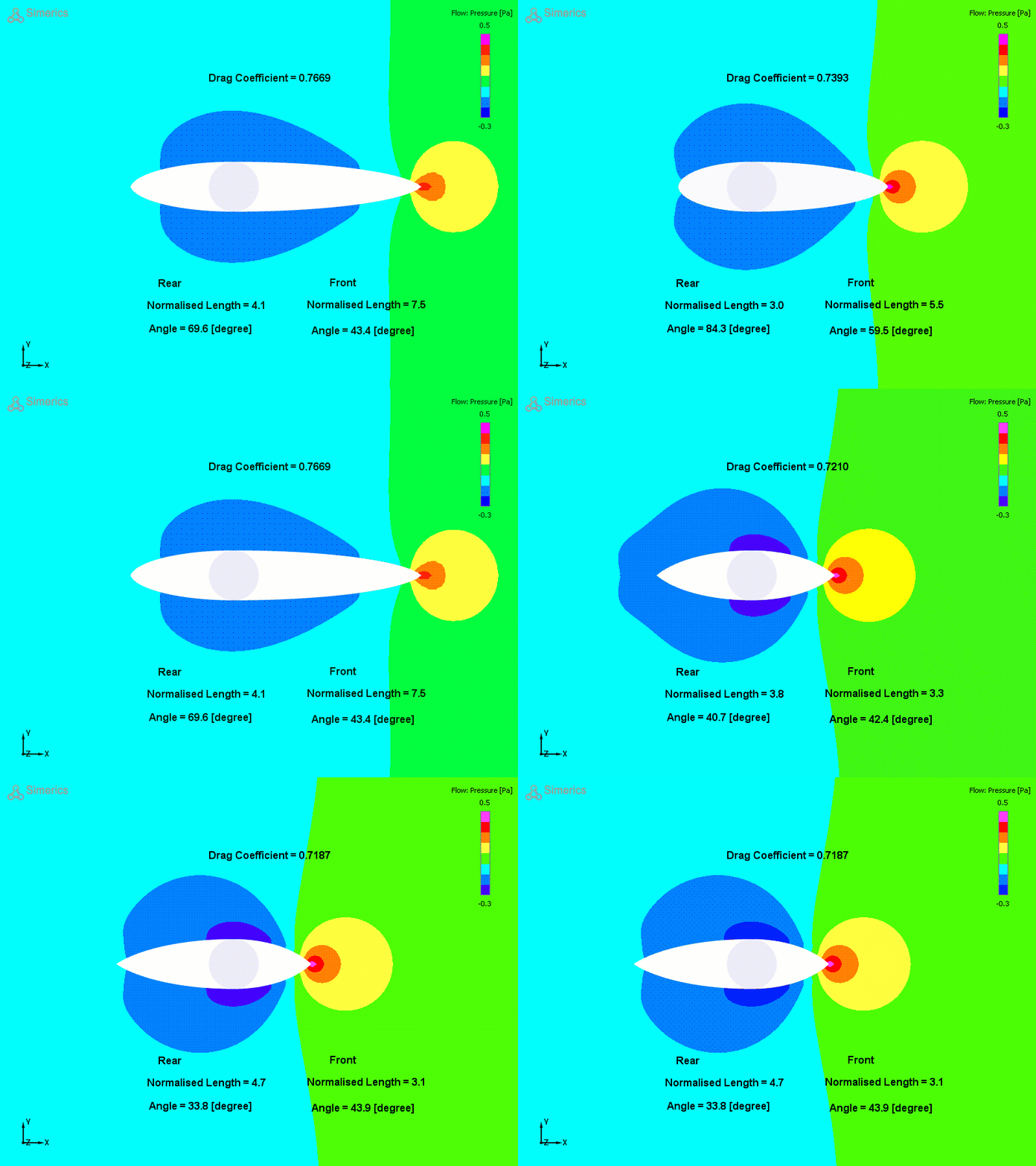
Pressure Distribution with change in 2D Shape
- Select annulus from the Volumes list in the Geometric Entities Panel.
- Select Pressure from the Variables list under Variable drop-down list in the Results Panel.
-
Refer to the Pressure Contour on how to add Text labels to the Display Panel, as shown in the Figure 9.44.
-
Select all CAD Surfaces, enable Outline in the Results Panel.
- Select File > Save Animation, to save animation.
- Select the result file for each optimization run for animation data in the Select Result Files dialog box.
- Under File name, give a suitable name for the .gif animation in the Select GIF File for Movie, PNG File for Frames dialog box.