12.6 XY-Plots
Many quantitative results of the simulation can be drawn using the X-Y Plots. Primary, Derived, Integrated, and User Defined variables can be plotted over desired Boundaries/Volumes/Points. For more information refer to Plot Panel.
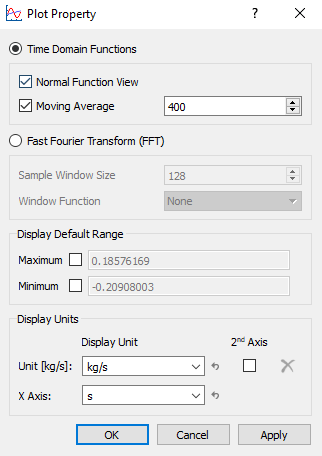
The settings related to plots are available in the Plot Panel as shown in Figure 12.23. Additional settings are available in the Plot Property dialog box invoked by selecting the  icon in the Plot Panel as shown in Figure 12.24.

To Combine Entity Data
- Select Combine Entity Data into a Single Curve
 icon in the Plot Panel.
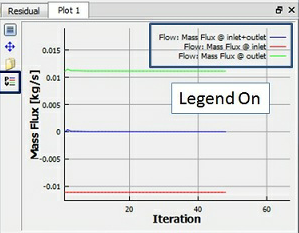
 - Figure 12.25 shows the net mass flux for two different Boundaries.
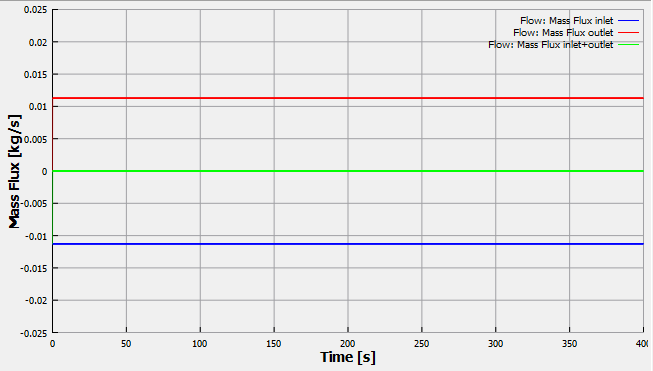
Figure 12.25 - Combine entity data into a single curve
To display in Different Units
- Select icon to open the Plot Property dialog box.
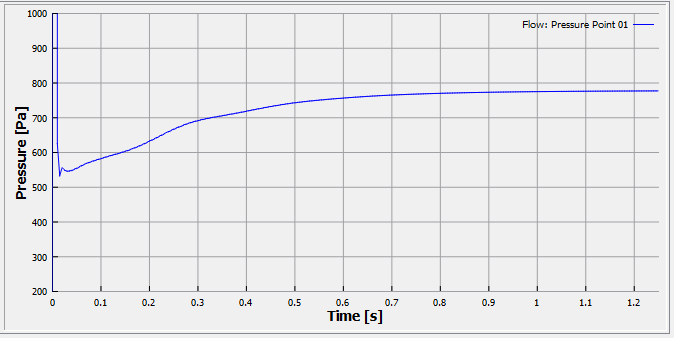
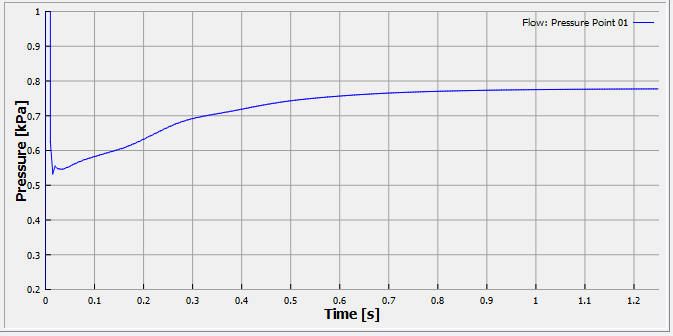
- The Unit and the axis options under Display Units are used to change the unit of the variable.
|
Figure 12.26 - Default unit - Pa |
Figure 12.27 - Unit - kPa |
To display plot in frequency domain using Fast Fourier Transform (FFT)
- Select icon to open the Plot Property dialog box.
- The Fast Fourier Transform (FFT) is switched on to display a Fourier Transform of the data. The additional parameters Sample Window Size and Window Function can also be specified.
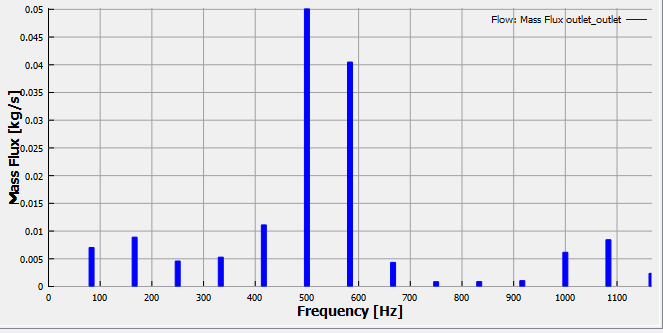
| ´ | Note: FFT only plots the results within the last sampling window defined by Sample Window Size. It is recommended to use the dominant period of the model (if it has one), for example, the number of time steps per revolution of a pump as the sampling window. |
Show / Hide Legend
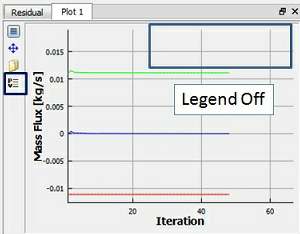
- The legend in the plot may be toggled on or off using the Show / Hide Legend
 icon in the Plot Panel.
|
|
| Note: The moving average is used to obtain the average behavior over a user defined sampling interval for the entire simulation range. This is activated under Plot Property dialog box > Moving Average. The value in the Moving Average is the sampling interval, defined as either the number of preceding time steps (for transient simulation) or iterations (for Steady-state simulation), for calculating the average. |
To Copy Data
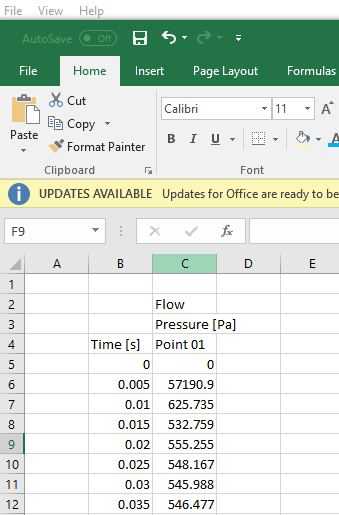
- Select Copy Data
 icon in the Plot Panel to copy the data from a plot and paste them in a buffer sheet.
To zoom in/out and pan the plot
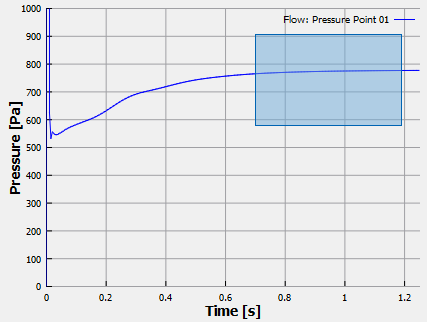
Similar to the mouse operation in graphic display window, user can roll the Middle Mouse Button to zoom in/out the plot, and press both Left and Right Mouse Button at the same time to pan the plot. Unlike in the Display Panel, the mouse icon does not change during these operations. User can also use lasso to zoom the plot as follows:
- Left click and drag on the plot to view the data closely as shown in Figure 12.32
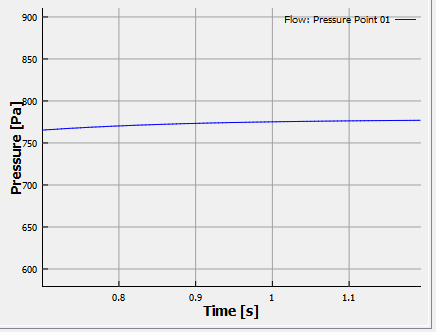
- The Lasso expands a plot about the selected rectangle. The image should be similar as shown in Figure 12.33. (To return to the full range, Double-click on the plot with the Left Mouse Button.)
|
|
|
Plot User Defined Variable
To plot user defined variable using XY-Plots, input the variable in the Expression Editor before the simulation.
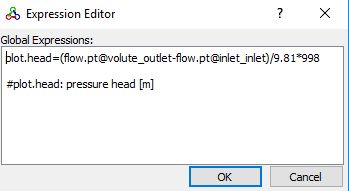
For example, to plot the head for a centrifugal pump, input the following in the Expression Editor:
plot.head=(flow.pt@volute_outlet-flow.pt@inlet_inlet)/9.81*998
#plot.head: pressure head [m]
Follow these steps to plot a User Defined Variable:
- Select Common in the Model Panel.
- Click Add XY-Plot
 icon in the toolbar.
 - Click Click for Variable List
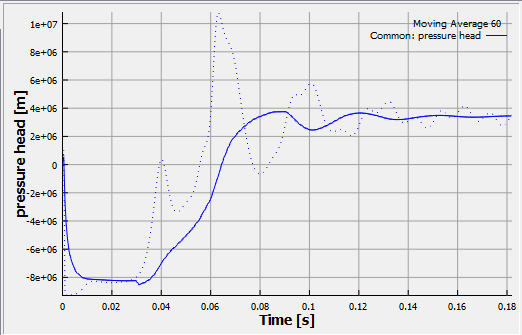
 icon in the Plot Panel, select pressure head under Common.
 - Click Plot Selected Variables
 icon in the Plot Panel.
|
Figure 12.34 - User defined variable-Head |
Figure 12.35 - Pressure Head plot |